How to Add an Unsatisfactory Approver Number (if Applicable)
Use the following steps to add an Unsatisfactory Approver Number:
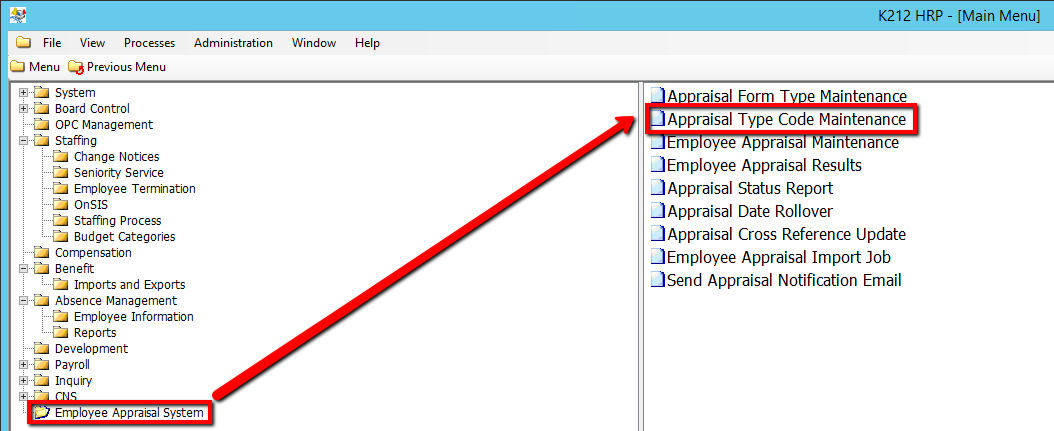
1. Click on Employee Appraisal System.
2. Click on Appraisal Type Code Maintenance.
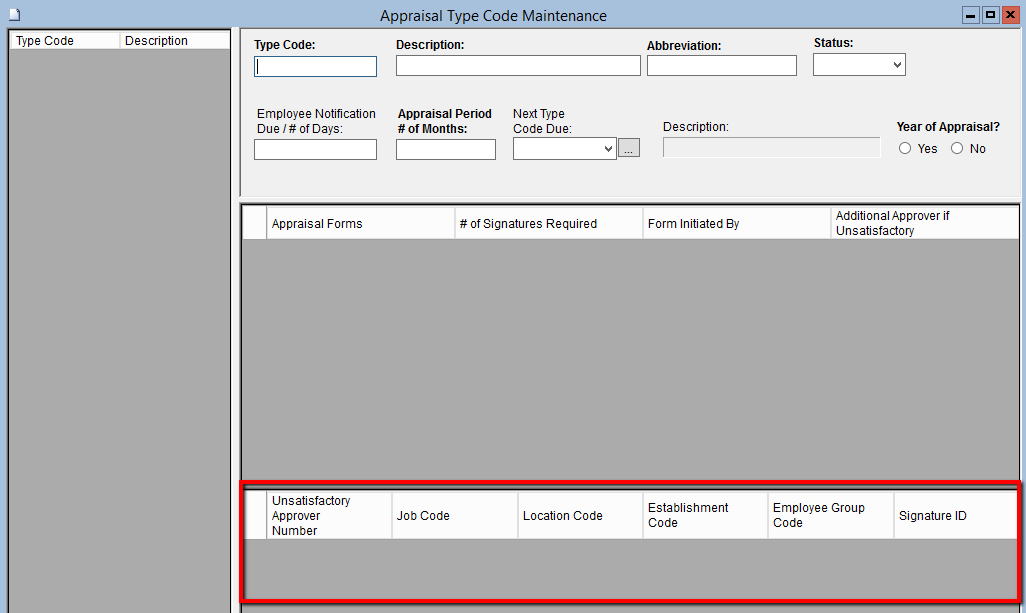
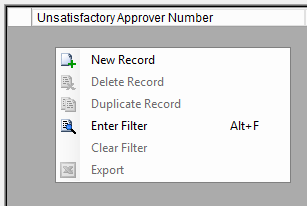
3.. Right click the grey grid under the Unsatisfactory Approver Number column and select a New Record
4. Enter an Unsatisfactory Signature Number
This field defines the order in which the appraisal should be distributed for unsatisfactory ratings. The appraisal will first go to the supervisor defined in UNSATISFACTORY_ID = 1, and once signed by that supervisor, proceed to the supervisor defined in UNSATISFACTORY_ID = 2 etc. The user can only enter a value of 1 or 2.
5. Enter a Job Code
If Signature ID is not used, enter this field along with Location Code, Establishment Code and Employee Group Code to specify which OPC Position is responsible for this signature. If all fields in the record (including Signature ID) are entered, the Signature ID will be prioritized / used.
6. Enter a Location Code
If Signature ID is not used, enter this field along with Job Code, Establishment Code and Employee Group Code to specify which OPC Position is responsible for this signature. If all fields in the record (including Signature ID) are entered, the Signature ID will be prioritized / used.
7. Enter an Establishment Code
If Signature ID is not used, enter this field along with Job Code, Location Code and Employee Group Code to specify which OPC Position is responsible for this signature. If all fields in the record (including Signature ID) are entered, the Signature ID will be prioritized/used.
8. Enter an Employee Group Code
If Signature ID is not used, enter this field along with Job Code, Location Code and Establishment Group Code to specify which OPC Position is responsible for this signature. If all fields in the record (including Signature ID) are entered, the Signature ID will be prioritized/used.
9. Enter a Signature ID
This field identifies the employee id of the individual who needs to sign the appraisal. If Signature ID is not used, the remaining fields need to be defined to specify the position of the individual who is required to sign the appraisal. If all fields are entered including Signature ID, then Signature ID will be prioritized. Signature ID must belong to an existing employee ID.
10. Click the Save button to save the edits.
