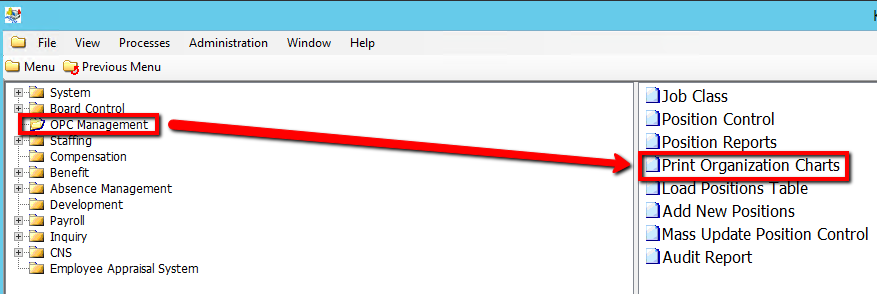
How to Print Organizational Charts
This screen is used to add modify and delete development appraisal information for an employee. Any appraisal information imported from a third party application is also available on this screen to view and modify.
Use the following steps to Print Organizational Charts:
1. Click on OPC Management
2. Click on Print Organization Charts
.png)
3. Enter an As of Date value
4. Enter a Start from Level value
5. Enter a Print Levels value
6. Select a Location value
7. Select a Location Type value
8. In order to get specifics for each level, Right-click the grey grid below the Level column and Select New Record
.png)
9. Enter the relevant information within the grid. Double-click on a grid-column to modify the value (Consult the user guides for more information about each field)
10. Click on the Submit button to generate the report
.png)