Reports
Most (but not all) background processes produce reports.
Viewing Reports From Your Completed Processes
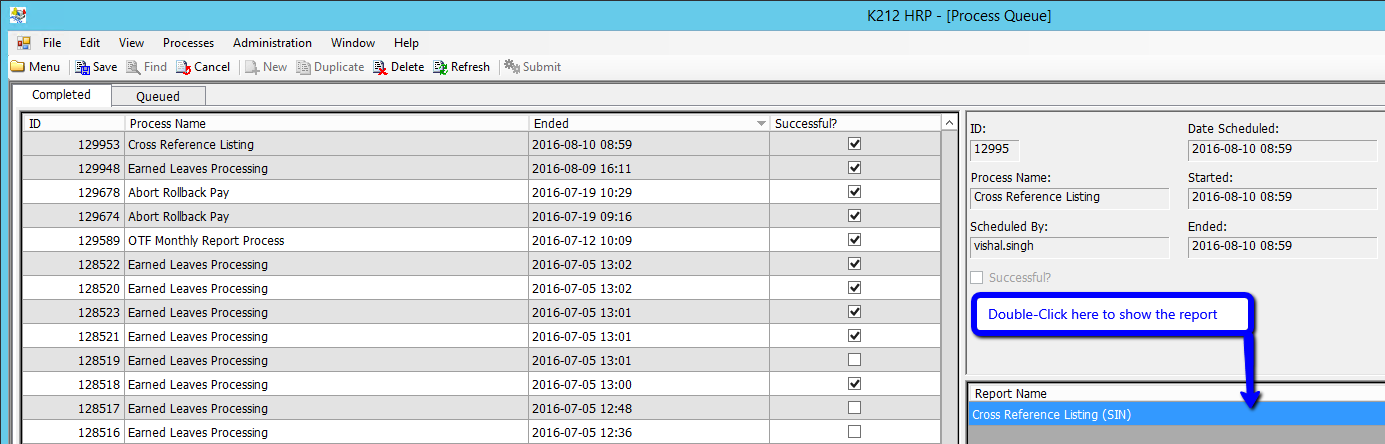
Any reports generated by a background process are listed on the Completed Processes screen (refer to the illustration below).
To access a report, double click on the report title.
Viewing Other Reports
The K212 HRP report viewer can also be used to view Crystal Reports (ie. .RPT files) that have been saved on your network by other users. These reports do not necessarily have to have been created through K212 HRP.
Select View > Report Viewer on the Menu Bar and a blank Report Viewer screen will open. Next click the Open button in the top right hand corner of the screen to open the report of your choice.
Note: You will only be able to open reports using this method if you have been granted access to the network drive and folder that contain the report.
The report displayed can also be printed or exported by clicking on the Print or Export/Save buttons.
Exporting Reports
To export a report, click on the “Export Report” button.
.png)
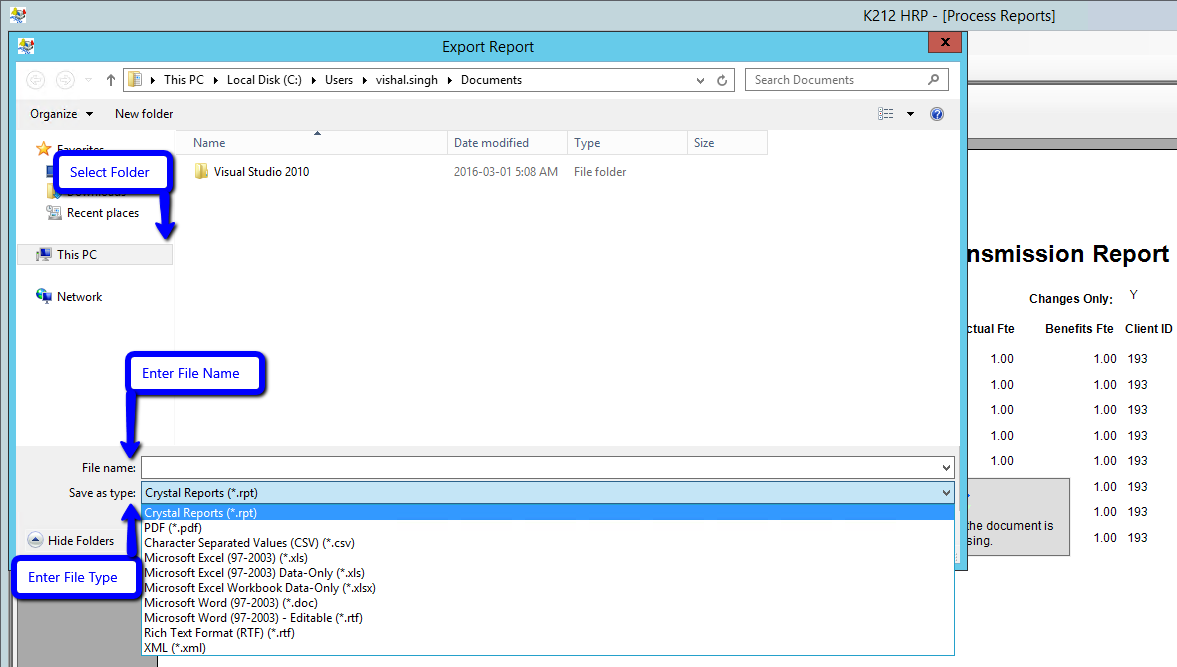
The pop up window below is displayed after clicking on Export. Select a folder in the “Save in” drop down list, enter a file name and select a file type (eg. “Adobe Acrobat (*.pdf)”, “Microsoft Excel (*.xls), etc.) from the drop down list. Then press Save.
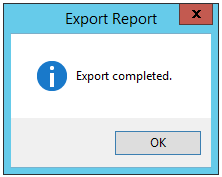
Once saved, the message below is displayed:
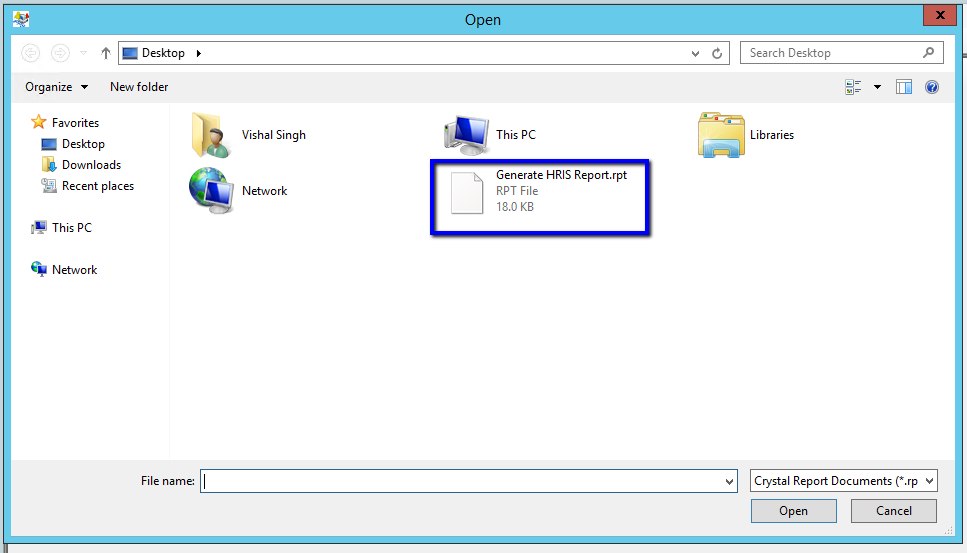
To view your exported report, go to the file location where you saved it to, select the file that you saved and double click to open the file.
Example:
Report Look and Feel
Reports in K212 HRP generally all have a similar ‘look and feel’. There are some exceptions where a specific layout is required for a report due to it’s nature (eg. the T4 reports is designed according to requirements by Revenue Canada).
The following example illustrates the layout of a typical K212 HRP report.
|
K212 HRP BOARD NAME
Employee Absence Status Report From 2005/01/01 to 2005/12/10
Absence Group: ESAB - Eng. Sec Abs Absence Account: SLCU - Sick Leave
User ID Page 1 of 1 2005/12/19 15:19 2005/12/19 15:19 |
Page Header
A header appears at the top of the report and contains the following:
•“K212 HRP” (left justified)
•Your Board Name (right justified) – taken from the Site Configuration screen
Report Title
All report titles are centered below the header in Arial 12pt.
From and To Dates
The “From” and “To” dates appear below the Report title and together define the period applicable to the data in the report.
From and To dates are not applicable for all reports.
Group Heading
Group headings are used to separate the report data into groups (eg. all data for a specific Employee Group). Group Headings are followed by a colon (:).
Group headings are not applicable for all reports.
Column Headings and Data
Column Headings and Data have the following features:
•The standard default font is Arial 9.75pt
•Headings are aligned with the data
•Columns containing text are left aligned
•Columns containing numeric data are right aligned (Note: Employee ID, Social Insurance Number and phone number are left aligned since these ‘numbers’ are not used for arithmetic)
•Columns that contain 3 characters or less are centered
Row Spacing
Spacing between each row of data within the report is approximately 3 points.
Page Footer
A Page Footer appears at the bottom of each page and contains the following:
•User ID of the person who ran the report (left justified)
•Page Numbering in format Page x of y (centered)
•Date the report was run (right justified)