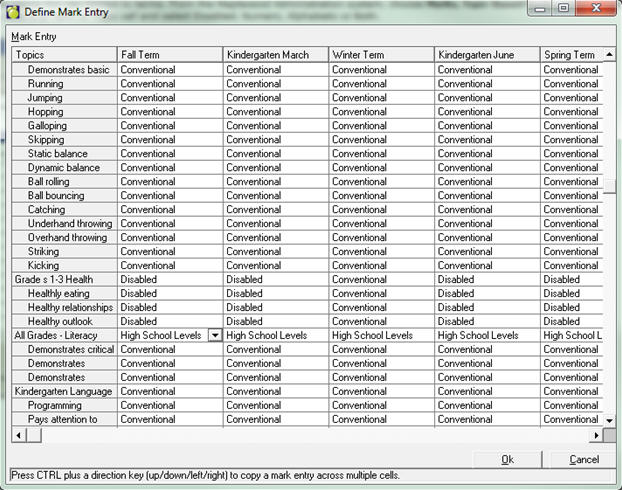
Defining Mark Entry used to be under topics but was limited to terms. From the Maplewood Administration system, choose Marks, Topic-Based Marks, Define Mark Entry. To assign a Mark Entry type, click in a Term or Topic cell and select Disabled, Numeric, Alphabetic or Both.
Select the desired Letter Grade Group name from the list, for the particular term and topic combination.
Shortcuts/Notes:
1. By default any newly added term or topic is set to Disabled.
2. To change all topics under a term all at once, click on the name of the term in the column header and select the desired Letter Grade Group from that list. This will change all cells beneath it.
3. As shown in the screen shot below (see mouse-over tip at the bottom of the Define Mark Entry window), to change all terms beside a particular topic, first change one cell, then highlight that cell, hold down the CTRL key and hit an arrow key to copy that mark entry definition across.