There have been significant changes to the current office setup for topic based marks. The below describes each area in detail, with a table of identifiers that the Ontario Report Card Program will be looking at when performing the printing process. Although the changes occur for both Elementary and Secondary systems, the most significant changes within the setup will appear in the Elementary system. This is primarily due to the introduction of the Ontario Progress Report.
There are currently 3 methods in which terms and topics can be assigned to a class (homeroom term and topic association must be done via the wizard). The first 2 options would be used more often in an elementary school.
1. At the Course Level (File, School Setup, Courses)
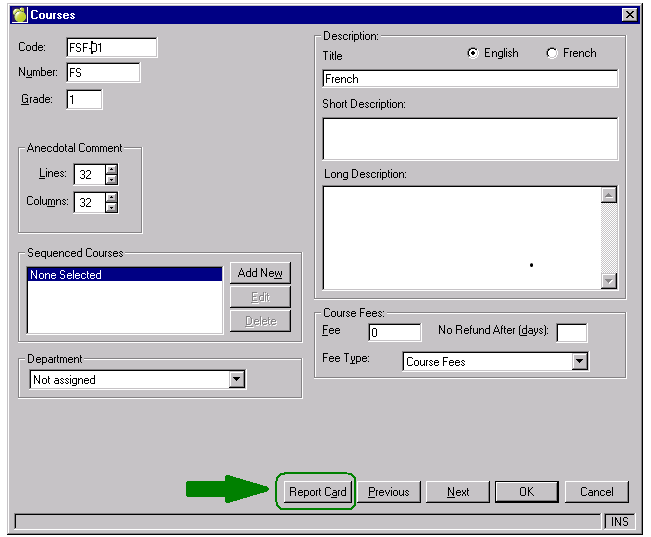
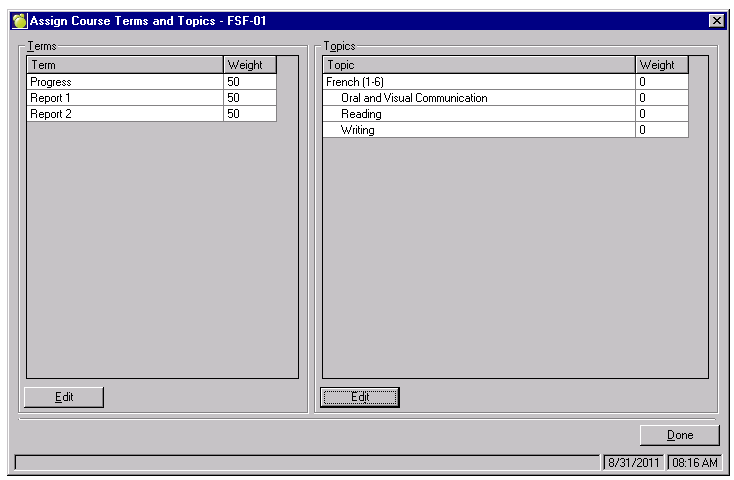
Users can choose to set up the define terms and topics at the course level via the 'Report Card' button. The benefit of assigning the terms and topics here, is that each CLASS created after this point will have the same terms and topics associated with it (user would not have to add/edit the terms and topics at the class level - or run the wizard).
Once this has button has been selected, the following screen will appear
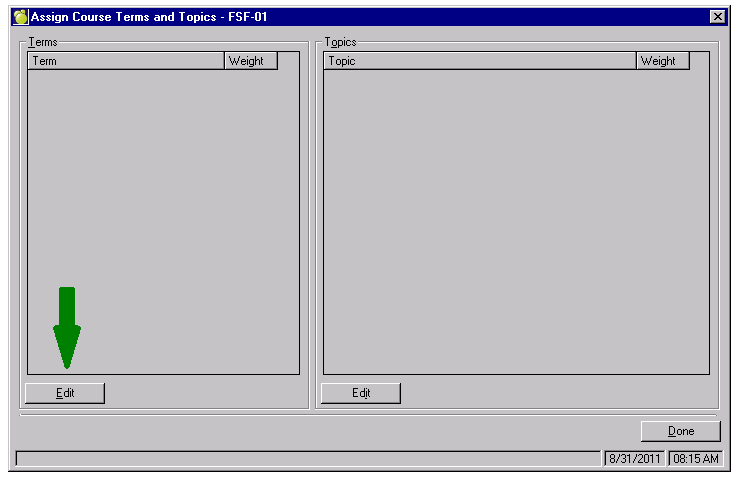
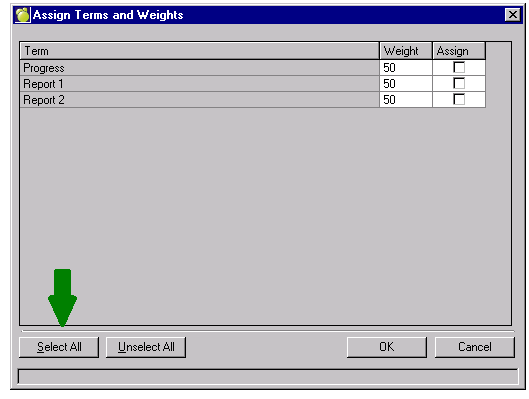
Selecting the Edit button for terms allows the user to select the terms associated to that course.
Once the terms have been associated with the course, the user can then go ahead and select the Topics associated with that course.
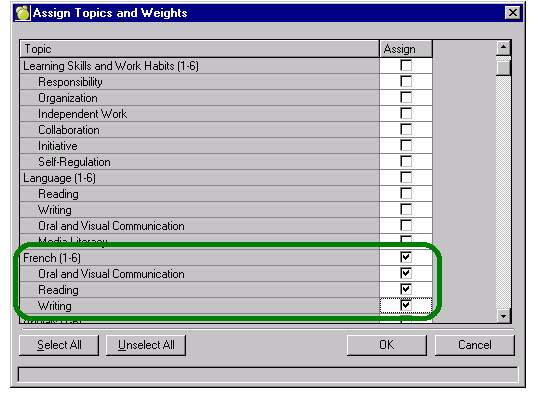
Once the assignment has been completed the report card option will include all options selected on the view (within the report card button). When assignment has been completed, select Done (this will bring you back to the Edit Course Information area.
2. At the Class Level (File, School Setup, Classes)
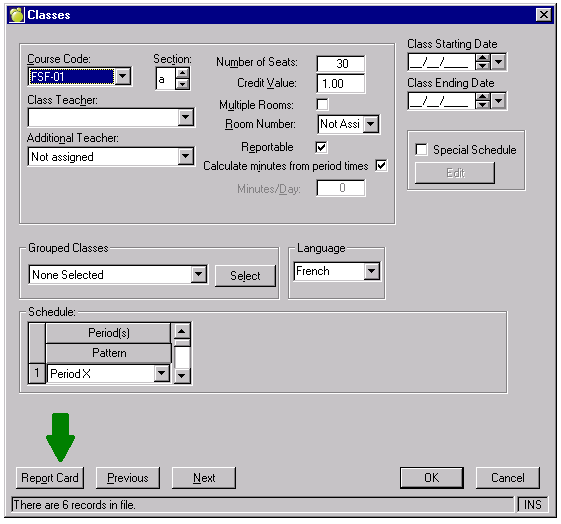
The same can be done via the Classes file. Users would use this option when a few classes deviate from the normal setup.
3. Wizard (Marks, Topic Based Marks, Wizard)
Follow the easy-to-use Report Card Wizard to set up Terms and Topics as required by the Grade 1-6, Grade 7-8 and Grade 9-12 Ontario Provincial Report Cards. Choose Marks/Grades, Topic-based Marks, Wizard.
Note: When an Ontario Private School runs the Wizard, it will generate the following message: "Is your school printing the Ontario Provincial Report Cards?
If you choose 'Yes' the program will verify the current setup to ensure the required terms and topics are defined"
If you select 'Yes', but have already set up your own Terms and Topics, the program will add the terms and topics required for Maplewood's Ontario Report Card.
If you select No, but have your own Terms and Topics that are checked reportable, the program will not create new terms and topics, but will allow you to use your own to be assigned to homerooms or classes.
Secondary Schools
The Wizard will automatically run and create all the terms and topics required for reporting for the Ontario Provincial Report Card. Should you already have Terms and Topics defined, the wizard will remove only those terms and topics that were associated with the previous version of the Provincial report card. Any Terms and Topics that fall outside this realm will remain in the pre-defined list. Users can select the Advanced Set-up option to assign these non-standard terms and topics to specific classes.
Once the Wizard has run completely, users should then set the correct start and end dates (for your school) for each reporting period (For example, the 'Semester 1, First' reporting period start and end dates may be Sept. 6 - Nov. 18 ). This can be done by selecting Marks, Topic Based Marks, Define Terms, highlight one of the terms, and select edit.
Elementary Schools
The wizard setup for elementary schools is more in depth as schools have the ability to assign all terms and topics to the homeroom teacher, or to a specific class or classes. Due to the flexibility of this assignment, users will need to select the homerooms and/or classes that they wish to setup first, then choose the appropriate terms and then the appropriate topics (via checkboxes) before selecting the assign button. At the end of each assignment, the user will be asked:
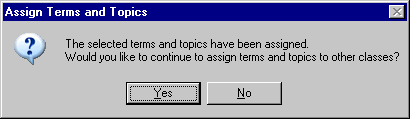
Select 'Yes' and it will bring you back to the select Homerooms/Classes screen.
Select 'No' and the Wizard program will close.
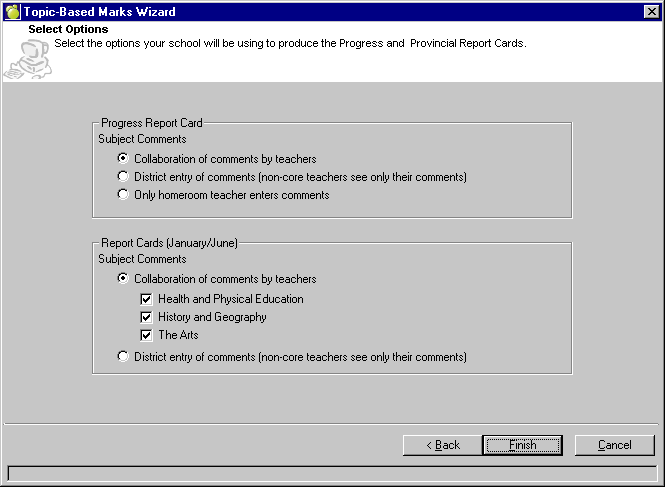
With the introduction of the Progress Report, teachers are required comment in one space collaboratively. The collaboration of comments are also required on the Ontario Provincial Report Card for 'The Arts', 'Health and Physical Education' and for Grade 7/8 'Geography and History'. To accommodate a variety of setups for this process, Maplewood has added a comment screen setup to the Wizard.
Progress Report Card
Collaboration of Comments by teachers: This would open up all topics to unlimited entry. Users will see all other entries (in connectEd, Individual Achievement) when they are entering their own comments. Users will NOT have the ability to edit other users’ comments. Comments will appear, in the collaborative comment area, in the order in which the subjects appear on the report card. No attempt will be made by Maplewood to add a subject title to the beginning of each comment. Users may choose to do this as directed by their school or board.
Distinct Entry of Comments (non-core teachers see only their comments): This option would be chosen for those schools wishing to have each teacher enter a comment for each subject, and only be responsible for their comment. If this option is chosen, Maplewood will automatically concatenate the comments (so that they will appear as one big comment) when the printing of the report card occurs.
Only Homeroom Teacher Enters Comments: The full length of the allowable comment area will be assigned to the Language topic.
Report Cards (January/June)
Collaboration of Comments by teachers: This area refers specifically to The Arts, Health and Phys. Ed, and History and Geography areas. The format would be the same as that of the Progress Report, but only for the specific subjects selected. Users can select all 3 subject areas, or just one (or two).
Distinct Entry of Comments (non-core teachers see only their comments): This area refers specifically to The Arts, Health and Phys. Ed, and History and Geography areas. The format would be the same as that of the Progress Report.
Users will notice significant change to the Terms and Topics display. Each option now has the ability to filter each search performed. Users will utilize this feature most within the Define Topics area (Elementary) where the number of topics defined has doubled (one set for Grade 1-6 and one set for Grade 7-8). Note: Previous year’s ministry defined terms and topics will be removed from the list once the wizard has been run. Maplewood will not be removing any user added entries to either of these tables. The removal of these entries will be based on the identifier assigned to the term/topic.
Define Terms (Marks, Topic Based Marks, Define Terms)
Users have the ability to filter the display of terms based on title, description, identifier, start date or end date.
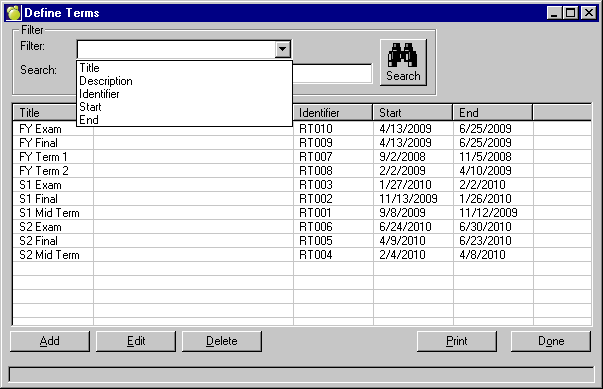
When users select the edit option, the ability to see which homerooms and/or classes have been assigned to this specific term. The display also includes other pertinent information such as Room#, Designation, Title as well as whether the room has been designated as a homeroom. Users currently have the ability to print this. Future enhancements to this program will allow users to add, edit and delete information with backwards compliance to other programs involved.
Define Topics (Marks, Topic Based Marks, Define Topics)
Edit Topics: Similar to the Define Terms, the Define Topics area also has a filter area and a tab that offers a list of all homerooms/classes that have been associated to the specific topic.
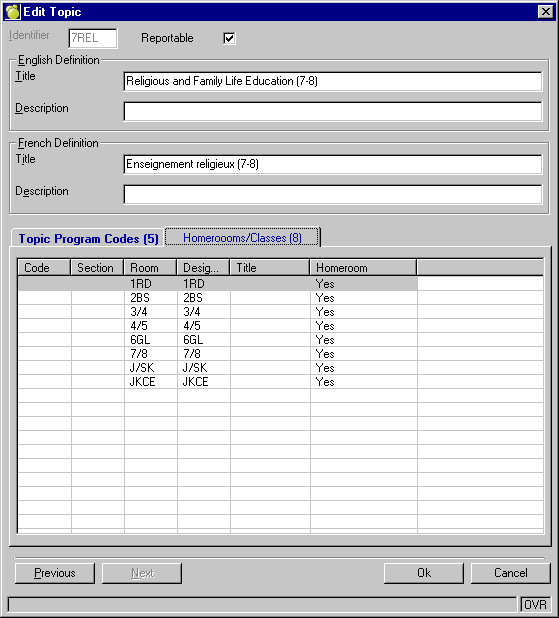
There is also an additional tab called 'Topic Program Codes'. This area allows the user to associate specific Topic Program Codes (IEP, ESL/ELD, and NA) to a specific Term and Topic. The addition of the Topic Program Code is discussed next in this document.
Topic Program Codes(Marks, Topic Based Marks, Define Topic Program Codes)
The Topic Program Code (pre- 2010 this was referred to as Identifiers) refers to those special areas that are required for reporting (checkboxes that appear on the Ontario Provincial Report Card), specifically IEP, ESL/ELD, and NA (with the latter only being added for Elementary reporting purposes).
IMPORTANT NOTE: the wizard will NOT add French, Immersion, Extended, or Core for Elementary, and it will NOT add SHSM to the Secondary system. THESE AREAS ARE AUTOMATICALLY POPULATED BY THE REPORT CARD PROGRAM AT THE TIME OF PRINTING, and is dependent upon what is entered in the Classes File (for the French checkbox) and Enrolment Record - Other Field Tab (For Immersion, Extended and Core - in the subject of French) for Elementary**, and the Codes file and History area (under SHSM Program) for Secondary.
** Elementary Users: For those schools who have topics associated with a homeroom (rather than a class) and are offering the Extended and/or Immersion program(s) within these homerooms, a Topic Program Code for French will be required. To add this code, go to Marks, Topic Based Marks, Define Topic Program Codes and define a new Topic Program Code called ‘French’ – ensure the identifier entered = ONFR
Mathematics (Topic Level)
Science and Technology (Topic Level)
Social Studies (Topic Level)
History (Topic Level)
Geography (Topic Level)
Health and Physical Education > Health Education: Healthy Living, Living Skills (Sub-topic Level)
Health and Physical Education > Physical Education: Active Living, Living Movement Competence, Living Skills (Sub-topic Level)
The Arts: Dance (Sub-topic Level)*
The Arts: Drama (Sub-topic Level)*
The Arts: Music (Sub-topic Level)*
The Arts: Visual Arts (Sub-topic Level)*
* Note: For The Arts, The Progress Report tracks the French at the strand level, and Report 1 and Report 2 are at the Subject Level. Therefore the Maplewood Ontario Report Card Program will automatically populate the French flag (at the Subject/Topic Level), for Report 1 and Report 2, if one or more strand has the French flag set to true.
During the printing of the report card the Ontario Report Card Printing program will check to see if a program code is associated to the current topic/term with and identifier of “ONFR”. If found we check-off the French check box on the report card ONLY for THOSE THAT HAVE ACTUALLY BEEN CHECKED (i.e. if the topic program has been assigned to topic, but has not been checked then do NOT populate the French box) for the current student.The French Topic Program Code should only be associated with a homeroom DO NOT associate this entry to a Class (Maplewood looks at the LANGUAGE OF INSTRUCTION to populate the French checkbox, if classes have been established).
The following Topics/Subtopics (Subjects\Strands) on the report card, if associated with a homeroom, should have an association with this new code.
The view and edit of the Topic Program Codes is similar in format to that of Define Terms and/or Define Topics. Within the edit of the Topic Program Code, user will be able to identify which terms, topics and sub-topics have been associated with each entry. As well as having the ability to Add, Delete and Print any/all associations.
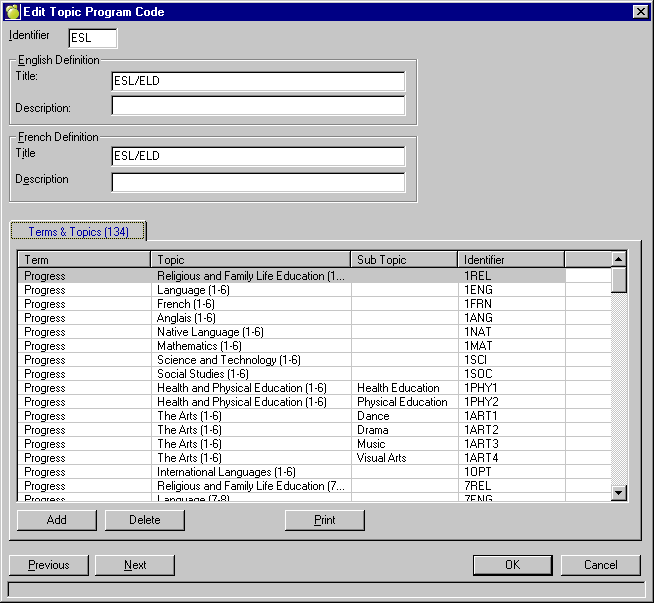
To add an association, select the Add button, the standard view will appear, and users will be able to filter the by topic, sub-topic or identifier. With the association of the term, and the 'Add' button appearing in the bottom left hand corner.
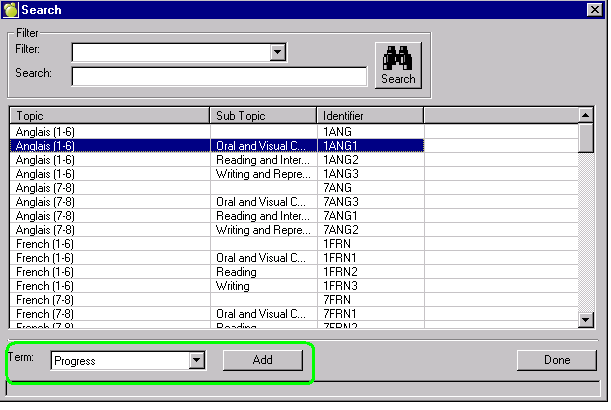
Once Topic Program Codes have been added, they will appear in connectEd for that particular Term and Topic/Sub-topic.
Define Letter Grade Groups and Define Mark Entry
Define Letter Grade Groups (Marks, Define Letter Grade Groups)
Users can create a group of marks for each different marking area.
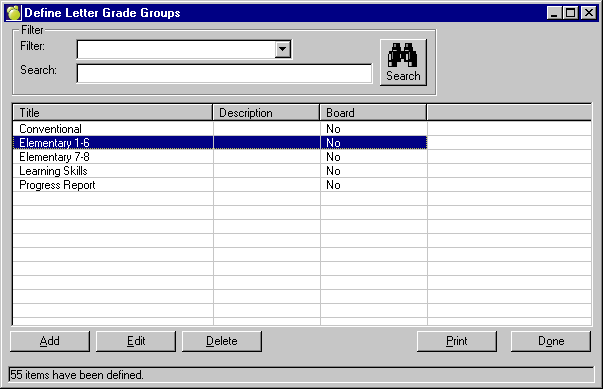
For the purposes of the Ontario Provincial Report Card, Elementary Schools will see 5 group definitions (after the wizard has been run).
Conventional: This definition will be present prior to creating the wizard and contains all previously defined letter grades.
Progress Report: This definition takes into account the Progress Report marking for both Grades 1-6 and 7-8. It contains 3 letter grades, D – Progressing with Difficulty, W – Progressing Well, and V – Progressing Very Well.
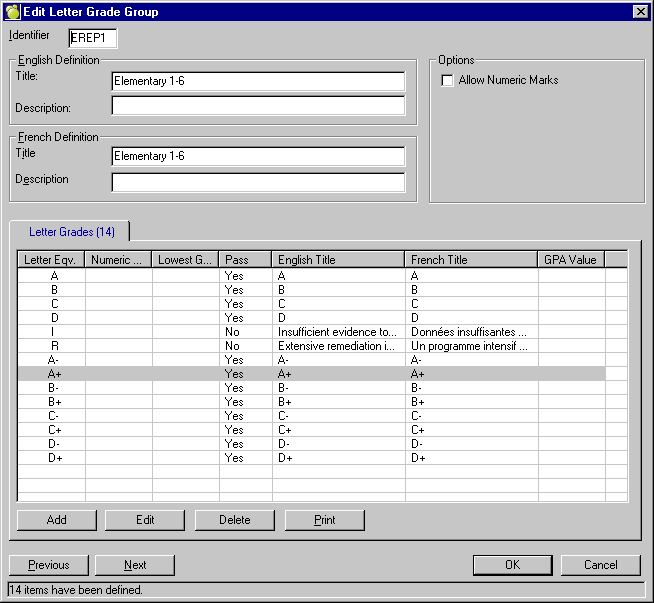
Grade 1-6: This definition includes all marks that are allowed to be entered on a student’s report card (Report 1 and Report 2), and includes A+/-, B+/-, C+/-, D+/-, I and R.
Grade 7-8: This definition includes the letter grades of I and R as well as the option to allow numeric marks to be entered (checkbox).
Learning Skills: This is a new definition, however the allowable entries have remained the same E,G,S,N, and T (T = Très bien is used on the French Report Card).
For Secondary Schools, a total of 4 entries in this table.
Conventional: This definition will be present prior to creating the wizard and contains all previously defined letter grades.
Secondary Grade: This definition includes the letter grades of I and W as well as the option to allow numeric marks to be entered (checkbox).
Secondary Interview: This definition includes the letter grades of Y (Yes) and N (No).
Learning Skills: This is a new definition, however the allowable entries have remained the same E,G,S,N, and T (T = Très bien is used on the French Report Card).
Below is a screen shot of what the Define Letter Grade Groups now looks like.
Define Mark Entry (Marks, Topic Based Marks, Define Mark Entry)
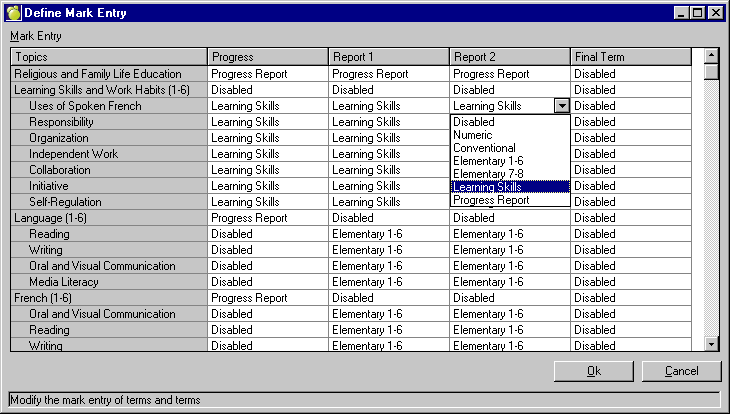
Users now have the ability to select which Letter Grade Group they would like associated to each topic and term. In the case with the Ontario Report Card, for example, teachers will only be able to enter a numeric mark or a grade of I or R for all Grade 7 and 8 classes and/or homerooms. Therefore users would select Elementary 7-8 to these topics. This will ensure that there will be no confusion on what entries are allowed or not (only valid entries will appear in the mark entry letter box. Running the Wizard will automatically set all of the correct entries in the Define Mark Entry area – so users will not have to go in and individually select each one.
Below is a view of what the Define Mark Entry screen looks like in the Elementary system.
Here is what the Secondary Define Mark Entry will look like:
The letter box in the teacher entry (connectEd) will be based on what has been defined in the above tables.
4. Progress Report Card Setup
The Elementary Progress Report Card provides two areas that are to be designed by individual boards of education to be used consistently by all schools in the board:
4.1. At the top of the first page, boards may include information such as the board vision statement, board educational goals, or Ontario Catholic School Graduate Expectations. A space is also provided for the board logo.
4.2. The bottom of the second page may be designed to accommodate a board’s preferred means for teachers to communicate with students and their parents in the fall. A board may want this to be a tear-off section, so parents can complete the section at home and return it. In this case, the progress report card could be printed on two sheets of paper. Alternatively, the board may want the section to be completed during a teacher-parent-student conference or a student-led conference. In this case, the progress report card could be printed on the front and back of one sheet.
Boards may wish to design the section at the bottom of the second page to communicate or request the following types of information:
• Teacher-parent-student conference notes and/or information
• Student goals
• Parent comments/reflections (with or without stems)
• Student comments/reflections (with or without stems)
• Request for interview with parent
• Request for interview with teacher
• Next steps
• Action plans
• Contact information
In order for the Board Logo to appear on the Provincial Elementary Progress Report Card, please create a shortcut to the program OnRe32.exe, ensuring that the ‘Start In’ location entered is pointing to your Central Office structur file. When this shortcut is run, it gives users the ability to setup the Board defined areas on the progress report. Prior to running this, make sure you have a district.jpg/gif/bmp in the pictures\logo folder under the Central Office data folder, and that the pictures pathway is defined (To verify the path - within the Central Office admin Select, Help, Environment Information, choose the 'Paths' tab - under Photo files. Please contact Maplewood if you need assistance with defining this path).
When you run this from central office through the board customization option it will not only copy the board customization information to all of the elementary schools, it will also copy the logo from the board folder to each school.