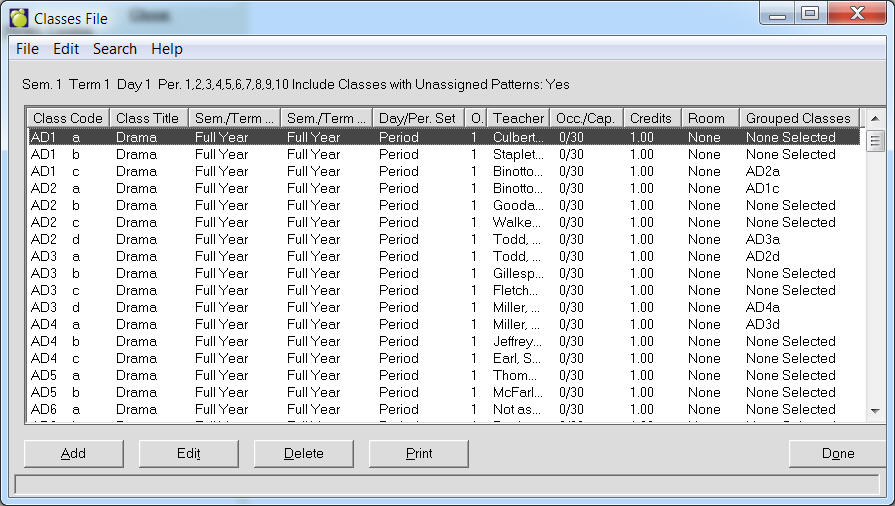
Enter classes that are available in the school. To access the Classes File list, choose File, School Setup, Classes to see a list of classes. On this box there is a menu and option buttons.
Menu
Note: When the user opens a table, the program will select (highlight) the first item on the table. Without using the search menu, the user can enter e.g. "S" and the focus will move to the first item starting with "S".
Option Buttons
If the students’ timetables will be recorded in each student's record, the classes must be entered into the Classes File. Before you can enter classes, the corresponding course codes must be entered into the Courses File. For example, if there were two classes of MAT1A1, the Courses File would require the course code MAT1A1 and the Classes File would contain the two classes MAT1A1a and MAT1A1b. Note that the class name is comprised of the course code and the section letter. The first class has the section letter 'a', the second class has 'b', and the third class would have the section letter ‘c’, etc. Each course may have up to 26 sections (a through z).
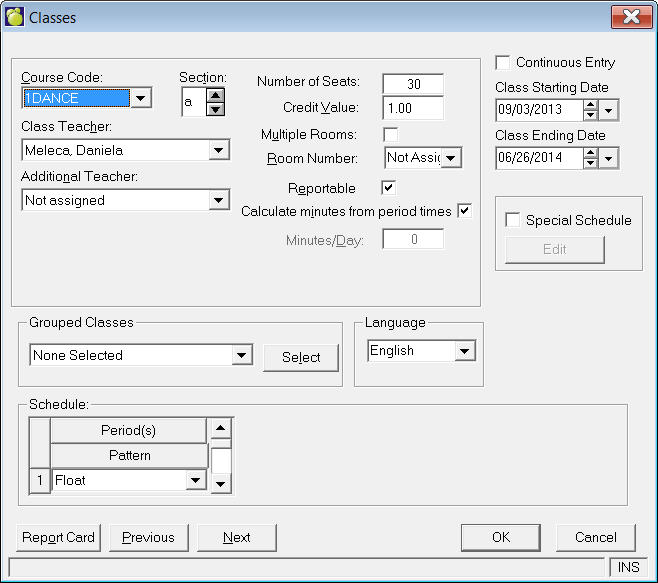
Schools on patterns will notice a Special Schedule checkbox when they edit a class. This box should be checked only when the class is taught in a unique semester/term/day/period schedule. When checked, the current pattern assignment will be lost upon confirmation of the warning. Then the Edit special schedule button is available to setup the schedule by checking the boxes corresponding to the semesters and terms (on the first tab) and days and periods (on the second tab) where the class is taught.
The class will be assigned to a Special Schedule set with a corresponding pattern name representing the class code. Although the pattern will exist in School Information, it is only viewable (any edits must be done in the classes file). Special Schedule classes may still be grouped (all classes in the group will have the same special schedule, even if the pattern name corresponds to each of the different classes). Clicking Special Schedule will enable the Edit button (see below Classes window), where you can set up when the class is offered.
Continuous Entry Class
Mark the course as Continuous Entry if it is e.g. an online course where there is no set entry or completion date and students can sign up and work at their own pace until the course is completed.
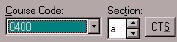 Alberta schools will see a CTS button beside the Course Code. In Alberta students can have a class 'Master' with associated modules that are related to the curriculum. In Maplewood a Master class is a class with patterns and modules are classes without a pattern (i.e. period x). When you click on this button, you can flag a class as Master class and select from the list of classes the class(es) that are to be assigned to this Master. When you click on the CTS button on an assigned class the user will see the Master class this class was assigned to.
Grouped Classes: Enter the class(es) taught in the same room at the same time. The computer will consider the total number of students in all classes taught in a room so that rooms are not overloaded with students. If you need to group the class with another one, click the Select button.
Report Card: (Available if the user has access to change Modify Files). Click the Report Card button to set up Weights and Terms. The homeroom must be saved before entering the Report Card setup. Do you want to save changes and setup the homeroom for the Report Cards? If the user selects yes the homeroom must be saved and then the Report Card setup can be loaded. On the Assign Terms and Weights box, click Edit in the Terms frame to enter Weight and Term values, and click Edit in the Topics frame to enter Topic and Weight values.