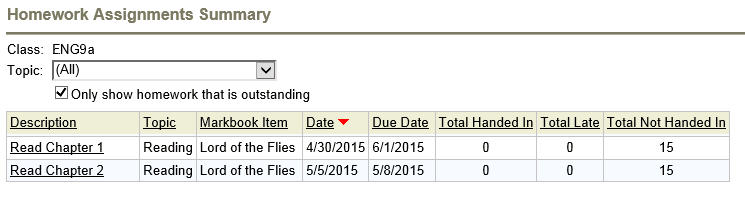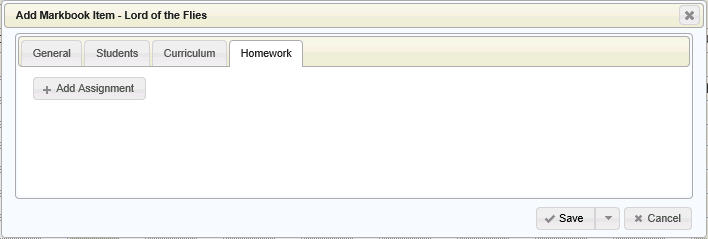
Each homework item is associated with a markbook item or category using the Homework tab. A markbook item or category can have any number of homework items. Whether it is added to one or more markbook items or categories does not matter, as the students/parents will simply see the homework based on the dates of the homework assignments.
Some teachers may want to set up a category called homework, and then the homework can be added to that category. This is not recommended if the teacher plans to enter a lot of assignments over the span of the course, nor is it recommended if marks and/or comments are to be entered for homework.
Some teachers may want to set up homework associated with markbook items (most commonly recommended). If marks and/or comments are to be entered for the homework, then a markbook item is created for each homework assignment. Marks/comments can be entered just like regular assignments, and the homework tab may be used to share homework information with the students/parents.
Some teachers may want to add the homework corresponding to a assessment by first adding the markbook item for the future assessment (e.g. Lord of the Flies in the examples below), and then using the Homework tab to enter the homework associated with the assessment (Read Chapter 1, Read Chapter 2, etc). The teacher then provides only the mark/comment for the test, not each individual homework item.
Some teachers track whether or not the homework was done/handed in, and there is a Track Homework Assignments feature to do this.
If you are unfamiliar with adding/editing markbook items or categories, please see Setting Up a Markbook.
To create the homework assignments, edit the item/category and access the Homework tab.
Click the Add Assignment button to begin adding the first assignment.
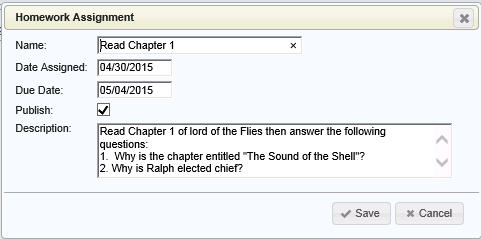
Fill in the Name, Date Assigned and Due Date.
Check the Publish box to allow parents/students to see this assignment from the Maplewood connectEd Parent/Student site.
Description is optional.
More than one homework item can be added by clicking the Add Assignment button again.
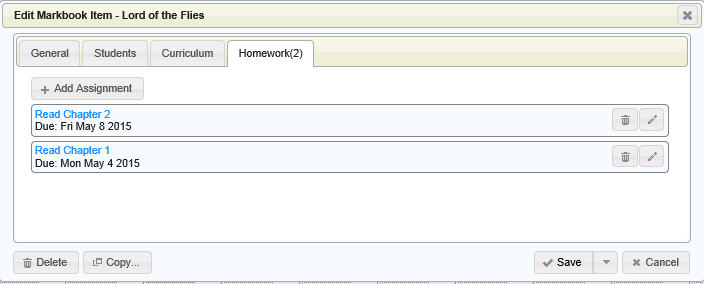
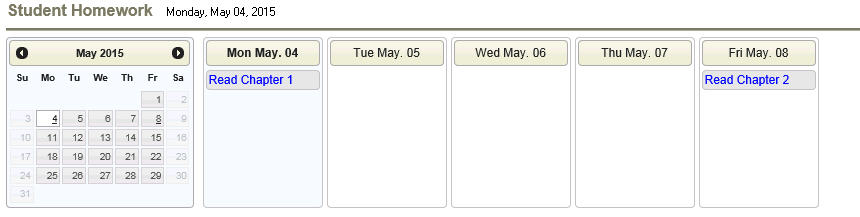
This is an example of what the student/parent will see, and they can click the homework links to see the complete homework information:
If you want to track whether or not homework is passed in or late, from Maplewood connectEd's Achievement menu and select Track Homework Assignments.