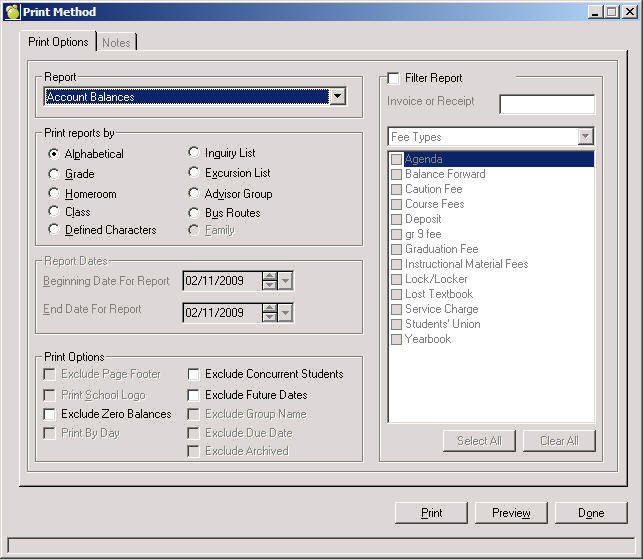
Print Reports By
The Print Reports is the standard print order throughout Maplewood with the exception of Family. Family will include any students who have been linked as siblings. Note: The Family option only applies to the Account Bill.
Maplewood has defined several time saving reports pertaining specifically to the Accounts area. Additionally, custom reports can be created using the Inquiry and Report Builder areas of Maplewood. The predefined account reports include:
Print Reports By
The Print Reports is the standard print order throughout Maplewood with the exception of Family. Family will include any students who have been linked as siblings. Note: The Family option only applies to the Account Bill.
Report Date
Specify the desired date range; again, this is only available for certain reports and when not available the current year will print. Transactions occurring within the specified date range will appear. Note: The Print By Day option only applies to the Receipt Summary.
Print Options
Exclude Page Footer
Exclude Page Footer will exclude the page number and line on the bottom of a report.
Print School Logo
School must have a picture in the Pictures directory under a directory called Schools with the name logo.bmp, logo.gif or logo.jpg.
Exclude Zero Balances
This will exclude students and/or accounts with a zero balance when printing Account Balance. This feature is particularly helpful when reporting on outstanding balances as it will only include students with a debit/credit balance.
Print By Day
Organizes the Receipt summary by day instead of by receipt number and totals for day.
Exclude Concurrent Students
When checked, this will exclude any students who are not based at the school. This report will only print students who have Home School as their enrolment flag.
Exclude Future Dates
This will exclude transactions that transpire after the current operating system date. The report is only applicable for Account Balance Report.
Exclude Group Name
This is only appropriate for reports that involve the bulk assignment of fees as described earlier and will not print the name of the group.
Exclude Due Date
Will exclude due dates as assigned to charges from printing on Invoices and Account Bills.
Filter Report
By default, all fee types are included on applicable reports. However, it is often times beneficial to just report on a particular Fee Type. Simply check the Filter Report box and select the desired Fee Type(s).
The box (field) for Invoice/Receipt allows the user to specify and subsequently search for a particular Invoice or Receipt Number. This is only applicable when printing Invoice or Receipt or Receipt Summary.
Notes:
For the following reports, there exists the option to either select from defined notes or create a new note to add to report. This allows more in-depth communication with families when sending home reports. The following reports have the Notes option available:
Account Bill
Credit Memo
Invoice
Overdue Accounts
Receipt
Unpaid Invoices
Reports for Printing and Reports for Exporting have the option to include contact information for reports designed to be given to the student. The following reports have the option to include contact information for reports designed to be given to the student Account Bill, Credit Memo, Invoice, Receipt, Customer Statement, and Unpaid Invoices. When one of these reports is selected, use the Additional Fields tab to select the Lives With Contact Information option. This will allow you to select all or specific contact fields such as Name, Cell Phone, Email, Employer and Work Phone.