Introduction
The Maplewood attendance system records morning and afternoon attendance for each student (half day attendance). Attendance for days in the future may also be entered.
In addition to providing an easy method to record daily attendance, the Maplewood system has a notepad area to record information concerning interventions by school officials or circumstances relating to a student's attendance.
If you are using half-day attendance you have the option to erase the Attendance Register:
Erasing The Attendance Register
Attendance Outline
Now that you are ready to enter Homeroom Attendance, here is a suggested outline:
1. Changing the Date
At the beginning of each day, the date must be changed on the computer. Choose File, Change Date.
2. Applying Attendance Codes to Excursions
Before you take homeroom attendance, enter attendance information for all students in an excursion list. In the following example, the secretary will be recording that all members of the Boys Basketball team will be Absent all day. Choose Attendance, Enter Attendance, Excursions.
Select the Group of Students from the series of tabs.
You can apply selected codes to groups of students, including Excursion List, All Students, By Grade, By Homeroom, Defined Character, Inquiry List, Transportation.
Select your Confirmation options:
Select the code that you wish to apply to the morning, afternoon or both.
When you are ready to apply the codes to the students who match these criteria, click Start.
3. Entering Note And Phone Call Information
Many parents call the school to inform them of a variety of information, e.g. classes to be missed, illness, dentist appointments. This information may also be relayed to the office in the form of a note.
You should record this information in the student's attendance register as soon as possible before the homeroom attendance. Use either:
Click on Notes to enter a note for that student with either method.
4. Entering Attendance
This method of attendance allows the entry of attendance for students who were absent or late from homeroom.
The Maplewood attendance programs may be used with many scanners. Before you can use the scanner for homeroom attendance, Homeroom Attendance Scanner Sheets must be ordered from your scanner representative. Then the names of the students in each homeroom must be printed onto the scanner sheets. The Print Scanner Lists option prints the students' names onto the scanner sheets along with some coding which is required by the scanner.
You can enter homeroom attendance by choosing Attendance, Enter Attendance, Homeroom Attendance (Scanner). Then select either Send Scanner Errors To Printer or Display Errors Without Printing.
Each homeroom teacher records the homeroom attendance onto his or her Homeroom Attendance Sheet by filling in with pencil the appropriate bubble (A or L) for the affected students on the appropriate day of the week. These sheets are then sent to the office.
Select Homeroom Attendance (Scanner) and indicate which of the major scanners is to be used. Then a list of all the homerooms in the school is displayed on the screen. As each scanner sheet is fed into the scanner, the corresponding homeroom is highlighted on the screen. The homerooms which have had their attendance recorded remain highlighted until the homeroom attendance is finished. In this way, you can determine all of the homerooms that have not yet passed their scanner sheets. When all the scanner sheets have been fed into the scanner, indicate that homeroom attendance is finished using the method appropriate for the scanner:
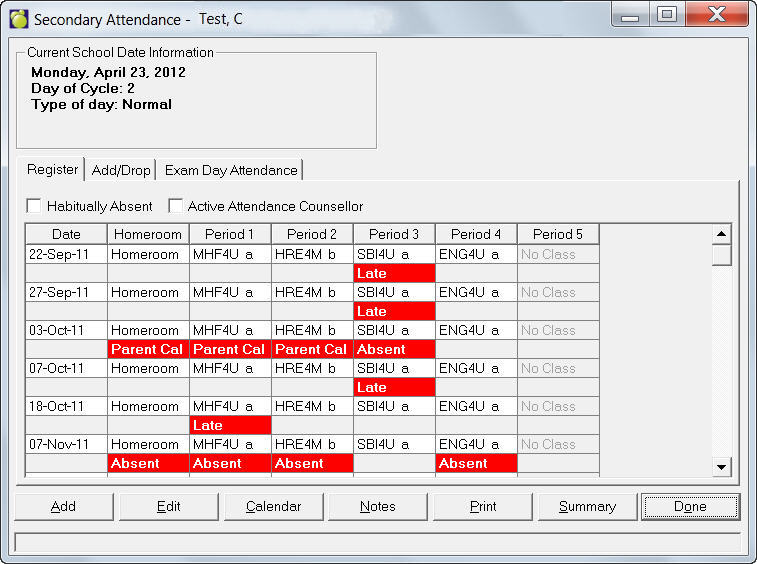
If you want to look at or change the Attendance Register, choose Attendance, Attendance, Display/Modify Register and select a student.
Notes:
For more information see Display/Modify Attendance Register.
Edit button: When a day is selected, an entry box will appear where you can select attendance codes (pre-defined) from drop-down lists as applicable to Morning and Afternoon periods.
Notes button: Users can enter Attendance Notes by clicking Notes or by choosing Attendance, Enter Attendance, Attendance Notes.
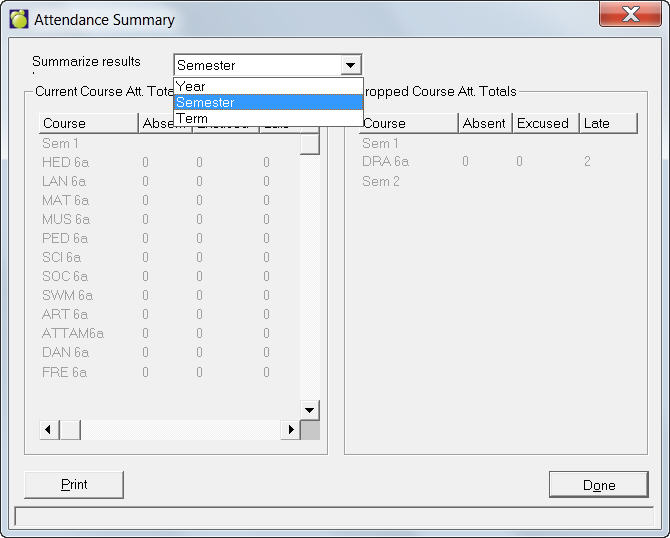
Summary button: To see an Attendance Summary up to today's Administration Date, click Summary for this box:
Print button: You can print the Attendance Card using either the School Attendance Codes (Report Card) or the Ministry Attendance Codes (Register).
When you click on a month title you will see an expanded view:
To edit a day, double-click or select that day and click Edit.
Select the applicable Attendance Code from the drop-down list and click OK.
Note: Attendance Summaries for the Monthly view reflect attendance information only for the month that you are viewing.You cannot enter attendance for a date in which the student is not enrolled e.g., a date before the entry date to this school or a date after the retirement/ transfer date. You cannot edit e.g. morning attendance for a student who is only attending in the afternoon. These are indicated as "not enrolled".
You can enter attendance for dates before and after today’s date.
This feature provides a list of students, either alphabetically or by homeroom, that have the selected Attendance Codes in their register for today. Attendance notes, homeroom, grade, age, phone and parent information may be included on the print out as well.
Choose Attendance, Print Today's Absentees. In the Allow Attendance Codes frame, select Any Codes to print students who have any codes other than present for either morning, afternoon or both.
Select the These Codes Only check box and then select the codes in the list. This will print a list of students who have only those codes for today's attendance (i.e. a student is excused both morning and afternoon).
If both check boxes are unchecked and at least one code is selected, this will print students who have that code anywhere for today. (i.e. if a student is absent in the morning and not the afternoon, he/she will print on the list).
Use the Name Formats tab to specify how you want the student and teacher name printed.
On the Student Information tab select Name Only or Personal options for printing: