
You can print the Attendance Registers with this feature. The Attendance Register contains the daily attendance of students and can be printed alphabetically, for students in a specific grade, for students in a specific homeroom, or for students with a specific defined character. Under Attendance, Print Attendance Registers there are 5 types of Registers that you can print:
This print a list of students and their daily attendance for any selected month. The register can be printed alphabetically, by grade, by homeroom or for students with a specific defined character.
Attendance registers can be printed for any month for which attendance has been recorded. This register prints a list of the students and their attendance for the month.
In addition, you can print the number of lates and presence in class as a percentage of possible days, e.g. if you have 20 school days in the month, and you were away 1.5 days (it only looks at am/pm), then your % percent would be 18.5/20 =- 92.5% which would probably print as 93%.
Select a Month and if you want to include the Attendance Legend (code letters that represent attendance types)
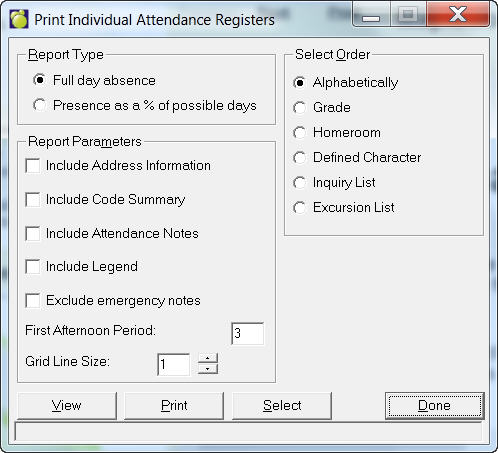
Individual Attendance Register
This prints the daily attendance of any student for the entire school year. They can be printed on half page per student without the Attendance Notes (therefore 2 students per page) or on a full page per student including the Attendance Notes.
The attendance card may be printed at any time and provides information up to the time of printing. This register prints a summary of each student's attendance for the year.
Select a Report Type, either Full Day Absence or Presence in class as a percentage of possible days, e.g. if you have 20 school days in the month, and you were away 1.5 days (it only looks at am/pm), then your % percent would be 18.5/20 =- 92.5% which would probably print as 93%.
You can include a number of Report Parameters such as Address Information, Code Summary, Attendance Notes and the Attendance Legend.
Grid Line Size: A setting has been added to the printing of the individual attendance register, to change the thickness of the grid line. Thickness values range from 1 (normal, what it has always been) to 10 (very thick). This is to allow users with Postscript printer drivers to make the grid lines more visible. This setting is not saved.
Select an order by which to print
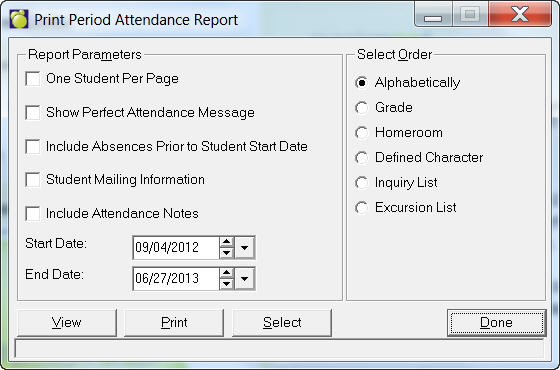
The Period by Period Attendance Report is a printout of all days where a student has an attendance code other than present. It prints all of the classes for the day along with the student's attendance in every class for the year. This report is available in Secondary only.
The period attendance report may be printed at any time during the year and will include attendance information up to the time of printing. Each day that has an attendance entry will be printed and the period by period attendance for that date is given.
Choose a Start and End Date and whether you want one Student Per Page. Select a Print Order by which the report will be printed.
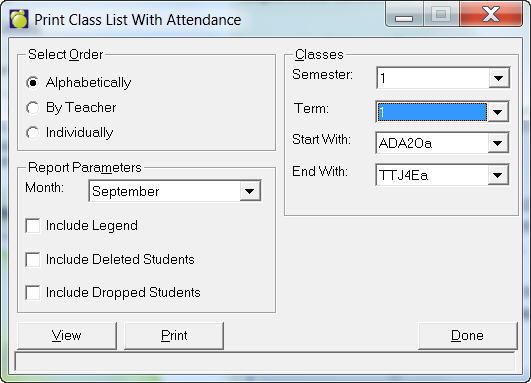
This is a report printed for classes - one per page - for a specific month. It lists all of the students in the class along with their attendance for each day in the month along with information about the month's absences and lates and accumulated absences and lates since the start of the class. *This report is available in Secondary only.
The class list with attendance is printed for one month at a time. The list will only include those students who are enrolled in the class at the time of printing. Like the monthly register it lists the students by class with the attendance for that class for the month. Choose Attendance, Print Attendance Registers, Class List With Attendance.
Include deleted students: This will include the students who have been retired and now have a Deleted status.
Include dropped students: When selecting this option you will include students who have dropped the class(es) in the selected month. i.e. students dropped class in November will show up on November report but will no longer show up in December.
The monthly attendance register and the class list with attendance may be printed on paper fourteen inches wide or, using the condensed print option, may be printed on 81/2 x 11 paper.
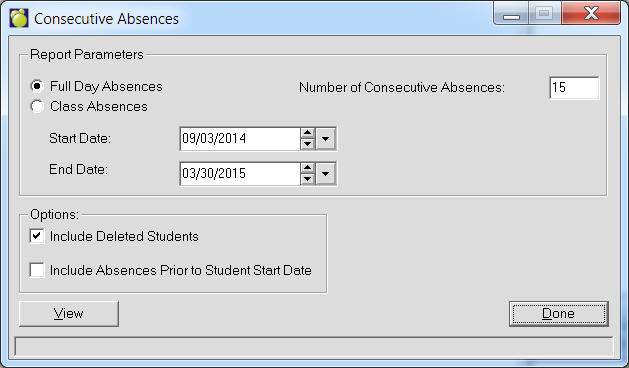
You can print an Attendance Register showing Consecutive Absences. Choose a Start and End Date and enter the number of absences that you would like to see. This report is available in Secondary only. The Consecutive Absences report includes an option 'Consecutive absences, Class Absences, that allows users to track consecutive absences at the class level for a given semester/term and/or date range. The printout will include the class that the student meets the criteria. If the student matches this criteria in multiple classes, then the student's name will appear multiple times on the report with the associated class code.
This printout can be printed monthly for the teachers so that they will have a printed record of the attendance for the students in the class. It also provides a method for the teachers to verify the accuracy of the attendance maintained by the office.
The printing will normally use paper 8.5 X 11 inches wide using the condensed print option but may be printed on paper fourteen inches wide.
This feature will also print a record of the daily attendance of a group of students for any month of the year.
Before the register can be printed you must enter the day that you want - enter at least the first three letters of the day that you want.
The Daily Attendance Register can include all the attendance codes defined by your school, i.e., A (Absent), and L (Late), or only the ministry translation of the attendance codes.
Either the total number of lates, or the presence as a percentage of possible days can be printed on the attendance register. Your selection here determines the format of the attendance register.
Choose a Start and End Date and enter the number of absences that you would like to see.
Daily Absentee Report (Export)
Maplewood has added another tool to assist schools and boards/divisions in the reporting and analysis of attendance data. For some time now, schools in Alberta have been submitting daily attendance information to Alberta's Capital Health (using Central Office option Reports, Capital Health Export). While other provinces don't have a provincial attendance collection model, this type of daily reporting may be beneficial to other provinces. We have modified the Alberta Health Export program (AbHeEx32.exe) for use by non-Alberta schools. Non-Alberta schools will find this report under Attendance, Print Attendance Registers, Daily Absentee Export. Ideally, if a board/division is centralized, the report may be run for any number of schools. In Central Office, the report may be found under Reports, Daily Absentee Export.
To create a file with attendance statistics, follow these steps:
1. Select the report date. The students' attendance on this date will be used. Note: do not select the current day's attendance until the attendance entries are completed for the day.
2. Select the type of file to be generated. There are two possibilities:
i. Register Attendance (Half Day): This report will generate a record for each morning or afternoon with an absent type of entry code. If a student is absent for the morning and the afternoon, there will be 2 records for that student: one for the morning and one for the afternoon. This is what the attendance portion of the file will look like for a student who has been given the Sick attendance code for the morning (A) and the afternoon (P):
A Sick
P Sick
Note: If this report includes a school that is taking period by period attendance (such as a secondary school), the attendance is converted into am/pm to determine whether the student's attendance is included in the report. The conversion process will only convert to Absent, Present or Late, and, since this file is reporting absences, only the Absent description will appear for these students. For example, if a school has 4 periods/day, and the student was Absent period 3 & 4 only, the student would be Absent for the afternoon. If the student was Absent period 1 only, the student would be Late for the morning and therefore would not appear in the report.
ii. Period Attendance: This report is only applicable to secondary schools taking period by period attendance. The report includes every period with an absent type attendance entry. This is what the attendance portion of the file will look like for a student who has been given the Sick attendance code for his math class (MAT1Pa) in period 3 and his English class (ENG1Dc) in period 4:
MAT1Pa Period 3 Sick
ENG1Dc Period 4 Sick
3. If you are creating the report for past attendance dates, you may need to check off "Include Deleted Students" if they are to be included.
4. In the report parameters, check off any student specific data that you wish included in the report. By default, no parameters are selected so that the information in the file is depersonalized. If the student's name is not included in the file, there will be a number automatically generated for each student. The number uses the 6 right digits of the Ministry/Department Number and the student's birth date to create a fictitious number that is difficult to trace to any specific student.
5. For Maplewood Central Office users, select the schools to be included in the report using the standard Select Schools button.
6. Click the Export button and then change the name of the file, if required, from the following defaulted filenames:
yyyymmdd_Daily_Attendance-Half_Day.csv
yyyymmdd_Daily_Attendance-By_Period.csv
where yyyymmdd represents the report date and the Half_Day or By_Period corresponds to the file option. The files will be stored in the Maplewood data folder: Export\Attendance. The Settings button can be used to select a different storage location.
7. Once the file has been created, a statistical summary will automatically appear to provide a basic summary of the absences for the day.
8. Once you are done with the preview (above), the file may be opened in Wordpad, or MS Excel or using the View button provided on the application. The file is a comma delimited file. The following information is included for all the absent students in all the selected schools (if all the optional student specific data is included):
Register Attendance (Half Day):
Student's Ministry/Department of Ed. number *
"Surname, Given name"
Age
Grade
Gender
Line 1 of Mailing (since some health units are looking for this)
Student postal code
Student home phone number
School Name
School Postal Code
A for AM or P for PM
Attendance code title
Date of absence
Attendance notes for that date
Period Attendance:
Student's Ministry/Department of Ed. number *
"Surname, Given name"
Age
Grade
Gender
Line 1 of Mailing (since some health units are looking for this)
Student postal code
Student home phone number
School Name
School Postal Code
Course with absence
Period # (e.g. Period 1 - another record is created if absent in Period 2 as well)
Attendance code title
Date of absence
Attendance notes for that date
* if the student's name and number are not included in the file, an automatically generated number will appear in the file based on the last digits in the Ministry/Department of Ed # and the student's birthdate.
To all schools outside Alberta
The educational community is carefully watching student absenteeism rates. Maplewood has added another tool to assist schools and boards/divisions in the reporting and analysis of attendance data.
For some time now, schools in Alberta have been submitting daily attendance information to Alberta’s Capital Health. While other provinces don’t have a provincial attendance collection model, we still felt that this type of daily reporting may be beneficial to other provinces. We have modified the Albert Health Export program (AbHeEx32.exe) for use by non-Alberta schools.
This new program may be found under Attendance, Print Attendance Registers, Daily Absentee Export. Ideally, if a board/division is centralized, the report may be run for any number of schools. In Central Office, the report may be found under Reports, Daily Absentee Export.
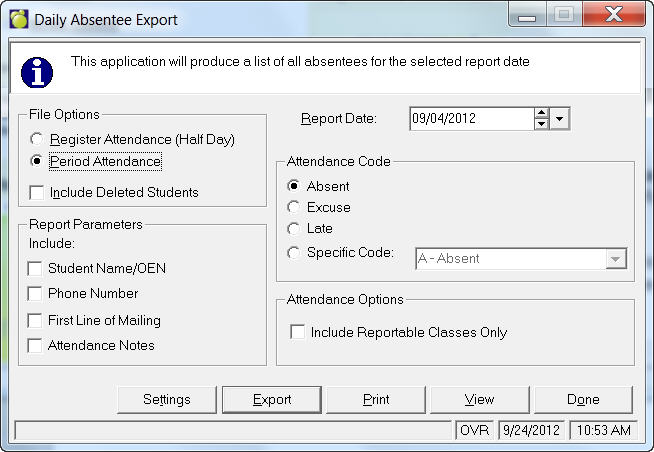
To create a file with attendance statistics, follow these steps:
1. Select the report date. The students’ attendance on this date will be used. Note: do not select the current day’s attendance until the attendance entries are completed for the day.
2. Select the type of file to be generated. There are two possibilities:
i. Register Attendance (Half Day): This report will generate a record for each morning or afternoon with an absent type of entry code. If a student is absent for the morning and the afternoon, there will be 2 records for that student: one for the morning and one for the afternoon. This is what the attendance portion of the file will look like for a student who has been given the Sick attendance code for the morning (A) and the afternoon (P):
A Sick
P Sick
Note: If this report includes a school that is taking period by period attendance (such as a secondary school), the attendance is converted into am/pm to determine whether the student’s attendance is included in the report. The conversion process will only convert to Absent, Present or Late, and, since this file is reporting absences, only the Absent description will appear for these students. For example, if a school has 4 periods/day, and the student was Absent period 3 & 4 only, the student would be Absent for the afternoon. If the student was Absent period 1 only, the student would be Late for the morning and therefore would not appear in the report.
ii. Period Attendance: This report is only applicable to secondary schools taking period by period attendance. The report includes every period with an absent type attendance entry. This is what the attendance portion of the file will look like for a student who has been given the Sick attendance code for his math class (MAT1Pa) in period 3 and his English class (ENG1Dc) in period 4:
MAT1Pa Period 3 Sick
ENG1Dc Period 4 Sick
3. If you are creating the report for past attendance dates, you may need to check off “Include Deleted Students” if they are to be included.
4. In the report parameters, check off any student specific data that you wish included in the report. By default, no parameters are selected so that the information in the file is depersonalized. If the student’s name is not included in the file, there will be a number automatically generated for each student. The number uses the 6 right digits of the Ministry/Department Number and the student’s birth date to create a fictitious number that is difficult to trace to any specific student.
5. For Maplewood Central Office users, select the schools to be included in the report using the standard Select Schools button.
6. Click the Export button and then change the name of the file, if required, from the following defaulted filenames:
yyyymmdd_Daily_Attendance-Half_Day.csv
yyyymmdd_Daily_Attendance-By_Period.csv
where yyyymmdd represents the report date and the Half_Day or By_Period corresponds to the file option. The files will be stored in the Maplewood data folder: Export\Attendance. The Settings button can be used to select a different storage location.
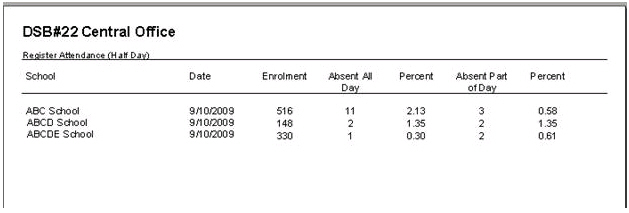
7. Once the file has been created, a statistical summary will automatically appear to provide a basic summary of the absences for the day.
This is the Register Attendance (half-day) statistical summary:
This is the Period Attendance statistical summary for a single high school (the information would be repeated for each selected school if the export were created through Central Office):
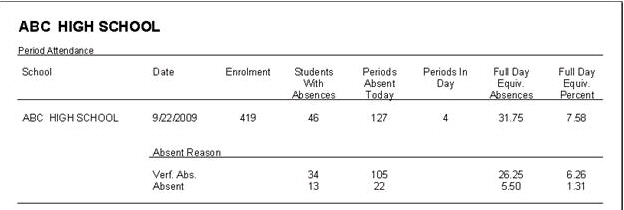
8. Once you have finished with the preview (above), the file may be opened in Wordpad, or MS Excel or using the View button provided on the application. The file is a comma delimited file. The following information is included for all the absent students in all the selected schools (if all the optional student specific data is included):
Register Attendance (Half Day):
Student’s Ministry/Department of Education Number *
"Surname, Given name"
Age
Grade
Gender
Line 1 of Mailing (since some health units are looking for this)
Student postal code
Student home phone number
School Name
School Postal Code
A for AM or P for PM
Attendance code title
Date of absence
Attendance notes for that date
Period Attendance:
Student’s Ministry/Department of Education Number *
"Surname, Given name"
Age
Grade
Gender
Line 1 of Mailing (since some health units are looking for this)
Student postal code
Student home phone number
School Name
School Postal Code
Course with absence
Period # (e.g. Period 1 - another record is created if absent in Period 2 as well)
Attendance code title
Date of absence
Attendance notes for that date
* if the student's name and number are not included in the file, an automatically generated number will appear in the file based on the last digits in the Ministry/Department of Ed # and the student's birthdate.
Attendance, Print Attendance Registers, Monthly Attendance Report – Period Summary
This report will print a list of students and their period attendance summaries for any selected month. The register can be printed Alphabetically, by Grade, by Homeroom, by Inquiry , by Excursion or for students with a specific defined character. This report is only available to schools where period attendance is taken.
Attendance registers can be printed for any month of the current school year for which attendance has been recorded. This register prints a list of the students and their period attendance totals for the month. A student’s enrolment start and end dates, as well as class add and drop dates are taken into account when tallying the absences, excused and lates. The report looks to the Report Card value of the Attendance Code definition.
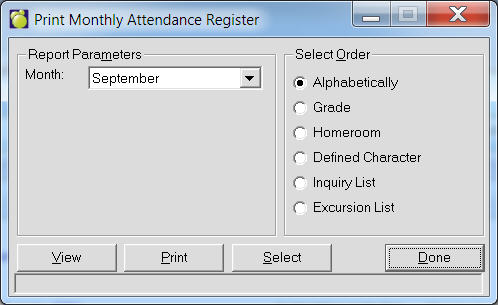
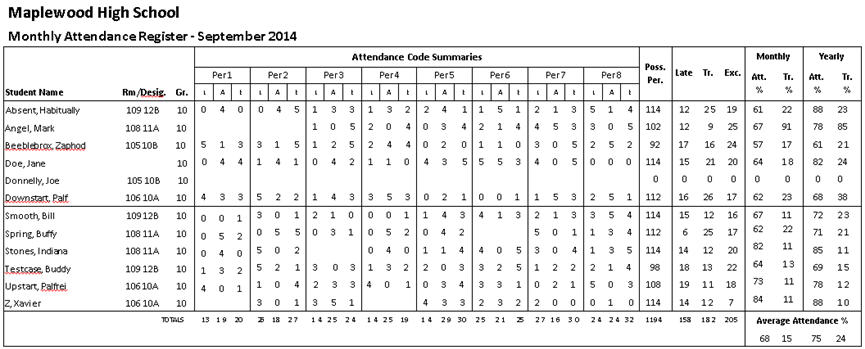
Empty values in the period L/A/E columns (not 0) would indicate that the student is not registered in a class for that period.
Empty values in the Rm/Desig. Column would mean that the student is not assigned a homeroom.
Possible Period = total number of periods, that the student has classes scheduled, for that month
Late = sum of the late periods that the student has classes scheduled, for that month
Tr. = sum of the absent periods that the student has classes scheduled, for that month
Exc. = sum of the excused periods that the student has classes scheduled, for that month
Monthly Att % = 100 – (Tr. + Exc. ) / Possible Periods
Monthly Tr % = Tr. / Possible Periods
Yearly Att % = 100 – (Tr. + Exc ) / Possible Periods - for the year to date
Yearly Tr % = Tr. / Possible Periods - for the year to date
Totals at the end of the report total the column for all students included in the report
Total Monthly Att % = 100 – (Total Tr. + Total Exc.) / Total Possible Periods
Total Monthly Tr % = Total Tr. / Total Possible Periods
Total Yearly Att % = 100 – (Total Tr. + Total Exc ) / Total Possible Periods - for the year to date
Total Yearly Tr % = Total Tr. / Total Possible Periods - for the year to date