1. Choose Incidents, Incident Reports, Expulsion Reports.
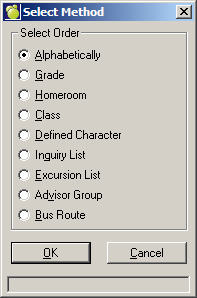
A standard Maplewood Select Print Method Order box will appear.
2. Select an Order and Click OK. On this box you will select the students to print according to the method you initially chose, e.g. Alphabetically.
Make your selection by clicking any or all of the options in the Include Students Registered list:
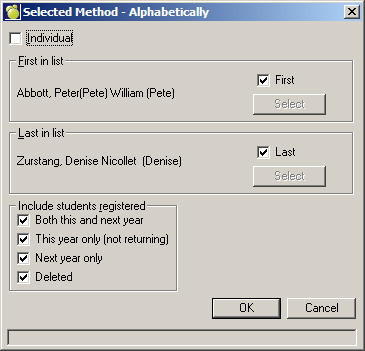
Once you have made your printing selection(s) click OK.
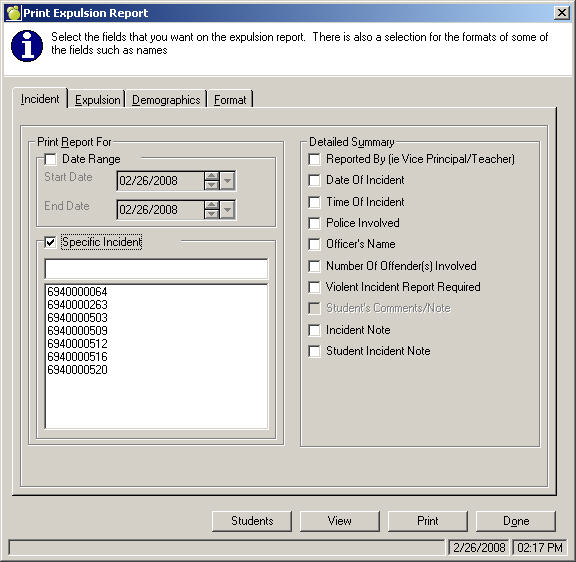
3. Incident Tab: Click Date Range and select a Start and End date, or select a Specific Incident. Next, check the Detailed Summary items that you would like to include in the printout.
4. Expulsion Tab: Click School Information, Expulsion Information, Infraction and Support Services items that you would like to include on the printout.
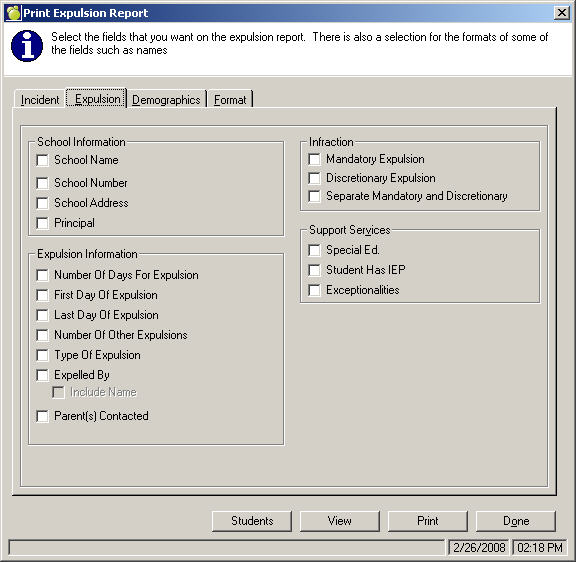
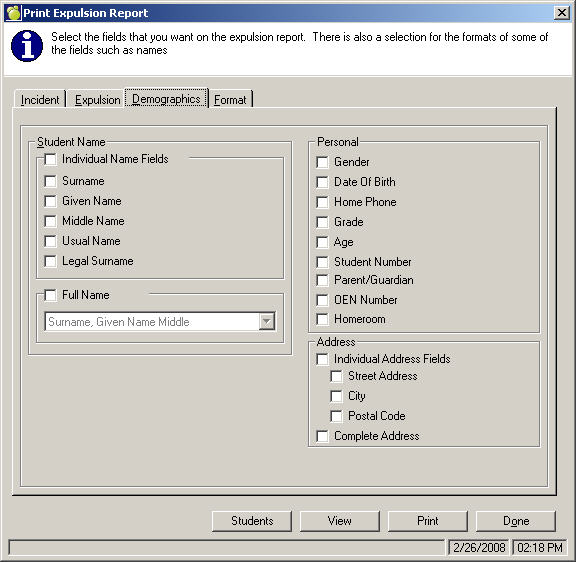
5. Demographics Tab: Click Date Range and select a Start and End date, or select a Specific Incident. Next, check the Incident Details that you would like to include in the printout.
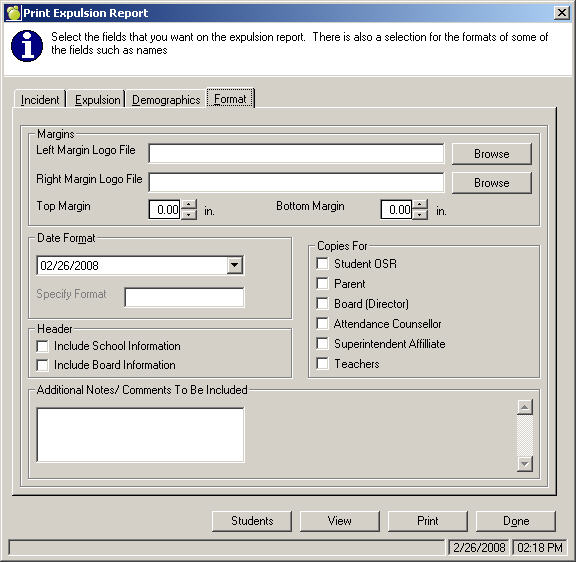
6. Format Tab: Select the Logo Files, Date Format, Copies For and any Additional Notes/Comments to Be Included in the printout.
The program can only identify the first 6 items in the 'Custody' enrolment table. From that we can map it to the parent information to pull correctly. In this case this students Special custody flag is set to 'Grandmother' with is not in the first 6. In parents, she is a 'Guardian'. Change the item in the drop down list in the special custody interface to 'Guardian' and it will work.