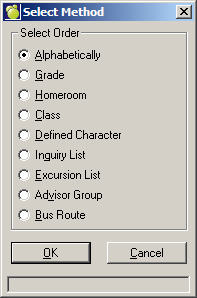
1. Choose Incidents, Incident Reports, Student Incident Report, and select a method from the Select Method box:
2. Select an Order and Click OK. On this box you will select the students to print according to the method you initially chose. This example uses "Alphabetically".
Make your selection by clicking any or all of the options in the Include Students Registered list:
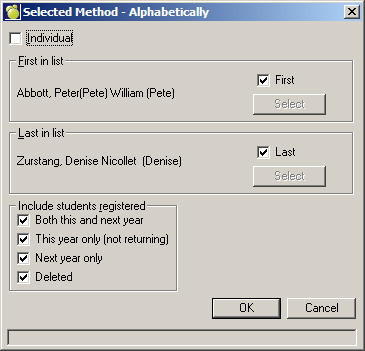
Once you have made your printing selection(s) click OK.
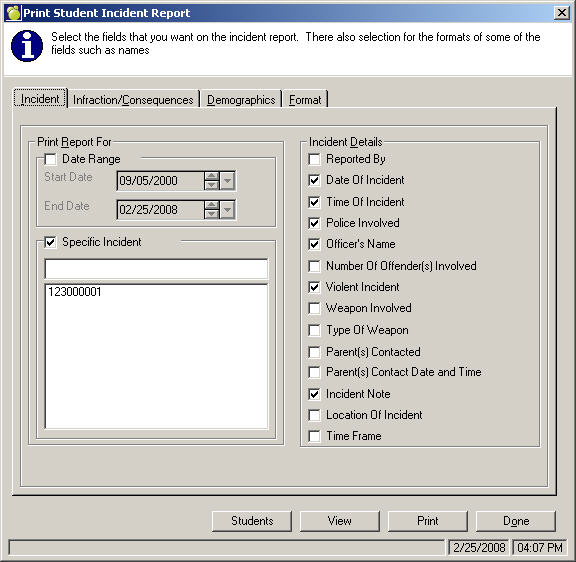
3. Incident Tab
Select the First and Last Report Date. Blow the date range you will see the Incidents. Click the checkbox and select from the list for a specific incident. On the right side, select applicable Incident Details.
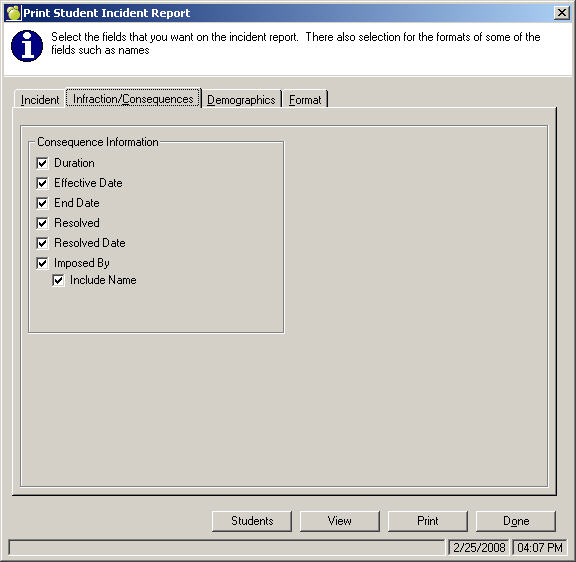
4. Infraction/Consequences Tab
Select Consequence Information by checking applicable checkboxes:
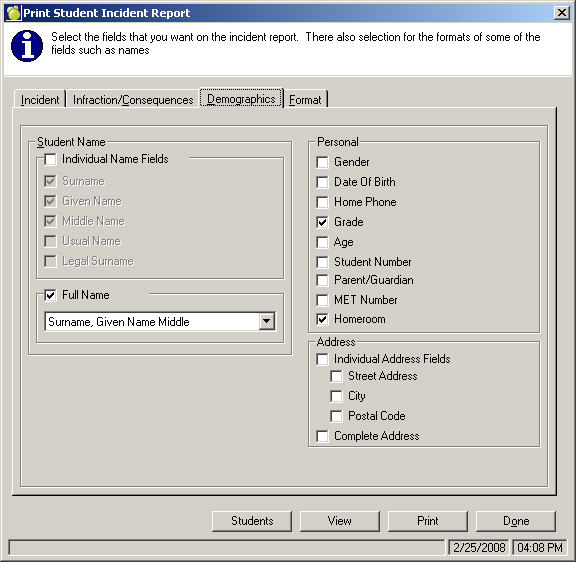
5. Demographics Tab
Select applicable fields that you want printed by clicking checkboxes. If you check Individual Name Fields you can limit fields to your selections. If you choose Full Name, there's a list of predefined variations from which you can choose. Next make Personal and Address selections.
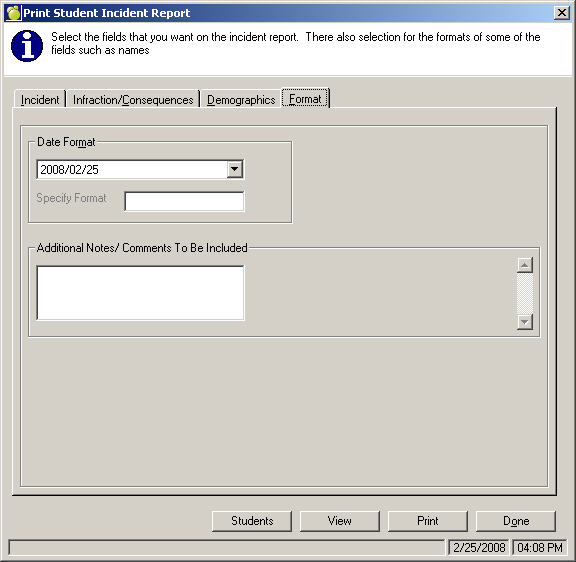
6. Format Tab
Select a Date Format from the drop-down list. To enter your own in the text box, select Custom from the drop-down list and enter a format in the text box. If you have any Additional Notes or Comments enter them in the text box.
7. Once you have made your printing selection(s) click Print, or click View to see the report before printing.