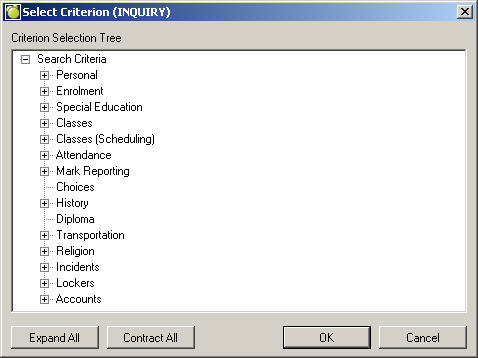
Before the criteria can be added, click the Add button in the Empty tab. Inquiry will automatically call up the Criterion Selection Tree:
Choosing Criteria for a Group
The criteria which the students will match for the Inquiry list must be selected from the Criterion Selection Tree as shown in the above screen. If the criterion you want is displayed, choose that specific criterion by double-clicking the criterion, or by pressing enter key. If the criterion that you want is not displayed, double-click the area of student information it belongs to or click on it once and press the Enter key. That area of the tree will expand to display further information below.
Continue this process until you see the criterion you want. If further boxes appear, fill out each one according to your Inquiry search requirements. Press enter or click OK after completion.
Note: To view all branches of criteria, click the Expand All button. Click the Contract All button to contract the branches.
Once you have specified the criteria and clicked OK, the initial Inquiry screen will appear again. The first tab will say A and the file folder will display the criterion (criteria) just chosen. There will be a second tab which reads Empty. Repeat the same process to add another group and a criterion.
When searching for a single digit name, i.e. A, the program will find all students beginning with the letter A unless you check the Wildcard checkbox without using the asterisk after the letter.
Inquiry allows search on Students' Contact Information - Pager Number, Cell Number, and Email Address.
For the students, you locate the fields under Biographics, Other Contact Fields.
For the students' father, mother, and guardian, you locate the fields under Biographics, Parents, Specific Field of Parents, Father (Mother or Guardian), Other Contact Fields
Examples...
Single letter A - without checkbox checked will locate all A students
Single letter A with asterisk (A*) with checkbox checked will also locate all A students.
Single letter A - with checkbox checked will only locate the specific student, A and A' (with an apostrophe. The reason A' is located is because the program ignores the apostrophe.
Sometimes you will add multiple criteria to one group (i.e. Group A) ad sometimes you will use more than one group (i.e. Group A, Group B, etc.). It will depend on the nature of your search.
Example: Specifying a Single Criterion
To find out how many males are in your school:
Click the Add button. The Criterion Selection Tree will appear.
Choose Personal, Biographics, then Gender. A box will appear.
Choose either Male or Female.
Click OK.
The criterion Gender: M is displayed in the group A tab. Since group A has a criterion. The search for the number of males in the school now has one criterion, Sex: M. Since this criterion has been specified, the list is ready to be compiled.
Choosing Additional Criteria for an Inquiry List
You can add additional criteria to the list by clicking the Add button again within a group. You can add up to 20 criteria to an individual group. Criteria within a group could be considered as and variables. For example, group A has 4 specified criteria: A1, A2, A3, and A4. If the student meets criteria A1 and A2 and A3 and A4, the student will be included in the list.
The use of multiple groups within an Inquiry list is explained in the Using More Than One Group section.