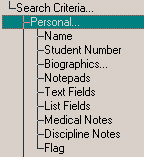
Inquiry - Personal Fields
Under Personal you will find the following criteria.
Name - In the Name frame click the option button beside Surname, Given name or Usual name. In the Partial Name box enter as few or as many letters that you want or know for the name option that you selected.
Student Number - Enter the student number. Check either to include only students with that specified number or students without that specified number.
Notepads - On this form specify the Notepad information that you want to include in the Inquiry search.
Notepad: Click the type of Notepad that you want. Choose from 1, Youth Leader and Coach's Corner.
Include Students: enter a string for the Notepad Inquiry search. Then select if you want to search for students who have this string included in their Notepad names. Click the corresponding option button.
Text Fields - On this form specify the Notepad information that you want to include in the Inquiry search.
These fields provide a box where you can enter a short line of text.
For example, for student information you may want to keep a record of information on a student's previous job experience. The field can be titled Previous Employer. The text box beside this title would provide room for the name of the previous employer (text) to be typed.
For employer information, you may want to keep a record of information about an organization's work-specific requirements such as safety boots. The field can be titled Requirements. The text box beside this title would provide room for you to enter the name of the requirements (text).
Text Fields: select the Text Field from the list.
Include Students: enter a string for the Text Fields Inquiry search. Then select if you want to search for students with or without this string included in their Text Field names. Click the corresponding option button.
List Fields - These fields provide a list of options from which one item may be chosen. This feature is helpful in restricting the choices available for a specific field to previously defined items. For example, you can record the method of transportation to the job site for an individual student. This field could be named Transportation. The method of transportation can be selected from a list of several pre-determined methods such as car, bus, taxi, walk.
For employer information, an example for list fields would be to record the remuneration provided to the student by the employer. This list could be named, Remuneration. Then select from a list of pre-determined types of remuneration such as bus fare, honorarium, none.
Lists: select the List Field from the list.
List Items: select any items that are attached to the List Item
Include Students: enter a string for the List Fields Inquiry search. Then select if you want to search for students with or without this string included in their Text Field names. Click the corresponding option button.
Medical Notes - On this form you can enter Medical information that you want to include in your Inquiry search.
Include Students: click the option that you want for the search. With medical notes: will produce a list of students who have medical notes. Without medical notes: produces a list of students without medical notes. With specific medical notes: enables the additional option in the Specifics and Include students frames.
Specifics: if you want to search for a specific date, click the Selected Date option and enter the date in the Note Date box. Enter the date according to your Windows system date settings.
If you want to search for a specific date or earlier, click the Selected date or earlier option and enter the date in the Note Date box. Enter the date according to your Windows system date settings.
If you want to search for a specific date or later, click the Selected date or later option and enter the date in the Note Date box. Enter the date according to your Windows system date settings.
Include Students: in this frame, you can enter a string to search in the String box. Then select if you want to or don't want to include students who have this string in their medical notes.
Discipline Notes - On this form you can enter Discipline information that you want to include in your Inquiry search.
Include Students: click the option that you want for the search. With discipline notes will produce a list of students who have discipline notes. Without discipline notes produces a list of students without discipline notes. With specific discipline notes enables the additional option in the Specifics and Include students frames.
Specifics: if you want to search for a specific date, click the Selected Date option and enter the date in the Note Date box. Enter the date according to your Windows system date settings.
If you want to search for a specific date or earlier, click the Selected date or earlier option and enter the date in the Note Date box. Enter the date according to your Windows system date settings.
If you want to search for a specific date or later, click the Selected date or later option and enter the date in the Note Date box. Enter the date according to your Windows system date settings.
Include Students: in this frame, you can enter a string to search in the String box. Then select if you want to or don't want to include students who have this string in their discipline notes.
Choose Students with or without infraction and consequence.