Enhancement: The ability to standardize addresses through the use of aliases, and to run address verification based on these aliases has been added.
To set up the alias table:
-
Choose Students, Custom Fields, Address Verification, Aliases.
-
Add aliases based on Street Name, Street Type, Township and City. These are common data-entry errors that you want to clean up en masse. For example, if the address verification Streets table contains abbreviations such as Rd instead of Road, add an alias with Road as the User Entry and Rd as the abbreviation.
-
The User Entry field is limited to one-word entries.
To change student data en masse, based on the contents of the alias table:
-
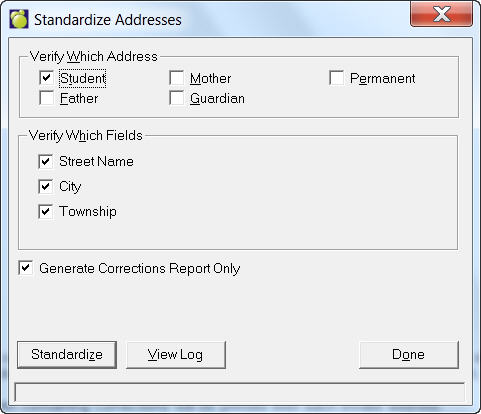
Choose File, Maintenance, Addresses Verification, Standardize Addresses to see this setup box:
-
Select the Address Types and which fields to verify.
-
Uncheck the Generate Corrections Report Only box if you wish to change data right away. Leave it checked if you wish to examine the report first.
-
Click Standardize or View Log when you have finished.
Example:
If a street name was spelled Mallard Road the street type Road may produce an error, when verifying addresses using Address Verification, if the street type is expected to be RD. The Standardize Addresses process uses the Alias table and automatically changes the address information based on matches. In this example any students with Road in the address would be changed to RD.
NOTE: By default this process create a report of data corrections and does not change data. To modify the data the Generate Corrections Report Only check box must be unchecked.