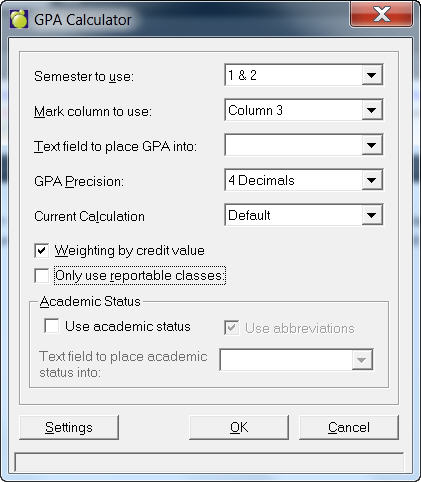
Setup GPA Values
It is important to set up your GPA values. In order to do this, go to: Marks, Define Letter Grades. For each letter grade, enter the GPA Value in the column. For example for an A+ , the GPA value may be 4 and for a C the GPA value may be 2. By setting up these values you are ensuring that your GPAs will be correctly calculated throughout Maplewood.
Academic Status
Calculating GPAs allows you to define a student's academic status based on their GPA. To define this, go to Marks, Conventional Marks, Calculate GPAs. Click on the b button, and the Status tab. Enter the appropriate academic status' for your school (e.g. Top Honors for students with a minimum GPA of 3.4). Place a checkmark in the box for "Use Academic Status" and specify which custom text field to place the information into. You can setup the text field by going to Students, Custom Fields / Tables, Text Fields. If the entire academic status title is not showing up in student records as you defined it (if it is cut off) you may need to increase the maximum length of entry you have allowed for in the text field.
How GPAs are calculated by Maplewood
Maplewood calculates GPAs in this way: Take the grade achieved in the class and find the corresponding GPA value (which you have defined in "Define Letter Grades"). Multiple this GPA value by the credit value for the class (which is either defined in the code file or the classes file). Add this sum for each class that the student is taking (either in semester 1 or 2 or both) and then divide by the total credit value. Your result is the student's GPA.
Here is an example
Class Mark Achieved GPA Value * Credit Value = Sum
MAT2Aa B 9 0.5 4.5
PHE2Ga B - 8 0.5 4.0
SNC2Ac D + 4 0.5 2.0
ENG2Ab B 9 0.5 4.5
AVI2Ga B 9 0.5 4.5
19.5 / 2.5 (total credits) = 7.8
Therefore, this students GPA is 7.8 based on the classes in this timetable (from the achievement tab of student records) or the classes on his transcript.
Current GPA
When trying to make sense of GPAs, you need to understand that there are two different types of GPAs. The first type is the student's current GPA. Current GPAs are calculated by going to Marks, Conventional Marks, Calculate GPAs. Running this program will place the student's current GPA in the field you choose (on the Custom Fields tab of student records) based on the marks they have their current timetable. On the Calculate GPA form you are asked to specify which column of marks you wish to use to calculate the student's current GPA (usually this is column 6). This form also has a check box for "Only use reportable classes". When this check box is checked it will ensure that all the classes which are marked as reportable in the classes file (File, School Setup, Classes) will be included in the student's GPA. When the checkbox is unchecked, Calculate GPAs will ignore the classes which are not marked as reportable in the classes file.
Historic GPA
The second type of GPA is the student's historic GPA which is based on their transcript marks . This GPA is calculated automatically when you editor print the student's transcript (from the History tab in student records or Grades/Marks, Print Transcripts) and when courses are added to the transcript through Automatic Transcript Update. Schools in USA jurisdictions will notice that the GPA prints on the transcript along with a ranking given for that student based on others in their grade. The ranking calculations are also automatically updated when the GPAs are updated.
If you wish to use historical GPAs and rankings in Report Builder or Sort, you should run GPA Ranking from the Marks, Conventional Marks menu to ensure that these numbers are calculated correctly.
The Code file now has a check box called, "Include in GPA Calculation". If this box is unchecked, this course will not be considered in the student's historical GPA and ranking.
It calculates the ranking using the students transcripts and the file CU\GPAInfo which contains the values for the GPA ranking. This file is set in the GPA calculator and uses the user selected GPA values.
The ranking is based on students grade. example- all grade 10 students are placed in the same array and then sorted on the GPA value that they have. The students rank is stored in udtEnrol_I.Rank1 and the number of students included in the ranking is stored in udtEnrol_I.ElementsinRank1.
To Calculate the students GPA it gets the GPA value from the transcript mark by matching it to a GPA value in the GPAInfo file.
It then gets the overall denominator by -( TotalGPADen = TotalGPADen + CreditValue )
It gets the overall sum by - ( TotalGPASum = TotalGPASum + GPAVal * CreditValue )
To get the final GPA it checks if the TotalGPASum > 0 And the TotalGPADen > 0
Then it calculates TotalGPASum = TotalGPASum / TotalGPADen
The students GPA is stored in udtXEnrol.HistGPA
Cal Jurisdiction is the only jurisdiction that uses GPA Ranking.
The GPA is calculated for each course as the courses are being processed for printing.
Then the Ranking is calculated. No saved values are used because they may be old.
Decimal Places
The number of decimal places you choose in the GPA Calculator will be reflected in Report Builder, Sort and Student Records. (For example, if you choose only two decimal places, you will only see two decimal places in Student Records and Sort and will only be able to choose up to two decimal places in Report Builder). These programs will also calculate using the number of decimal places you have chosen in GPA Calculator.
The student's transcript (for USA jurisdictions) always shows 2 decimal places regardless of which you have chosen. For greater accuracy in student's GPAs and Ranking GPAs, use 4 decimal places.
For example:
Judy is ranked 86 of 136 when 4 decimal places are used because her GPA is 2.6667
Kelly is ranked 87 of 136 when 4 decimal places are used because her GPA is 2.6666
When only 2 decimal places are used they are both ranked the same at 86 of 136 because both GPAs are rounded to the same number of 2.67. As you can see, the more decimal places you use, the more accurate your rankings will be.
Programs that Use GPAs
There are other programs available in Maplewood that will allow you to evaluate and record GPA information. Report Builder allows you to build reports with the GPA fields. You can record the student's historic GPA (also referred to as their cumulative GPA), their rank compared to those in their grade, and their current GPA. Sort is another program that allows you to sort the students based on their GPA in either ascending or descending order. Sort uses the student's historic GPA based on the courses in their transcript. This is especially useful when printing by Grade because similar to GPA Ranking, it will show you all the students in one list in ranked order.
Note: Only British Columbia will see this GPA Calculator box.
To calculate GPA, choose Marks, Conventional Marks, Calculate GPA's.
Select which semester you wish to use.
Specify which column to use when calculating the GPA (usually this is column 6). If more than one semester than another combo would show semesters.
Then select a text field where the GPA will be stored (this is set up under Custom Fields and Tables).
Specify the number of decimal places you wish you to use (it is recommended that you use 4 decimal places).
Finally, specify which calculation to use from the drop down menu (these are set up using the Settings button).
- If the Weighting by credit value box is checked then the credit value in the class's file is used. If not checked then number of classes is used. (Basically all of the classes then have credit value of 1).
- Check the box if you wish to only include reportable classes (which is specified in the classes file).
If you wish to include the Academic Status, click the check box and select the field where it will be stored. If you want to use Academic Status Abbreviations, click the check box. Click here to see information on using the Settings button.