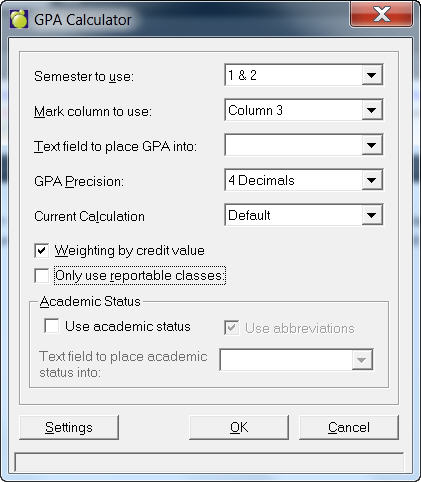
The settings button the Calculate GPAs is used to define which calculation you wish to use. Choose Marks, Conventional Marks, Calculate GPAs, and click the Settings button. The Default Settings calculation automatically appears and the letter definitions cannot be edited on this form. To edit the Default Letter Settings definitions choose Marks, Define Letter Grades.
Specify which column to use when calculating the GPA (usually this is column 6). If more than one semester than another combo would show semesters.
Then select a text field where the GPA will be stored (this is set up under Custom Fields and Tables).
Specify the number of decimal places you wish you to use (it is recommended that you use 4 decimal places).
Finally, specify which calculation to use from the drop down menu (these are set up using the Settings button - see below for more information on the Settings button).
Weighted by credit value - if the credit value of one subject is 4, then the students has a GP for that class 4 times the value of the grade point.
- Weighted by Credit value - with option checked (Divide 11/12 credits by 4). - all credits for 11 (and up) classes are divided by 4 which is then multiplied by the actual grade point the student has achieved. If a student has a combination of grade 10 and 11 subjects, the grade 10 will be calculated as in point 2, whereas the grade 11 subjects are calculated by dividing the credits by 4.
- To derive the Grade Point Average, the total credits are then divided into the total grade points acquired.
If you wish to include the Academic Status, click the check box and select the field where it will be stored. If you want to use Academic Status Abbreviations, click the check box. These are set up using the Settings button - see below for more information on the Settings button.
Here is a brief outline of the calculation process:
For each Class in the Student's Timetable, the student's grade is obtained (GPA settings are used to convert Letter Grades to Numbers).
The Credit Value is obtained for the Class
The Grade is converted to it's defined GPA value and the GPA Value is multiplied by that Class' credit value.
The total of all the GPA values are created (as calculated above).
The total of all the Credit Values used above are created.
Total of all the GPA Values are divided by the Total of all credit values.
The result of the above division are put into the Student's Text field.
Edit Academic Status
To edit the Academic Status tab for the Default Settings,
Check the Use Academic Status check box on the main GPA Calculator box
Click the Status tab, enter the information and then click Save.
Set Up GPA Calculations
You can also set up your own GPA Calculations using the settings button.
To do this, click on the Settings button on the Calculate GPAs form.
Then click the Create New button.
Enter the title you wish to have for this new GPA Calculation (e.g. "State GPA").
You are then able to enter the necessary information into both the Letters tab and the Status tab for your new GPA calculation.
Choose Save to save these definitions and exit the form.
To use your new GPA Calculation, choose the title (e.g. State GPA) from the drop down menu called "Current Calculation" on the Calculate GPA form.