Overview
Throughout the school year, Alberta secondary schools are required to send information to the Ministry of Education. Effective Fall 2013, all schools must submit their enrolment information using a PASI-enabled student information system. All schools using Maplewood are PASI-enabled. When a school is PASI-enabled, the former enrolment files (SIS files) are no longer required for the Student Record and Enrolment portions to be automatically updated as changes are made directly in the student's record. If a school is not yet PASI-enabled, the SIS files are still created in Maplewood and submitted to PASIprep. In September 2015 PASI Course Marks Integration will be in use to automatically collect the course marks information, but for now, they are still submitted using the SCM files that are uploaded to PASIprep. Edulink is no longer used to used to submit SIS and SCM file to Alberta Education for K to 12 purposes. Starting in the 2015 school year, real-time integration will be available for Course Marks. This section of the manual will be updated when the changes are released. Please note, as part of the process, divisions must centralize their codes file. Please refer to the Central Office Manual, Maintenance section and contact our support team (link to Centralizing Codes).
Acceptable file submission to Alberta Education include: Diploma Examination Registrations (DER files), Transportation Data, and Alberta Health Services initiatives.
This document describes the process for creating the following PASIprep files.
| File Name | Date | File Name | Submit Via |
| 1. Fall Enrolment Registration File - September 30th Count Date | Sept 30 | SISXXXXJ | PASIprep |
| 2. Spring Enrolment Registration File - March 1st Count Date | March 1 | SISXXXXJ | PASIprep |
| 3. Enrolment Registration File (Specify Date) | Any date | SISXXXXJ | PASIprep |
| 4. Diploma Exam Registration File (January & June Examinations) | November & April | DERZZZZS | Edulink |
| 5. Diploma Exam Course Marks File (School Awarded Marks) | January & June | SCMZZZZS | PASIprep |
| 6. Non-Diploma Exam Course Marks File (Final Marks for non-exam courses) | February & July | SCMZZZZS | PASIprep |
| 7. Class Size Information | Sept 30 | Class_Size_ZZZZ | |
| 8. Credit Enrolment Units (CEU) Reconciliation (for schools selected for audits) | determined by auditor | CEU_courses_ZZZZ.xls | only applicable to schools selected by auditor |
Where XXXX represents your School Authority Code, and ZZZZ represents your School Code
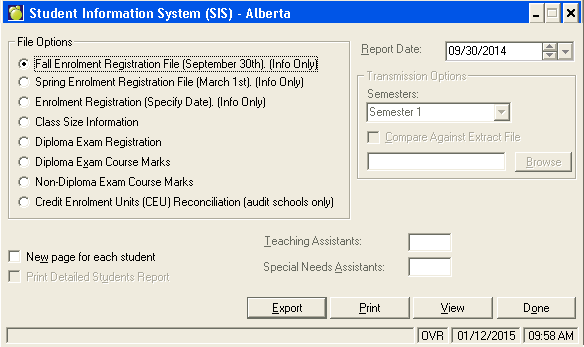
To find the programs required to create and process the Alberta Education files, choose Reports, SIS, Create SIS Data Collection File. The following form will appear:
Please use the following links to find detailed information on each of these options:
When files are returned from PASIprep, and information contained within those files need to be imported into Maplewood, choose Reports, SIS, Import SIS Data Collection File. The following form will appear:
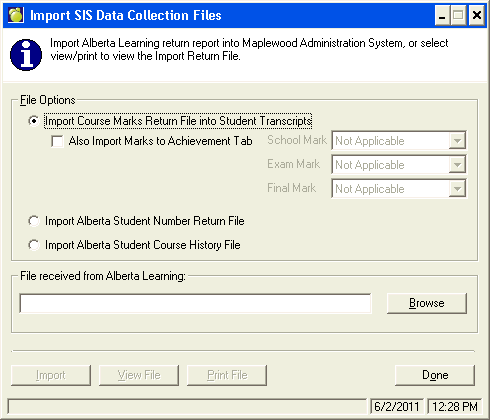
Please use the following link to find detailed information on this option:
Return Course Marks File (Import Course Marks Return File into Student Transcripts)
The Alberta Ministry of Education collects data for each student in your school. This data is used to calculate the funding for your school and for research purposes. The following options create enrolment registration files:
Fall Enrolment Registration File (September 30th Count Date)
Spring Enrolment Registration File (March 1st Count Date)
Enrolment Registration (Specify Date)
The SIS - Enrolment Registration Collections take place twice each year, and are to reflect the student demographic and registration data as of the respective count dates (September 30th and March 1st). The first transmission takes place in October and is based on the number of students enrolled in your school on September 30th. The second transmission required, Spring School Registration, takes place in early March and is based on the number of students enrolled in your school on March 1st. Schools may submit files on a regular basis (not just Sept 30 and March 1 count dates), using the Enrolment Registration (Specify Date) option.
Each enrolment registration file uses the count date and includes the following students:
Using your Maplewood system, you can create a file containing all the data required for the Enrolment Registration File transmissions. Before creating this file, please ensure that the information is accurate for each student. The file layout table has been included. It describes the information required for the file submission, and where it can be found in Maplewood. If you require further assistance, please call our support staff at 1-800-265-3482.
Notes:
1. If you are a French school, you must use M for Maternelle (Kindergarten).
2. Within PASIprep, use the Replace option because the enrolment file contains all student enrolments for the entire school year.
Creating the SIS - Enrolment Data Collection File (Student Registration Data)
Schools must send their Enrolment Registration collection file to their school authority central office where it will be verified prior to submission to Information Services. SIS data submissions must then be transmitted to Information Services using Edulink.
| School Authority Header | |||
| Position | Length | Content | Maplewood Description |
| 1-4 | 4 | Transaction Type | SSR1 appears automatically |
| 5-8 | 4 | School Authority Code | File, School Setup, School Information, Board Info. Tab, Board Number |
| 9-12 | 4 | School Code | File, School Setup, School Information, School Info. Tab, School Number |
| 13-20 | 8 | File creation date | Automatically created by maplewood. Based on the user's computer system date |
| 21-26 | 6 | School Count | Total number of SSR2 Records included in the file - automatically created by Maplewood. |
| 27-40 | 14 | Edulink Date/Time Stamp | Automatically created by Edulink |
| 41-46 | 6 | Edulink Error Count | Automatically created by Edulink |
| 47-52 | 6 | Edulink Alert Count | Automatically created by Edulink |
| 53-58 | 6 | Edulink Warning Count | Automatically created by Edulink |
| 59-64 | 6 | Edulink # of missing ID's | Automatically created by Edulink |
| 65-67 | 3 | Edulink Version Number | Automatically created by Edulink |
| 68-464 | 397 | Filler | Blank - automatically created by Edulink |
| School Header | |||
| Position | Length | Content | Maplewood Description |
| 1-4 | 4 | Transaction Type | SSR2 appears automatically |
| 5-8 | 4 | School Authority Code | File, School Setup, School Information, Board Info. Tab, Board Number |
| 9-12 | 4 | School Code | File, School Setup, School Information, School Info. Tab, School Number |
| 13-20 | 8 | File creation date | Automatically created by Maplewood. Based on the user's computer system date |
| 21-26 | 6 | Student Count | Total number of SSR3 Records included in the file - automatically created by Maplewood. |
| 27-40 | 14 | Edulink Date/Time Stamp | Automatically created by Edulink |
| 41-46 | 6 | Edulink Error Count | Automatically created by Edulink |
| 47-52 | 6 | Edulink Alert Count | Automatically created by Edulink |
| 53-58 | 6 | Edulink Warning Count | Automatically created by Edulink |
| 59-64 | 6 | Edulink # of missing ID's | Automatically created by Edulink |
| 65-67 | 3 | Edulink Version Number | Automatically created by Edulink |
| 68-464 | 397 | Filler | Blank - automatically created by Edulink |
| Student Registration Detail | |||
| Position | Length | Content | Maplewood Description |
| 1-4 | 4 | Transaction Type | SSR3 appears automatically |
| 5-8 | 4 | School Authority Code | File, School Setup, School Information, Board Info. Tab, Board Number |
| 9-12 | 4 | School Code | File, School Setup, School Information, School Info. Tab, School Number |
| 13 | 1 | Form Action Code | MW does not export info at this time |
| 14-21 | 8 | Modification Effective Date | Left Blank as per ministry instruction |
| 22-30 | 9 | Alberta Student Number | Student Records, Enrolment, Alberta Student Number |
| 31-55 | 25 | Legal Surname | Biographics, Name, Legal Surname
If Legal Surname is not populated, then Surname field is automatically used in the SIS File. |
| 56-80 | 25 | Legal Given Name(s) | Biographics, Name, Given Name and Biographics, Name, Middle Name(s) |
| 81-88 | 8 | Birthdate | Biographics, Birthdate |
| 89 | 1 | Gender (M or F) | Biographics, Gender |
| 90-97 | 8 | Registration Start Date | Enrolment, Entry Date to this school
Registration Start date in the SIS Enrolment file must be the start date of this year. Students who have an 'Entry to This School' date that is prior to the start date of the current school year, the program will default the date to the first day of attendance for these students.
|
| 98-122 | 25 | "Also Known As" Surname | Biographics, Name, Surname
This field is only populated if the student's Legal Surname is populated |
| 123-147 | 25 | "Also Known As" Given Name(s) | Biographics, Name, Usual Name(s) |
| 148-177 | 30 | Current Mailing Address 1 | Family, Student Address, Apartment or Suite Number |
| 178-207 | 30 | Current Mailing Address 2 | Family, Student Address, complete Street Address or P.O. Box Number
If Street address is populated, then P.O. Box number is not included |
| 208-227 | 20 | Current City | Family, Student Address, City |
| 228-229 | 2 | Current Province Code | Family, Student Address, Province
Province/Territories Abbreviations
|
| 230-235 | 6 | Postal Code | Family, Student Address, Postal Code |
| 236-238 | 3 | Current Phone Area Code | Family, Student Address, first three digits of Phone Number |
| 239-245 | 7 | Current Phone Number | Family, Student Address, last seven digits of Phone Number |
| 246-275 | 30 | Permanent Mailing Address 1 | Family, Permanent Address, Apartment or suite number |
| 276-305 | 30 | Permanent Mailing Address 2 | Family, Permanent Address, complete street address or PO box number |
| 306-325 | 20 | Permanent City | Family, Permanent Address, City |
| 326-345 | 20 | Permanent Province | Family, Permanent Address, Province |
| 346-360 | 15 | Permanent Postal Code | Family, Permanent Address, Postal Code |
| 361-390 | 30 | Permanent Country | Family, Permanent Address, Country |
| 391 | 1 | Registration Type | Enrolment, Registration Type
To modify/setup table, choose Students, Custom Fields/Tables, Enrolment Tables, Registration Type |
| 392-393 | 2 | Students Grade |
Biographics, This Year Grade J, K, P, M, E and C will all be sent as EC (Early Childhood) Note: UG (Ungraded) is not longer an Active grade, and will not be sent.
Note: UG (Ungraded) is not longer an Active grade, and will not be sent. These letter grades are defined within Maplewood in Students, Custom Fields/ Tables, Table of Grades, and are assigned to students through Student Records, Biographics, Edit |
| 394 | 1 | Citizenship | Enrolment, Citizenship
To modify/setup table, choose Students, Custom Fields/Tables, Enrolment Tables, Citizenship Citizenship Code 9 (other/unknown) should only be used if you have not yet determined the student's citizenship. This code MUST be replaced once the citizenship has been determined. Continuous use of code 9 will have funding implications. |
| 395-402 | 8 | Student Authorization Expiry Date | Enrolment, Student Authorization Expiry Date.
Note: This field will only be sent to SIS if the Citizenship field code is Student Authorization - Visa |
| 403 | 1 | Section 23 Eligibility | Enrolment, Section 23 Eligibility |
| 404-418 | 15 | School/Jurisdiction Student ID
|
Biographics, Name, Student Number
Note: If you assign a student to a number that is already used, a warning is produced. Therefore duplicates should not normally occur |
| 419-421 | 3 | Registration Entry Status | Enrolment, Registration Entry Status
To modify/setup table, choose Students, Custom Fields/Tables, Enrolment Tables, Registration Entry Status |
| 422-425 | 4 | Resident Board | Enrolment, Resident Board
To modify/setup table, File, School Setup, Divisions |
| 426-429 | 4 | French Instruction hrs./yrs. | Enrolment, Other Fields, Hours of French
This area is only enabled if one of the following 'Grant Programs' has been selected for the student: 230 - French as a Second Language |
| 430-432
433-435 436-438 |
3
3 3 |
Grants Program (up to 3 per student) | Enrolment, Other Fields, Grants Program
To modify/setup table, choose Students, Custom Fields/Tables, Enrolment Tables, Grants Program |
| 439-440
441-442 |
2
2 |
Special Needs Student (up to 2 per student)
The Special Ed. tab appears when the Special Education Field is checked off on the Enrolment screen. |
Special Ed., Edit, Categories
Only the first 2 (of the 3 available) Categories are used in the SIS export To modify/setup table choose Students, Custom Fields/Tables, Special Education, Categories |
| 443-445
446-448 449-451 |
3
3 3 |
Enrolment Type (up to 3 per student) | Enrolment, Other Fields, Enrolment Type
To modify/setup table, choose Students, Custom Fields/Tables, Enrolment Tables, Enrolment Type |
| 452-459 | 8 | Exit Date | Enrolment, Exit Date |
| 460-464 | 5 | Exit Description | Enrolment, Exit Description
To modify/setup table, choose Students, Custom Fields/Tables, Enrolment Tables, Exit Description |
This file is created and sent to Alberta Education prior to every Diploma Exam period. January Exam information is sent in November and June Exam information is sent in April. Please refer to the Alberta Education Schedule for specific dates and Summer Exam submission information.
Creating the SIS - Diploma Exam Registration File
| Jurisdiction/School Header (DER1) | |||
| Position | Length | Content | Maplewood Description |
| 1-4 | 4 | Transaction Type (always DER1) | DER1 appears automatically |
| 5-8 | 4 | School Authority Code | File, School Setup, School Information, Board Info. Tab, Board Number |
| 9-12 | 4 | School Code | File, School Setup, School Information, School Info. Tab, School Number |
| 13-36 | 24 | Filler | Blank - automatically created by Maplewood |
| 37-44 | 8 | File creation date | Automatically created by Maplewood. Based on the user's computer system date |
| 45-50 | 6 | Student Count | Total number of SCM2 Records included in the file - automatically created by Maplewood. |
| 51-64 | 14 | Edulink Date/Time Stamp | Automatically created by Edulink |
| 65-70 | 6 | Edulink Error Count | Automatically created by Edulink |
| 71-76 | 6 | Edulink Alert Count | Automatically created by Edulink |
| 77-82 | 6 | Edulink Warning Count | Automatically created by Edulink |
| 83-85 | 3 | Edulink Version Number | Automatically created by Edulink |
| 86-185 | 100 | Filler | Blank - automatically created by Edulink |
| Student ID Detail (DER2) | |||
| Position | Length | Content | Maplewood Description |
| 1-4 | 4 | Transaction Type (always DER2) | DER2 appears automatically |
| 5-8 | 4 | School Authority Code | File, School Setup, School Information, Board Info. Tab, Board Number |
| 9-12 | 4 | School Code | File, School Setup, School Information, School Info. Tab, School Number |
| 13-27 | 15 | School/Jurisdiction Student ID | Biographics, Name, Student Number. Note: If you assign a student to a number that is already used, a warning is produced. Therefore duplicates should not normally occur. |
| 28-36 | 9 | Alberta Student Number | Student Records, Enrolment, Edit, Alberta Student Number. |
| 37-61 | 25 | Legal Surname | Biographics, Name, Legal Surname (if different from usual surname). |
| 62-86 | 25 | Legal Given Name(s) | Biographics, Name, Given Name and Biographics, Name, Middle Name(s) |
| 87-94 | 8 | Birthdate | Biographics, Edit, Birthdate. |
| 95 | 1 | Gender (M or F) | Biographics, Edit, Gender. |
| 96-125 | 30 | Current Mailing Address 1 | Family, Student Address, Apartment or Suite Number |
| 126-155 | 30 | Current Mailing Address 2 | Family, Student Address, complete Street Address or P.O. Box Number
If Street address is populated, then P.O. Box number is not included |
| 156-175 | 20 | Current City | Family, Student Address, City |
| 176-177 | 2 | Current Province Code | Family, Student Address, Province
|
| 178-183 | 6 | Postal Code | Family, Student Address, Postal Code |
| 184-185 | 2 | Registration Exam Count | Number of Exam Classes that the student is registering for.
Classes in the student's timetable within a semester are cross referenced with the Classes file. The classes that are defined as Provincial Examinable will be included in the export file. To define a class as Examinable select File, School Set-up, Classes, Edit, Exam, Examination |
| Diploma Exam Registration Detail (DER3) | |||
| Position | Length | Content | Maplewood Description |
| 1-4 | 4 | Transaction Type (always DER3) | DER3 appears automatically |
| 5-8 | 4 | School Authority Code | File, School Setup, School Information, Board Info. Tab, Board Number |
| 9-12 | 4 | School Code | File, School Setup, School Information, School Info. Tab, School Number |
| 13-27 | 15 | School/Jurisdiction Student ID | Biographics, Name, Student Number. Note: If you assign a student to a number that is already used, a warning is produced. Therefore duplicates should not normally occur. |
| 28-36 | 9 | Alberta Student Number | Student Records, Enrolment, Edit, Alberta Student Number. |
| 37-43 | 7 | Course ID | File, School Setup, Classes, Course Code (does not include the section letter).
The Course and Mark transaction file only includes Grade 10, 11 and 12 courses that were completed within that term, and includes all courses that meet this criteria even if they are non-examinable courses. To ensure that the Course has the correct grade defined, choose File, School Set-Up, Codes. Select one of the codes in question, and select Edit. In the top Right corner is the field for Grade. |
| 44-51 | 8 | Exam Registration Date | File, School Set-up, Classes, Exam (Button), Completion Date |
| 52-53 | 2 | Language Code (Exam) | File, School Set-up, Classes, Exam (Button), Language |
| 54-57 | 4 | Exam Writing Centre | File, School Set-up, Classes, Exam (Button), Writing Centre |
| 58-185 | 128 | Filler | Blank - automatically created by |
The Course and Mark Transaction File has been created by the Alberta Ministry of Education for schools and school authorities to submit a student's courses and marks. Mark information is collected from the students' transcripts and therefore, the transcripts must be updated prior to creating this file. Since the school that provides the instruction or assessment is the only school that can submit the mark, courses completed at other schools will be excluded from the file.
Throughout the course of the school year, various data files are sent to and from Alberta Education. Using your Maplewood system, you can create a file containing all the data required for these transmissions. Before creating theses files, please ensure that the information is accurate for each student. The file layout table has been included. It describes the information required for the file submissions, and where it can be found in Maplewood. If you require further assistance, please call our support staff at 1-800-265-3482.
Creating the SIS - Course Marks Data Collection Files
2. Select the semester (1 or 2).
| Jurisdiction/School Header - SCM1 Transaction | |||
| Position | Length | Content | Maplewood Description |
| 1 | 4 | Transaction Type (always SCM1) | SCM1 appears automatically |
| 5-8 | 4 | School Authority Code | File, School Setup, School Information, Board Info. Tab, Board Number |
| 9-12 | 4 | School Code | File, School Setup, School Information, School Info. Tab, School Number |
| 13-36 | 24 | Filler | Blank - automatically created by Maplewood |
| 37-44 | 8 | File creation date | Automatically created by Maplewood. Based on the user's computer system date |
| 45-50 | 6 | Student Count | Total number of SCM2 Records included in the file - automatically created by Maplewood. |
| 51-64 | 14 | Edulink Date/Time Stamp | Automatically created by Edulink |
| 65-70 | 6 | Edulink Error Count | Automatically created by Edulink |
| 71-76 | 6 | Edulink Alert Count | Automatically created by Edulink |
| 77-82 | 6 | Edulink Warning Count | Automatically created by Edulink |
| 83-85 | 3 | Edulink Version Number | Automatically created by Edulink |
| 86-107 | 22 | Filler | Blank - automatically created by Edulink |
| Student ID Detail - SCM2 Transaction | |||
| Position | Length | Content | Maplewood Description |
| 1 | 4 | Transaction Type (always SCM2) | SCM2 appears automatically. |
| 5-8 | 4 | School Authority Code | File, School Setup, School Information, Board Info. Tab, Board Number. |
| 9-12 | 4 | School Code | File, School Setup, School Information, School Info. Tab, School Number. |
| 13-27 | 15 | School/Jurisdiction Student ID | Biographics, Name, Student Number. Note: If you assign a student to a number that is already used, a warning is produced. Therefore duplicates should not normally occur. |
| 28-36 | 9 | Alberta Student Number | Student Records, Enrolment, Edit, Alberta Student Number. |
| 37-61 | 25 | Legal Surname | Biographics, Name, Legal Surname (if different from usual surname). |
| 62-86 | 25 | Legal Given Name(s) | Biographics, Name, Given Name and Biographics, Name, Middle Name(s). |
| 87-94 | 8 | Birthdate | Biographics, Edit, Birthdate. |
| 95 | 1 | Gender (M or F) | Biographics, Edit, Gender. |
| 96-98 | 3 | Course Count
This field is blank in the file generated by Maplewood. When the file is submitted to PASIprep, it will automatically sum of all the courses included in the file. |
Student Records, History
The sum of all courses included in the file for this student (i.e. recently completed -based on Report Date). |
| 99-103 | 5 | Credit Hash
This field is blank in the file generated by Maplewood. When the file is submitted to PASIprep, it will automatically sum of all the credits of the courses included in the file. |
Student Records, History
Sum of all the credits of the courses included in the file for this student (i.e. recently completed -based on Report Date). This is based on attempted credit values |
| 104-107 | 4 | Mark Hash
This field is blank in the file generated by Maplewood. When the file is submitted to PASIprep, it will automatically sum of all the marks of the courses included in the file. |
Student Records, History
Sum of all the numeric marks for the individual student included in the file (i.e. recently completed -based on Report Date). Note: Does not include any pass/fail indicators or letter grades. |
| Course Mark Detail - SCM3 Transaction | |||
| Position | Length | Content | Maplewood Description |
| 1 | 4 | Transaction Type (always SCM3) | SCM3 appears automatically |
| 5-8 | 4 | School Authority Code | File, School Setup, School Information, Board Info. Tab, Board Number |
| 9-12 | 4 | School Code | File, School Setup, School Information, School Info. Tab, School Number |
| 13-27 | 15 | School/Jurisdiction Student ID | Biographics, Name, Student Number. Note: If you assign a student to a number that is already used, a warning is produced. Therefore duplicates should not normally occur. |
| 28-36 | 9 | Alberta Student Number | Student Records, Enrolment, Edit, Alberta Student Number. |
| 37-43 | 7 | Course ID | History, Edit, Course
Note: If Course Number is populated (in the Code file) then the Course Number will be sent. If the Course information in the History of the student is incorrect, it can be updated by selecting File, School Setup, Codes, then find the course code in question and select Edit - the Course Number can be entered here. If you need to edit the course code, please contact Maplewood before doing so, as this can cause significant alterations to all student data. The Course and Mark transaction file only includes Grade 10, 11 and 12 courses that were completed within that term, and includes all courses that meet this criteria even if they are non-examinable courses. To ensure that the Course has the correct grade defined, choose File, School Set-Up, Codes. Select one of the codes in question, and select Edit. In the top Right corner is the field for Grade. |
| 44 | 1 | Form Action Code | New option has been added for Course Marks export (Diploma and non-diploma) - to compare file to extract file and only send the differences between the files. If user would like to utilize this function, then user must first request a DCM Marks file from Alberta Education. MW will compare what is in the DCM file with what is in Maplewood. Using the criteria of matching the following for each student's course between the 2 files: Course Code Course Completion Date Course Completion Credit Course Completion Fund Flag Course Completion External Credential Flag Course Completion Funding Schedule Code Course Completion Method Code Course Evaluation Province Code Course Completion Status Code School Awarded Mark Diploma Exam Mark Final (Blended) Mark If any of the items above differ, then MW will send a 'Replace' Form Action Code for the data that is currently in Alberta Learning...and then a subsequent 'Add' Form Action Code for the data that currently resides in Maplewood Note: ANY COURSES THAT APPEAR IN THE ORIGINAL EXTRACT FILE, WILL NOT BE SENT A SECOND TIME - ONLY DIFFERENCES ( CHANGES AND COURSES NOT PREVIOUSLY SENT) WILL BE INCLUDED IN THE SCM FILE CREATED BY MAPLEWOOD. Maplewood is not (and will not) be sending the Form Action Code of "Delete". As this option could compromise the student mark history, if the data in Maplewood were incorrect and would delete the existing record in Edulink. If your School District would like to have the ability to access this option, please contact Maplewood. |
| 45-52 | 8 | Modification Effective Date | Left Blank as per ministry instruction |
| 53-60 | 8 | Course Completion Date
Actual date the student completes, is exempted from, withdraws from or does not complete a course (generally coincides with the term/semester end date). |
The process in which the Course Mark file is populated is based on the information pulled from the student's transcript (History) of courses that have been added during the current school year . In Maplewood the transcript only stores the Month and the Year of the completion date, previously Maplewood was sending the first day of the month that the course was added to the transcript. In order to avoid errors from Edulink, Maplewood has made the following changes to the program: The determination of the completion date will now be made based on the school calendar, more specifically Semester and/or Term start and end dates. For Example: If completion date in the transcript is in January/ February then the last NORMAL day of Semester 1 is sent. If the completion date in the transcript is June then the last NORMAL day of Semester 2 (or last day of the school year) is sent. In the event that a course completion date (Month) in the transcript does not coincide with a Start/End date of a Semester/Term, then Maplewood will send whichever Semester/Term end date in the calendar that most closely coincides with this month/year. |
| 61-64 | 4 | Course Completion Credit
Enter the credits the student was attempting to achieve in the course. (Not what the student earned). |
The Attempted Credit field is populated based on what is entered in the Code file for that course. If the entry is incorrect, it can be modified by going to File, School Setup, Codes, then find the code in question and select Edit. The credit value appears in the top right corner. |
| 65 | 1 | Course Completion Fund Flag Y - The course completion meets funding requirements and the course should be funded. N - The course completion does not meet funding requirements and the course should not be funded Blank - The course completion does not require verification of funding |
History, Edit, Course Completion Status |
| 66 | 1 | Course Completion External Credential Y - course qualifies for an external credentia N - course does not qualify for an external credentia |
History, Edit, External Credential |
| 67-69 | 3 | Course Completion Funding Schedule REG - Semester course for credit FUL - Full year course for credit SUM - Summer course for credit
|
File, School Set-up, Classes, Delivery |
| 70-72 | 3 | Course Completion Method Code CHA - Course Challenge JRH - Junior High –high school courses completed in grade 7,8 or 9 MUS - Music Evaluation – credits earned through private study OUT - Out of province evaluation PVT - Private School Evaluation REG - Regular WPC - Waived Pre-requisite credit |
History, Edit, Course Completion Method |
| 73-74 | 2 | Course Evaluation Province Code
Indicates where the student was instructed in the course being evaluated (If the course completion method is not equal to OUT or PVT, the course evaluation province must be blank). |
History, Edit, Course Evaluation Province |
| 75-77 | 3 | Course Completion Status Code COM - A complete course results in marks EXP - Student is exempted from taking a mandatory part of curriculum INC - An INC status has no associated marks (may only be used for CTS courses) – registered throughout the course yet does not complete all of learner expectations WDR - Sudent is unable to complete the course. A WDR status has no associated marks |
History, Edit, Course Completion Status
A course completion status of INC (incomplete) may only be used for CTS courses |
| 78-80 | 3 | Primary Delivery Method Code DSL - Distance Learning
|
File, School Set-up, Classes, Type of Course |
| 81-82 | 2 | Language Code (Instruction) | File, School Set-up, Classes, Language of Instruction. Below is a list of valid entries.
|
| 83-84 | 2 | Filler | Blank - automatically created by Maplewood |
| 85-87 | 3 | School Awarded Mark
Mark achieved by student for this course completion |
History, Mark |
| 88-90 | 3 | Filler | Blank - automatically created by Maplewood |
| 1-93 | 3 | Filler | Blank - automatically created by Maplewood |
| 94-101 | 8 | Class ID | Maplewood will cross reference course codes/numbers that are being sent (from the Transcript/Code File) to those that are in the students timetable. If a match is found, then the class section letter will be sent in the Class ID field. Note: For withdrawn courses the program will look at the add/drops for the section letter - at the last dropped occurrence of the class. If match is not found then the program will not populate the Class ID for that course. An option to view the list of courses that were sent without an assigned Class ID will appear at end of export. Note that if a board is using the Course Number field, the course number for a course in the Codes file must match the assigned Course Number for the same course in the Courses File. For Example the course FRE20-5 must have the same course number associated with it in BOTH the courses file and the codes file. |
| 102-107 | 6 | Filler | Blank - automatically created by Maplewood |
This file is created by Alberta Education, and mirrors the Course Marks file (above). The purpose of this file is to import the Student's Exam and Final (Blended) Mark into the student's mark history (Transcript) within Maplewood. The only information that is imported is the 2 new marks. All other data is used as reference to ensure that a student match is successful. The file layout table has been included below. Please note the only 2 pieces of information that are imported are highlighted.
Importing the SIS - Return Course Marks Data File
| Jurisdiction/School Header - RCM1 Transaction | |||
| Position | Length | Content | Maplewood Description |
| 1 | 4 | Transaction Type (always RCM1) | RCM1 appears automatically |
| 5-8 | 4 | School Authority Code | File, School Setup, School Information, Board Info. Tab, Board Number |
| 9-12 | 4 | School Code | File, School Setup, School Information, School Info. Tab, School Number |
| 13-36 | 24 | Filler | Blank - automatically created by Alberta Education |
| 37-44 | 8 | File creation date | Automatically created by Maplewood. Based on the user's computer system date |
| 45-50 | 6 | Student Count | Total number of RCM2 Records included in the file - automatically created by Alberta Education |
| 51-107 | 22 | Filler | Blank - Automatically created by Alberta Education |
| Student ID Detail - RCM2 Transaction | |||
| Position | Length | Content | Maplewood Description |
| 1 | 4 | Transaction Type (always RCM2) | RCM2 appears automatically |
| 5-8 | 4 | School Authority Code | File, School Setup, School Information, Board Info. Tab, Board Number |
| 9-12 | 4 | School Code | File, School Setup, School Information, School Info. Tab, School Number |
| 13-27 | 15 | School/Jurisdiction Student ID | Biographics, Name, Student Number.
Note: If you assign a student to a number that is already used, a warning is produced. Therefore duplicates should not normally occur. |
| 28-36 | 9 | Alberta Student Number | Student Records, Enrolment, Edit, Alberta Student Number. |
| 37-61 | 25 | Legal Surname | Biographics, Name, Legal Surname (if different from usual surname). |
| 62-86 | 25 | Legal Given Name(s) | Biographics, Name, Given Name and Biographics, Name, Middle Name(s) |
| 87-94 | 8 | Birthdate | Biographics, Edit, Birthdate. |
| 95 | 1 | Gender (M or F) | Biographics, Edit, Gender. |
| 96-98 | 3 | Course Count
The sum of all of the student’s courses included in the file. |
Student Records, History
The sum of all courses included in the file for this student (i.e. recently completed -based on Report Date). |
| 99-103 | 5 | Credit Hash
The sum of all the credits of the courses included in the file. |
Student Records, History
Sum of all the credits of the courses included in the file for this student (i.e. recently completed -based on Report Date). This is based on attempted credit values |
| 104-107 | 4 | Mark Hash
The sum of all the marks of the courses included in the file. |
Student Records, History
Sum of all the numeric marks for the individual student included in the file (i.e. recently completed -based on Report Date). Note: Does not include any pass/fail indicators or letter grades |
| Course Mark Detail - RCM3 Transaction | |||
| Position | Length | Content | Maplewood Description |
| 1 | 4 | Transaction Type (always RCM3) | RCM3 appears automatically |
| 5-8 | 4 | School Authority Code | File, School Setup, School Information, Board Info. Tab, Board Number |
| 9-12 | 4 | School Code | File, School Setup, School Information, School Info. Tab, School Number |
| 13-27 | 15 | School/Jurisdiction Student ID | Biographics, Name, Student Number. Note: If you assign a student to a number that is already used, a warning is produced. Therefore duplicates should not normally occur. |
| 28-36 | 9 | Alberta Student Number | Student Records, Enrolment, Edit, Alberta Student Number. |
| 37-43 | 7 | Course ID | History, Edit, Course
Note: If Course Number is populated (in the Code file) then the Course Number will be sent. If the Course information in the History of the student is incorrect, it can be updated by selecting File, School Setup, Codes, then find the course code in question and select Edit - the Course Number can be entered here. If you need to edit the course code, please contact Maplewood before doing so, as this can cause significant alterations to all student data. The Course and Mark transaction file only includes Grade 10, 11 and 12 courses that were completed within that term, and includes all courses that meet this criteria even if they are non-examinable courses. To ensure that the Course has the correct grade defined, choose File, School Set-Up, Codes. Select one of the codes in question, and select Edit. In the top Right corner is the field for Grade. |
| 44 | 1 | Filler | Blank - Automatically created by Alberta Education |
| 45-52 | 8 | Modification Effective Date | Left Blank as per ministry instruction |
| 53-60 | 8 | Course Completion Date
Actual date the student completes, is exempted from, withdraws from or does not complete a course (generally coincides with the term/semester end date). |
The process in which the Course Mark file is populated is based on the information pulled from the student's transcript (History) of courses that have been added during the current school year . In Maplewood the transcript only stores the Month and the Year of the completion date, previously Maplewood was sending the first day of the month that the course was added to the transcript. In order to avoid errors from Edulink, Maplewood has made the following changes to the program: The determination of the completion date will now be made based on the school calendar, more specifically Semester and/or Term start and end dates. For Example: If completion date in the transcript is in January/ February then the last NORMAL day of Semester 1 is sent. If the completion date in the transcript is June then the last NORMAL day of Semester 2 (or last day of the school year) is sent. In the event that a course completion date (Month) in the transcript does not coincide with a Start/End date of a Semester/Term, then Maplewood will send whichever Semester/Term end date in the calendar that most closely coincides with this month/year. |
| 61-64 | 4 | Course Completion Credit |
History, Edit, Attempted Credit |
| 65 | 1 | Course Completion Fund Flag | History, Edit, Course Completion Status |
| 66 | 1 | Course Completion External Credential | History, Edit, External Credential |
| 67-69 | 3 | Course Completion Funding Schedule Code | File, School Set-up, Classes, Delivery Method |
| 70-72 | 3 | Course Completion Method Code | History, Edit, Course Completion Method |
| 73-74 | 2 | Course Evaluation Province Code | History, Edit, Course Evaluation Province |
| 75-77 | 3 | Course Completion Status Code | History, Edit, Course Completion Status |
| 78-80 | 3 | Primary Delivery Method Code | File, School Set-up, Classes, Type of Course |
| 81-82 | 2 | Language Code (Instruction) | File, School Set-up, Classes, Language of Instruction |
| 83-84 | 2 | Language Code (Exam) | File, School Set-up, Classes, Exam (Button), Language |
| 85-87 | 3 | School Awarded Mark | History, Mark |
| 88-90 | 3 | Diploma Exam Mark | Imported into Maplewood into the student's transcript - History, Exam |
| 91-93 | 3 | Final (Blended) Mark | Imported into Maplewood into the student's transcript -History, Final |
| 94-101 | 8 | Class ID | Maplewood will cross reference course codes/numbers that are being sent (from the Transcript/Code File) to those that are in the students timetable. If a match is found, then the class section letter will be sent in the Class ID field. Note: For withdrawn courses the program will look at the add/drops for the section letter - at the last dropped occurrence of the class. If match is not found then the program will not populate the Class ID for that course. An option to view the list of courses that were sent without an assigned Class ID will appear at end of export. Note that if a board is using the Course Number field, the course number for a course in the Codes file must match the assigned Course Number for the same course in the Courses File. For Example the course FRE20-5 must have the same course number associated with it in BOTH the courses file and the codes file. |
| 102-107 | 6 | Filler | Blank - automatically created by Maplewood |
The information contained in this file can be imported into Alberta Education’s Class Size Information System to provide them with a survey of class sizes in your school. The intent of the survey is to measure the class size, regardless of what course, module, or grade level is being taught, or how many courses, modules or grade levels are being taught in a class. Note that the subject of the course collected by this survey does not contain actual course names, but rather uses broad subject categories. You may need to use your own judgment in deciding which category best applies to each class. Maplewood will use the “Department table for these broad categories. Using File, School Setup, Departments, you should have the following list of departments, along with their corresponding Ministry numbers:
| MIN# | Title |
| 1000 | English/French Language Arts |
| 1100 | Mathematics |
| 1110 | Pure Math * |
| 1120 | Applied Math * |
| 1200 | Science |
| 1210 | Biology |
| 1220 | Chemistry |
| 1230 | Physics |
| 1300 | Social Studies |
| 1400 | Health |
| 1500 | Physical Education |
| 1600 | Career and Life Management |
| 1700 | Art |
| 1710 | Music |
| 1720 | Drama |
| 1800 | Second Languages |
| 1900 | Religions Instruction/Studies |
| 2000 | Environmental and Outdoor Education |
| 2100 | Social Science |
| 2200 | Career and Technology Studies |
| 2300 | Integrated Occupation Program |
| 2400 | Special Education |
| 2500 | Early Childhood Services |
| 8000 | Locally Developed Course |
| 9000 | Other |
Creating the Class Size Information file:
If this file is generated from Maplewood Central Office, the number of FTE teaching assistants will be set to zero for each of the schools. The schools will need access to the survey to input these values directly in the Class Size Information System.
See the chart below to determine how each of the fields in the report is calculated.
| School Authority Header | |||
| Position | Length | Content | Maplewood Description |
| 1 | 1 | Header start (always H) | H appears automatically |
| 2-5 | 4 | School Authority Code | File, School Setup, School Information, Board Info. tab will show School Authority Code. Contact Maplewood if incorrect. |
| 6-9 | 4 | School Year | Year as indicated in the start of the school calendar (e.g. 2009 for 2009/2010 school calendar). File, School Setup, Calendar. |
| 10-17 | 8 | File Creation Date | the last school day in September of the current school year will appear (e.g. 20090930) |
| 18-20 | 3 | File Specification Version | 003 will automatically appear (may change if new specifications are issued by AB Education) |
| 21-110 | 94 | Filler | 94 spaces are automatically included |
|
School Header |
|||
| Position | Length | Content | Maplewood Description |
| 1 | 1 | Header start (always H) | H appears automatically |
| 2-5 | 4 | School Code | File, School Setup, School Information, School Info. tab will show school code. Contact Maplewood if incorrect. |
| 6-10 | 5 | Total Teaching Assistants | This information is not collected at this time so 000.0 will appear. |
| 11-15 | 5 | Total Special needs Assistants | This information is not collected at this time so 000.0 will appear. |
| 16-110 | 95 | Filler | 95 spaces are automatically included |
|
Notes: Grouped classes are all included in the same class record, using the class identifier of the class with the greatest students. Student timetable adds and drops are used to determine the student’s actual timetable on the report date so that the class size is accurate even when printing the report at a later time. |
|||
| Position | Length | Content | Maplewood Description |
| 1 | 1 | Detail start (always D) | D appears automatically |
| 2-5 | 4 | Subject Code | File, School Setup, Departments will contain the list of general subject areas. The Ministry# of each subject is used here. In File, School Setup, Courses, select the appropriate subject area in the Department field. Here is the list of Departments that should be used. |
| 6-45 | 40 | Grade | Grade (or grades) of the students enrolled in the class. Multiple grade levels are separated with a slash (e.g. 10/11). |
| 46-95 | 50 | Class Identifier | Class code (including section letter) and course title. Class codes are found in File, School Setup, Classes while their titles are found in File, School Setup, Courses. |
| 96-98 | 3 | Total number of students in class | Number of students in the class on September 30th of the current year. |
| 99-101 | 3 | Number of code 40 students | Number of students in this class who have an active special education file with an exceptionality in the 40’s (Students, Custom Fields/Tables, Special Education, Exceptionalities --- Ministry # must be in the 40’s). |
| 102-104 | 3 | Number of code 30/50 students | Number of students in this class who have an active special education file with an exceptionality in the 30’s or 50’s (Students, Custom Fields/Tables, Special Education, Exceptionalities --- Ministry # must be in the 30’s or 50’s). |
| 105-107 | 3 | Number of code 80 students | Number of students in this class who have an active special education file with an exceptionality in the 80’s (Students, Custom Fields/Tables, Special Education, Exceptionalities --- Ministry # must be in the 80’s). |
| 108-110 | 3 | Number of ESL students | Number of students in this class who have the Grant Program ESL funded or non-funded (Student Records, Enrolment tab, Edit, Other Fields tab. Grant Program 1,2, or 3 contains English as a Second Language Funded or Non-Funded). |
| 111 - 113 | 3 | Number of students participating in video conferencing (off site) | Optional Field - Not currently exported thru Maplewood |
|
School Trailer |
|||
| Position | Length | Content | Maplewood Description |
| 1 | 1 | Trailer start (always T) | T appears automatically |
| 2-5 | 4 | School Code | File, School Setup, School Information, School Info. tab will show school code. Contact Maplewood if incorrect. |
| 6-8 | 3 | Number of classes reported | This will correspond to the number of school detail records included in the file. |
| 9-110 | 102 | Filler | 102 spaces are automatically included |
|
School Authority Detail |
|||
| Position | Length | Content | Maplewood Description |
| 1 | 1 | Trailer start (always T) | T appears automatically |
| 2-5 | 4 | School Authority Code | File, School Setup, School Information, Board Info. tab will show school authority code. Contact Maplewood if incorrect. |
| 6-8 | 3 | Number of schools reported | Number of Schools included in the file. |
| 9-110 | 102 | Filler | 102 spaces are automatically included |
Each school year, Alberta Education randomly selects approximately 250 schools for annual provincial CEU monitoring. As part of the audit, they will request a Credit Enrolment Units (CEU) Reconciliation file which contains a subset of the data reported in the SCM files (Diploma Exam and Non-Diploma Exam Course Marks files. This report pulls the information from the students' transcripts.
Creating the Credit Enrolment Units (CEU) Reconciliation:
Select Reports, SIS, Create SIS Data Collection File. Select the Credit Enrolment Units (CEU) Reconciliation option.
Select the semester (1 or 2)
Select the Export button to create the file. Specify the drive, directory and filename.
When the report is finished, select View to see the contents of the report. The view option within Maplewood will format the headings slightly different than in the actual file (e.g. Actual file contains SchoolCode but the printout will label the heading School Code). The auditor's will view the file using Microsoft Excel.
Electronic file Format
The file contains the following fields:
Student ID, School Code, Course Code, Term, Course Completion Date, Course Completion Code, Site Credits, Last Name, First Name
These fields correspond to the same fields in the Course Mark Information (SCM files). Note: The Term will be empty as it is not required if the course completion date is in the file. Course completion codes will be REG (regular), FUL (full year), or SUM (summer course).