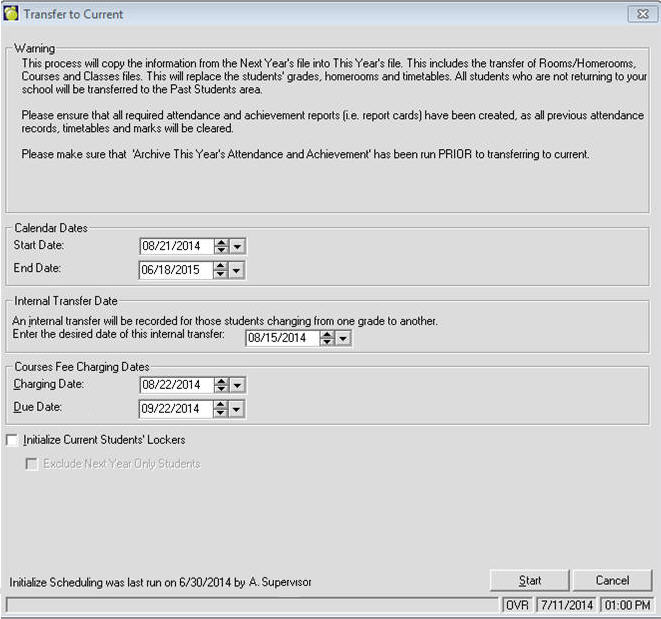
Depending upon the school type (elementary or secondary) and the province/territory, the transfer to current interface will present a list of options tailored for the school or schools (if multiple schools selected via Central Office). Please make sure the settings are correct before clicking the Start button.
Central Office users will have a Schools button to select multiple schools to be transferred using the same settings. Only schools of the same type (elementary or secondary) may be selected using the Schools button.
Here is an example interface with some of the potential options. Below this interface, you will find a detailed explanation of all the possible options that may appear, noting that the interface options will depend upon the school(s) selected.

The school calendar will be created using the start and end dates entered here. When the transfer to current is completed, the school should edit the school calendar as needed. It is important that non-school days (holidays, etc) are defined correctly and schools with daily cycles have the days setup correctly for attendance purposes (e.g. day 1, day 2 etc and alternate day 1, 2 etc for students who attend full days on alternate days). See Define the School's Calendar for more information on the school's calendar.

Internal transfers are date specific entries that record when a student makes a change to key fields that are used in date specific reporting. For example, when a student's grade advances from grade 7 to 8 over the summer, there would be an internal transfer dated August 15 for grade 7 to grade 8. If a report were run to determine a student's grade the previous June, the student would be considered in grade 7, however, if the report were run for September, the student would be considered grade 8. Internal transfers are visible in the student's record, using the Int. Transfer button on the Enrolment tab.

If the school charges fees for some courses, these are the dates that the fees will appear in the student's account records, and the date that the course fee will be due.

If the school has lockers for students, and the lockers are reassigned each school year, check the box to Initialize Current Students' Lockers if you want the lockers to be cleared out. If the students who are new to the school (Next Year Only students) have had their lockers already assigned, check the Exclude Next Year Only Students box so that those lockers are not cleared out.

Terms and Topics need to be assigned to every class if the school uses Maplewood for report cards (via the topic based achievement functionality in Maplewood connectEd). For most elementary schools, classes are scheduled for the full year. These are the types of classes that can be automatically given the same terms and topics in the new school year, if the user checks the box Assign Terms and Topics to Classes Based on Current Class Definitions. Note: if this option is not checked, the full year classes will be automatically assigned the terms and topics defined in the courses table.
To remove all previous years’ markbook banks, check the box Delete Existing Markbook Bank Before Recreating Based on Current Markbooks. This will ensure that the markbook bank being created contains only the most recent setup used in the school year which has just been completed. The markbook bank contains the markbook items and categories and their weighting, letter grade groups, etc, and no reference to students or marks. The teachers can copy from the markbook bank when creating new markbooks for their classes.

Check the box Automatically Reset English as an Additional Langauge (EAL) Date, if the student's EAL assessment date should be reset to the first day in the new school calendar. Saskatchewan schools must report an EAL date that is within the new school year as part of the SDS reporting.
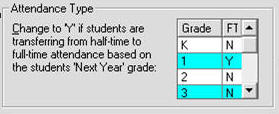
If students become full time when they advance to a specific grade (e.g. students move from half time to full time when they move to grade 1), put a Y beside grade 1 to have the program automatically change the student's attendance type to full time. An internal transfer is automatically recorded (e.g. August 15th Half Time to Full Time).

OSSLT refers to the Ontario Secondary School Literacy Test. Some schools prefer to update the ESL/ELD learner accommodations each year (if the student was not successful at the first OSSLT attempt). In order to achieve this, an option was added within the Transfer to New Year process. This checkbox is an optional field, as this will remove references to this information for all students with information entered in this area (regardless if they successfully completed the OSSLT or not). Some schools like to keep this information for future reference.
Note: Students with a Non Participation Status of OSSLC (literacy test Not Applicable), who have the Literacy course with a passing mark in their achievement will have their literacy status reset to OSSLC-English or French. This is regardless of whether this option is checked or not.