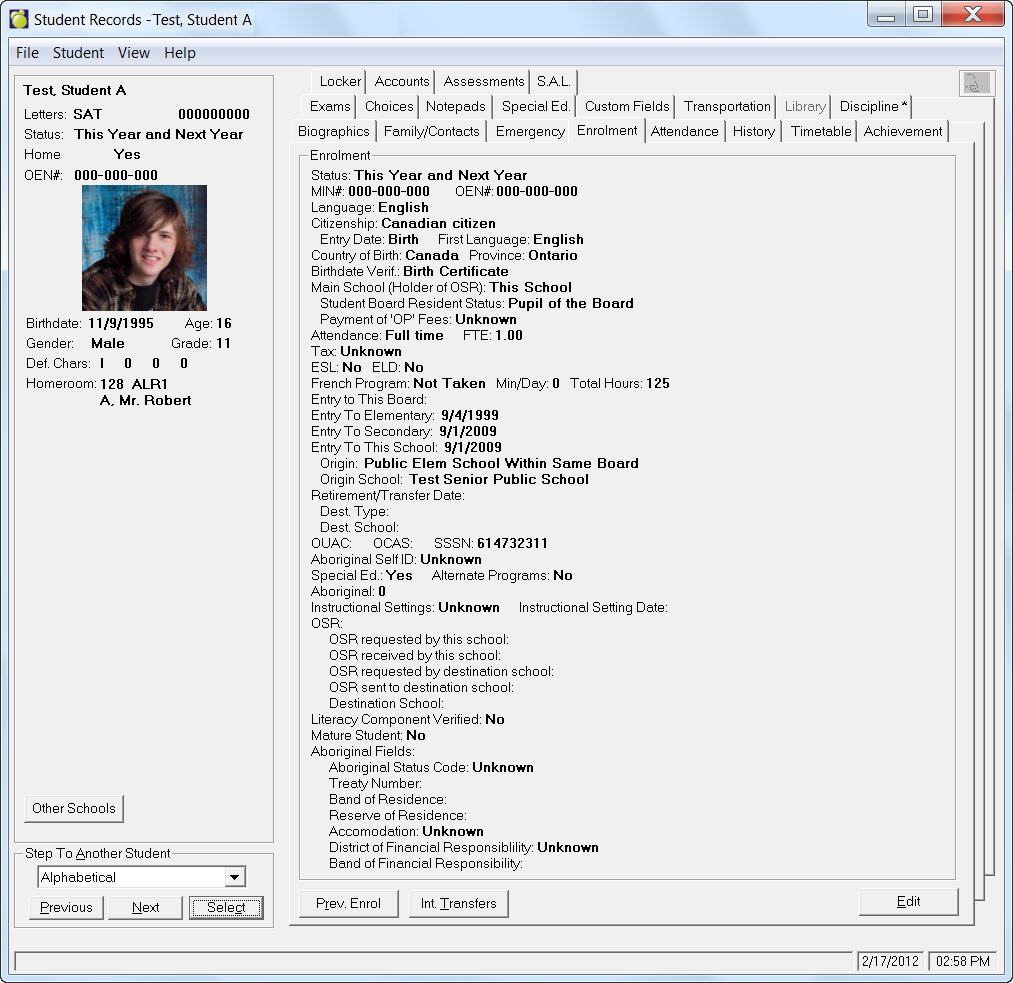
Secondary Enrolment Tab
The
enrolment screen re-groups information regarding the student's enrolment
in regular school programs (i.e., other than Special Education or
Alternate Programs). You will see a tab similar to the one below:
To set up general enrolment information/tables, choose Students, Custom
Fields/Tables, Enrolment Tables and use the commands specific to
your jurisdiction. For more information on how to set up Enrolment Tables,
see Enrolment Tables for more information.
Note: The following areas of enrolment can
be set up using the commands under Students, Custom
Fields/Tables, Enrolment Tables. Commands will be jurisdictionally specific.
Edit Enrolment
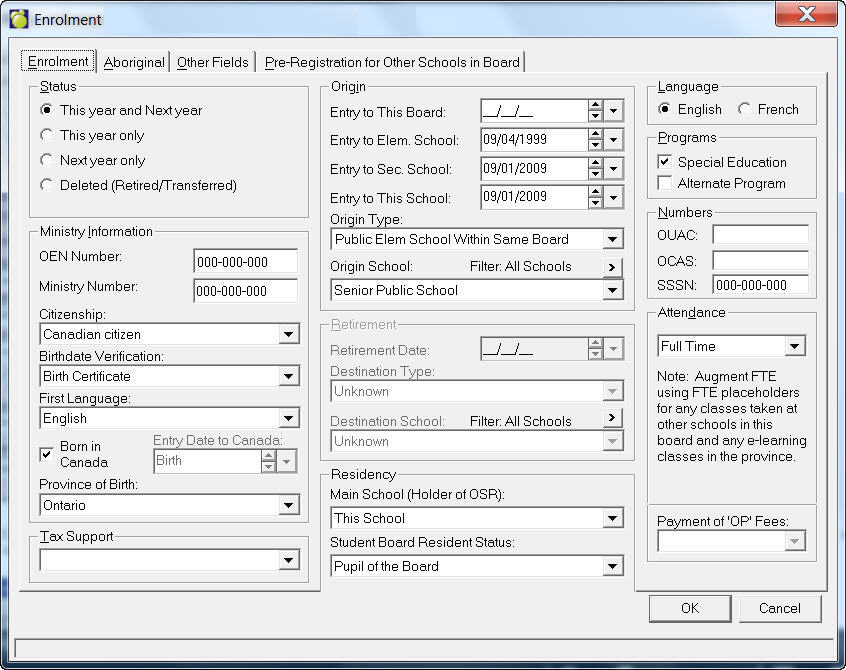
For Caribbean users,
The Enrolment tab has been tailored specifically
for St. Lucia’s schools for the Nationality and Place of Birth, as well
as welfare and scholarship/bursary information.
Status
Each student has one of the following enrolment statuses. If you select
Deleted, then the student will not be permanently removed. To permanently
delete the student see the following section.
Both Current and Scheduling - Attending
this year and next
Current Only - Attending this year and
expected to graduate or transfer
Scheduling Only - Attending next year
only
Deleted (Retired/Transferred) - Student
has left the school. This message will appear when you change the
student's status to deleted. "Do you wish to add current classes
to the transcript as withdrawn?".
Permanently Removing a Student/Deleting a Student
To permanently remove a student,
Open the student's record.
Select the Enrolment tab.
Click Edit and enable the Deleted option.
Click OK to return to the main Enrolment
tab.
On the same Enrolment tab, click Edit
again.
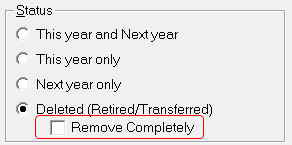
You will see a Remove Completely option
under Deleted.
Check this box and click OK to permanently
remove the student.
Ontario Secondary Only - When changing a student's status to
Deleted, the program will offer to enter the current semester's courses
into the student's history as Withdrawn courses. Program will check to
ensure that the course code (same date entry as retirement date ) was
not previously entered into student's transcript.
Ontario Only - Edit Enrolment recognizes that ONSIS requires
a province or country selected for a student for the Origin School, Destination
School, and Province of Birth.
In Previous Enrolment as well as on Edit Enrolment, if the Origin Type
and Destination Type refer to 'from another country' or 'from another
province' the program will show the list of countries/provinces in the
Origin/Destination School drop-down boxes. The option, Unknown, is on
the top of each list. However, if you intend to save Unknown, the program
will generate a message that "OnSIS requires a valid OnSIS code be
entered in 'Origin School'" (or Destination School) and will allow
you to make the required correction. You are able to save 'Unknown' if
you wish to do so.
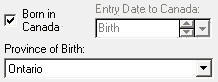
When a student is flagged as 'Born in Canada'
the program will default to Ontario but will show the list of provinces/territories
from which to select the appropriate province/territory. 'Unknown' is
not an option on this list of provinces.
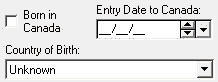
When a student is not born in Canada, the program
shows the list of countries along with Unknown.
Ministry Number - a 9 digit ministry
code.
Language - student's language of communication.
Citizenship - Citizenship details the student's citizenship
records. If the student has entered from another country then the
Entry Date and First Language can be recorded.
Birthdate Verification - birthdate verification allows the school
to record which official documentation has been viewed.
Residency - students can be either Resident or Non-resident. If the
student is non-resident in your jurisdiction then the type of Non-resident
status and the source of fees (if applicable) will be shown along with
a source school board (if applicable).
If a user modifies the Main School and/or Student Board Residency Status
on the student's retirement date, the following warning will now be prompted:
"The student's Main School (Holder of the OSR) and Student Board
Resident Status should not be adjusted when a student leaves the school.
It should reflect what the student had on his/her last day attending this
school. Eg. When a student leaves your school, do not change the main
school from this school to another school. Do you want to cancel these
changes?" It will default Yes to cancel since the user should not
be making these changes.
Ontario
Only
- With
the Residency frame, if this school is the student’s main school, then
set the first field to “Main School (Holder of OSR): This School”. This
will set the Main School Flag to True in the OnSIS batch file. The Student
Board Resident Status must be selected from the list of possibilities
as shown here.
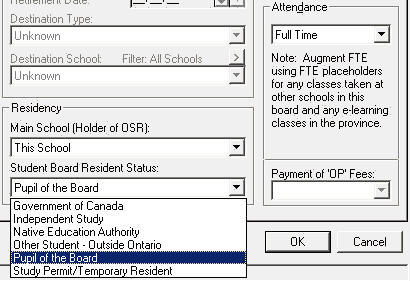
Administrators
can see the Note on the right side of the status, which for secondary
schools it will state: “Augment FTE using FTE placeholders for any classes
taken at other school in this board and any e-learning classes in the
province.”
Elementary
schools will have a different note that states “FTE for full time students
is 1.00. FTE for half time students is 0.50. FTE for part time students
is based on student’s timetable (or 0.50 if timetable is blank).”
If
the status is Government of Canada, Native Education Authority, Other
Student – Outside Ontario, or Study Permit/Temporary Resident, then the
Payment of ‘OP’ Fees is available to select from the list of boards, if
necessary. ‘OP’ refers to Other Pupils on the enrolment registers.
If
another school in this school’s board is the holder of the student’s OSR,
then set the field to “Main School (Holder of OSR): Another School in
this Board”. This will set the Main School Flag to False in the OnSIS
batch file. The Student Board Resident Status must be selected from the
list of possibilities as shown here.
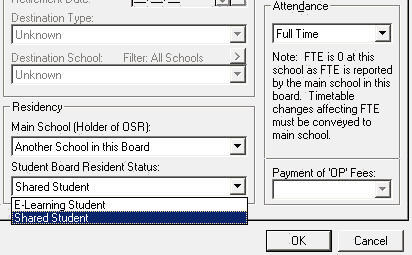
Secondary
schools will see the note “FTE is 0 at this school as the FTE is reported
by the main school in this board. Timetable changes affecting FTE must
be conveyed to main school”. Elementary schools will see this note: “FTE
is 0.00 at this school as the FTE is reported by the main school in this
board.”
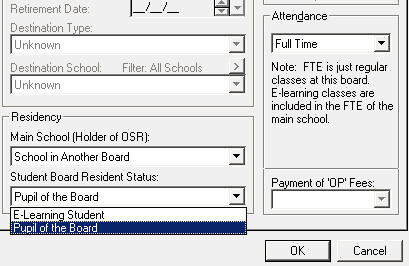
If
a school in another board is the holder of the student’s OSR, then set
the field to “Main School (Holder of OSR): School in Another Board”. This
will set the Main School Flag to False in the OnSIS batch file. The Student
Board Resident Status must be selected from the list of possibilities
as shown here.
It
is important to note that the Concurrent status for students will no longer
be used for determining the Main School Flag in OnSIS and all other Ministry
reports. Concurrent status will be used to flag the school that has limited
access to edit the student’s core data when the student’s record exists
in multiple schools in the board. If the board is not centralized, then
the concurrent status will have no real purpose. For those with a centralized
Enterprise database, please see section 4: Changes for Enterprise users
regarding the Home vs Concurrent Status.
Once
this software is released, all students will automatically default to
Main School (Holder of OSR): This School. Students who were formally Non-Resident,
will be set to the Student Board Resident Status corresponding to their
former Non-resident Fees Source. Everyone else will become Pupil of the
Board.
Unfortunately,
students whose Main School is NOT this school will require the residency
information to be entered on the enrolment tab. This is typically the
e-learning students who are taking only e-learning courses at their non-main
school, shared students, and students with main schools in other boards.
The Assign All of a Field application is being modified to allow this
new Residency information to be entered for a group of students.
Independent
Study students will continue to rely on the Attendance Type setting, but
the software will make sure that these students show Independent Study
for both the attendance type and the student board resident status. Their
FTE will be zero, and they will continue to report as PT to OnSIS.
These
changes to the residency information will be used to determine how the
student is reported on ministry reports, particularly the FTE.
To
accommodate the redesigned enrolment tab, the second language program
information has been moved from the main enrolment screen, along with
elementary Native programs formerly on the aboriginal tab. They are now
on the Enrolment sub-tab 'Other Fields'. ESL and ELD have been added as
options to this area. They appear as check boxes since the instructional
time is not reported to OnSIS. This will allow multiple second languages
to be reported to OnSIS where required. French students will also have
the ability to specify two second language programs with instructional
times.
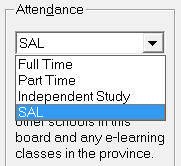
Attendance - Attendance is normally full-time ("F")
but can also be:
F - Full Time - The student is registered for classroom instruction for
an average of 150 minutes or more per school day in the school cycle.
P - Part Time - The student is registered for classroom instruction for
an average of fewer e that 150 minutes per school day in the school
cycle.
A - Half-time (AM Only) (elementary)
H - Half-time (PM Only) (elementary)
1-4 - Half-time / Alternate Days - Whole day programs on alternate days.
(elementary)
I
- Independent Study
S - SAL (Supervised Alternative Learning)
Tax Support
- tax support can be recorded based on values in a school-defined table.
Entry To Elementary,
This School - Entry and Retirement information is used for tracing a student's
progress through the school system. Origin information including the type
of admission and previous school(s) if any are shown.
If multiple enrolment entries exist, then the details will be kept under
the Previous Enrolment screen. Click the Prev. Enrol. button at the
bottom of the screen.
Internal transfers
- if recorded, will be kept under the Internal Transfers screen. Click
the Int. Transfers button at the bottom of the screen.
As students change attendance types (e.g, part time to full time), the
Maplewood System automatically records the date of the change. These
types of transfers that occur within the school (internal transfers) can
be viewed and if necessary modified by clicking the Int. Transfers button
and making appropriate changes.
Note: When a student has an internal transfer, the absentee dates should
be recorded in his original homeroom, not in his new homeroom. The
school has to edit the internal transfer so that the student's 1st day
of return is the 1st day in the new homeroom.
Origin - The type of school where the student transferred from.
Origin School - The name of the school where the student transferred
from. Origin School field has the option to filter the list of schools
by Closed Schools. When this filter option is selected, only those schools
that are flagged as closed will be shown.
Retirement/Transfer Date - The date when the student retired or transferred
(the first date of non-attendance). This field is available only
to Deleted and Current Only students. When a status of a student
is changed to Current Only, then the retirement/transfer date is set to
the last day in the school year (usually the end of June). When a
student's status is changed to deleted, the retirement/transfer date is
set to the current date. For students with more than one retirement date
click the Previous Enrolment button. Grade internal transfers may
be entered outside of the student's entry dates (for example, if a student
enters a school mid-September, the user can now record an internal transfer
to the new grade with a date on August 15).
Destination Type - This option is available only to Deleted and Current
Only students. You will see the student's type of destination after
withdrawing from this school.
Destination School - If applicable you will see the school where the
student is transferring to from your school. This option is available
only to Deleted and Current Only students. Destination School field has
the option to filter the list of schools by Closed Schools. When this
filter option is selected, only those schools that are flagged as closed
will be shown.
Special Education - Only those students
who are indicated as receiving special education will be displayed.
Alternate Programs - Only those students
who are indicated as receiving alternate programs will be displayed.
Previous Enrolment -This choice should be used to view and edit the
entry and retirement information for only those students who have
left your school and then returned. These students require more than one
date of entry and retirement as shown below. Click the Prev. Enrol
button to see this information. The most current entry date will
always be recorded on the main screen. When a student is deleted and then
re-enrolled, the dates that were recorded when the student was deleted
are automatically transferred into the Previous Enrolment area. The
current date then becomes the entry date to this school and the retirement
date is not accessible.
Pre-Registration for Other Schools in Board
This feature is intended for students who will remain in a particular school while at the same time, register for another school within the same division. This would include students who wish to attend a Summer School, Night School, On-line School, Continuing Learning Centre, and/or another school. By using this feature, the destination school will automatically see the student’s enrolment request in their Transfer Students this Board tool. There is no need to adjust any student information at the source school. Simply click the tab Pre-Registration for Other Schools in Board.
Choose Student Records, Enrolment, Edit
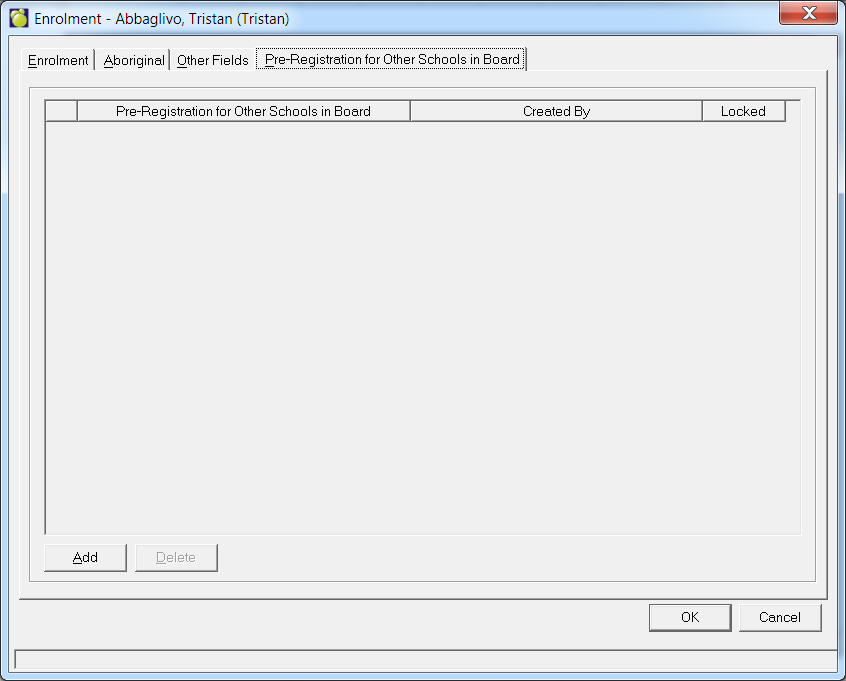
Click Add to record the desired future transfer. A list of schools within the division as defined by Central Office will appear. Select the desired school.
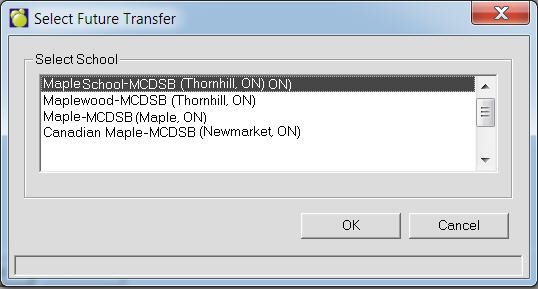
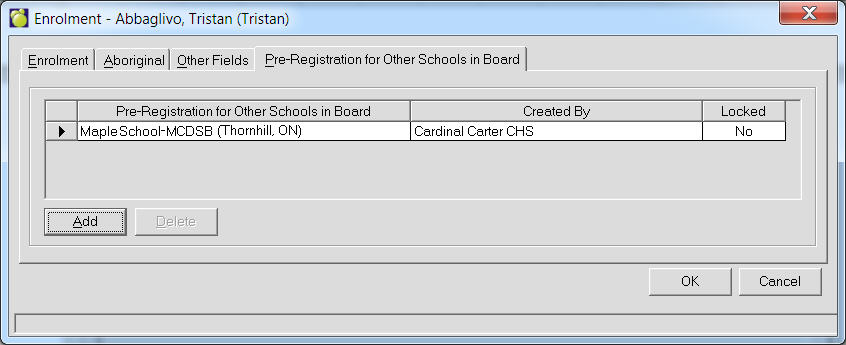
Click OK.
The receiving school will now have this student on their Transfer Students from this board list.
Once successfully enrolled in the Transfer school, the entry will be removed from the Pre-Registration for Other Schools in Board tab. Under the Other Schools button, all enrolment for the student within the division can be viewed (dependent upon permissions).
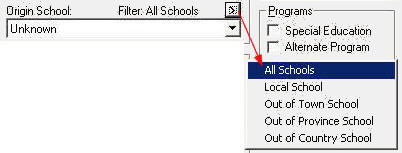
Enterprise users will see this screen. Notice the Filter: All Schools
Button, that allows you to select an Origin School. The Origin School
and Destination School fields have a new filter, command button '>',
that shows All Schools by default. Clicking on the '>' button will
allow you to see the filtered list of schools as long as they are set
up in the schools table. In the school's table you have the option to
select Local School, Out of Town School, Out of City School, or Out of
Country School, which can be assigned to each school. By default, all
schools start out being flagged as Local School.
Home vs Concurrent Status For Enterprise Users
Boards with Maplewood’s centralized Enterprise database will now use
the Home and Concurrent Status to identify the school that is responsible
for maintaining the student’s core data. In the Enterprise database, there
is only 1 occurrence of the student, and the home school is responsible
for maintaining information that would be common to all the schools in
which the student is enrolled (e.g. name, birthdate, address, contact
information, etc). Maplewood will use the student’s entry and retirement
dates to determine which school should be the home school. There may be
the odd time, when the home school is not the home school Maplewood would
have normally selected for the student. For those students, the home school
only may opt to override this calculation using the new options in the
Other Fields tab within the Enrolment tab of the student’s record as shown
here:
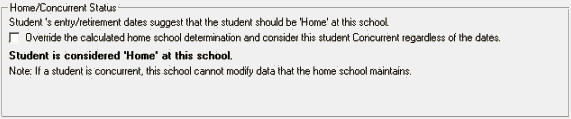
The first line in the frame will indicate what the dates suggest should
be the student’s home school. In the example above, the dates suggest
that this is the student’s home school.
If the override box is checked, another school will become the home school.
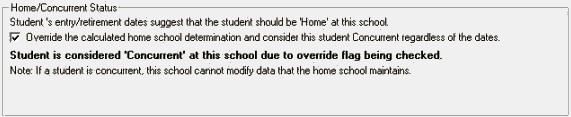
Maplewood will then choose
the next best home school, and will automatically make the student home
at that school. The Other Schools button will allow this school to view
the student’s record at the other schools, so that they can see which
school is now the home school.
At this student’s new home
school, the Home/Concurrent Status will show:
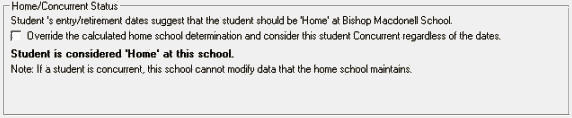
Note: if all schools attempt
to check the override box (when the student becomes home status at each
school in turn), the program will reset the override boxes and set the
home school to the school best suited based on dates.
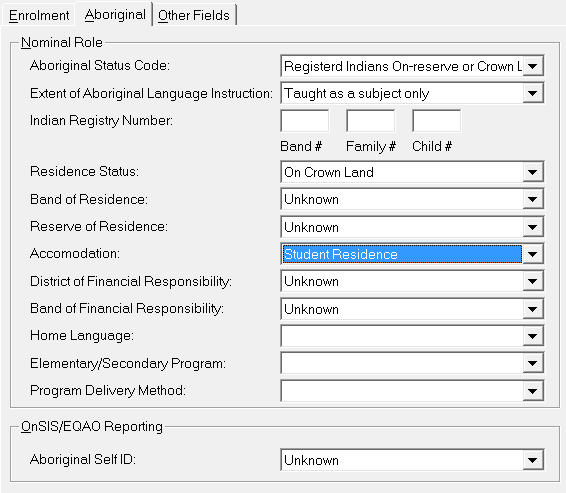
In preparing to produce the Nominal Role report. Every jurisdiction
of Maplewood will now have the Aboriginal tab (available when Editing
Enrolment). This tab contains fields that you need to set up
by choosing Students, Custom
Fields and Tables, Aboriginal.
This tab is available for all students and should be completed for those
for whom the fields are relevant. The Indian Registry Number
can be a maximum of ten characters.
Indian Registry Number - (aka IRN) on the Aboriginal
tab. The IRN is comprised of a 3 digit Band #, 4 digit Family#, and a
1 or 2 digit Child#. These 3 fields are identified on the form as well.
If a student has only a 5 digit number entered into the Indian Registry
Number (IRN), that number will now be visible in the Edit Enrolment interface
(on the Aboriginal tab). Rather than consider the 5 digit number as invalid,
it will automatically populate the number into the Family # portion of
the IRN.
The program will populate the number with zeros in the Band # and Child
# portions of the IRN# field. If any other number other than 5 or 10 digits
is entered, the number will start populating the Band # first, then the
Family #, etc, adding zeros where appropriate to make a full 10 digit
number. Please note that INAAC reporting will require a proper 10 digit
number, and therefore, Maplewood will generate the following message when
a non-10 digit number is entered: "Indian Registry Number must be
10 digits. First 3 digits populate the Band No., 4-8 digits populate the
Family No., 9-10 digits populate the Child Position No. Would you like
to change the Indian Registry Number?" If No is answered, zeros will
be automatically added to make a 10 digit number. If Yes is answered,
the user is taken to the entry screen.
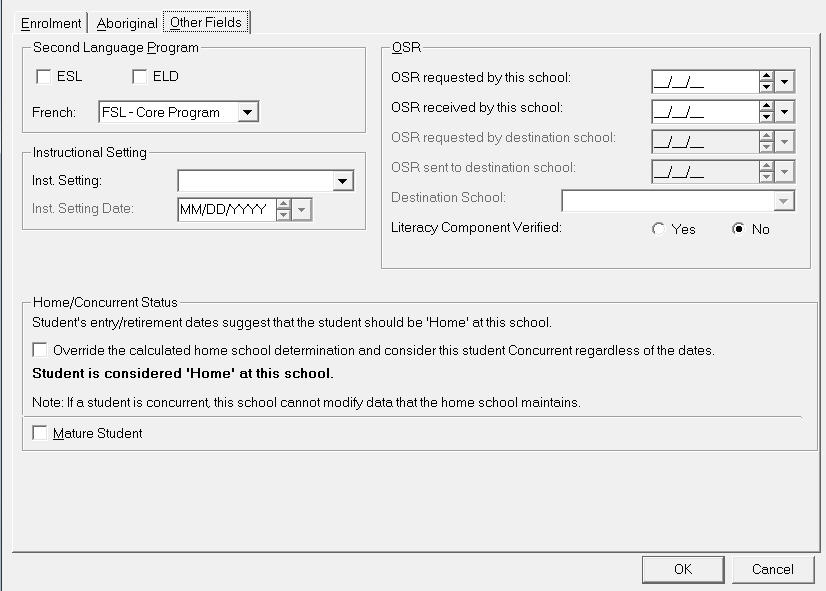
As each jurisdiction requires some variation on their agency reports,
the Other Fields tab will allow for any miscellaneous information. This
will vary from jurisdiction to jurisdiction, and will replace the Other
Fields button of previous versions, although the button will still be
available.
Second Language Program
ESL - IF the student is taking English as a Second Language Program
check the ESL box.
ELD - IF the student is taking and English Language Development Program,
check the ELD box.
OSR
Ontario Student Records may need to be shared with other locations.
If so, enter the date details in the appropriate entry areas, select a
school and check off whether or not the Literacy Component was verified.
Continuing Education
The field on the Enrolment Tab, Other Fields Tab has a drop-down
menu with 3 options:
The default for all Con. Ed. Students has been set to 'Only Attends
Con. Ed. School'This new feature will enable the Continuing Education
Register to populate the register information accordingly (i.e. day School
Pupil column, or not print the student on the register at all).
Mature Student Flag (Ontario Only)
OnSIS student school enrolment batch file now includes the new Mature
Student Flag for secondary students starting in the June 2008 Submission
period. A mature student is a student who is over 18 years
of age as of December 31st of the current school year and who has been
out of school for at least 1 year. If a mature student exists
in a school, call up the student's record and edit the Enrolment tab. Select
the Other Fields tab and check off the Mature Student box.
Other Fields Tab for Caribbean Users
The Nationality field
first requires the selection of St. Lucian, CARICOM, or Other. If CARICOM or Other is
selected, the specific nationality is selected in the next Country of
Nationality field. The Place of Birth works
the same way, except that the selection shows country names rather than
nationalities.
Note: These tables are set
up using Students, Custom
Fields/Tables, Enrolment Tables, Nationality or Place of Birth. If a new entry is added
to the table, the Min# code must be O (the letter O not zero) if it is
to be considered in the Other list. Min# C represents a CARICOM
country and MIN# S is reserved for St. Lucia.
The Method of Entry
(formerly Origin Type) and Reason for Leaving (formerly Destination Type)
use tables set up using Students,
Custom Fields/Tables, Enrolment Tables, Method of Entry or Type of Leave. If a new entry is required,
consult with the Ministry of Education first. The Min#s are important
to ensure that statistics are correctly reported on the Annual Questionnaire. If unsure of the correct
MIN#, use the same MIN# already assigned to one of the table entries with
a similar meaning.
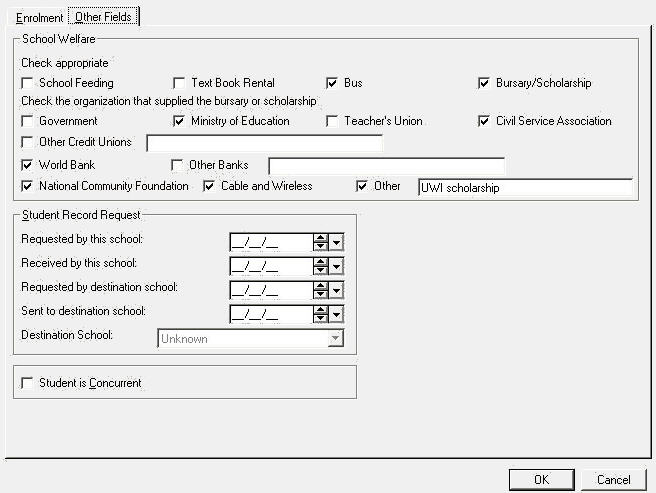
The
Other Fields tab within Edit Enrolment provides the ability to specify
the students' school welfare programs and if the Bursary/Scholarship box
is checked, the organizations that supplied the bursary or scholarship
can be selected as shown here.