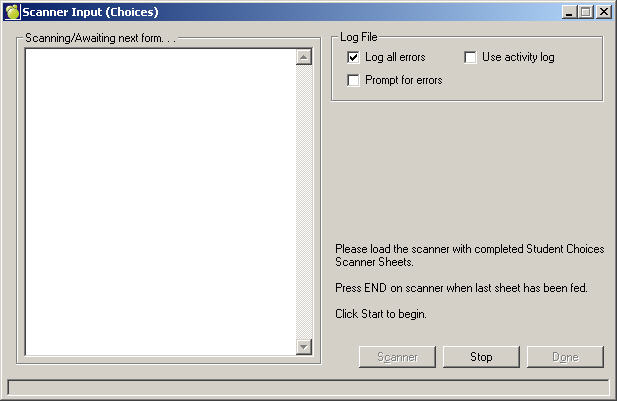
To enter student choices by scanner, choose Scheduling, Students' Choices, Enter Choices By Scanner. The Enter Choices by Scanner program examines a student's history and timetable records to ensure that prerequisites have been met. These prerequisites need to be set up in Courses table in Scheduling.
1. Select Log Error Options. In the Log File frame there are 3 options: Log all errors, Use activity log and Prompt for errors. These options are useful if you have a scanner sheet for a student where there are any incorrect entry.
Log all errors and Prompt for errors: A message will appear saying the Name of student and 3-letter code and the 1st incorrect course) not found in courses file. Re-insert last scanner sheet in feeder and click OK to rescan. Click OK to continue or click Cancel to end scanning.
Click OK to continue scanning other students' choice sheets.
Click Cancel you will see the message Scanner Input .... Display error log ?Note: Errors are most likely caused by incorrect Page alignment offset.
Suggestion: When printing scanner sheets try changing the 'Offset Line Spacing' setting to 1."
None of the choices on this sheet will be entered into the student's record. User needs to correct the code entry and re-enter the entire sheet.The Error Log (location: sc\ch\scanerr will report the student and his/her first unaccepted course that was not found (in the courses file).
If Log all errors is selected and Prompt for errors is not selected: All accepted courses will be entered into student record choices. The Scanner Input program form will show the name of the student and the accepted course codes.The Error Log (location: sc\ch\scanerr will report the student and his/her all unaccepted courses that were not found (in the courses file).
Note: If some choices were ever entered previous to scanner input, the scanner input will not duplicate any entries already existing in student choices.
2. Click the Scanner button to select scanner settings, including type, COM Port, timeout and COM Port settings.
3. Click Start to begin scanning Student Choices Scanner Sheets.