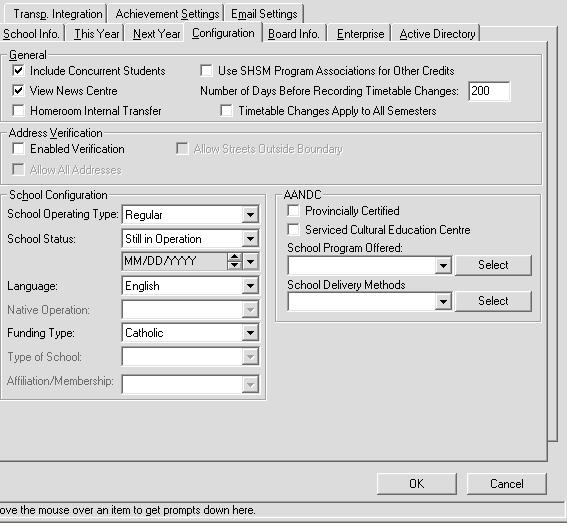
General
In this frame you can select these options: Homeroom Internal Transfers, Include Concurrent Students. Use the View News Centre checkbox to control whether or not the News Centre displays on startup.
Use SHSM Program Associations for Other Credits
If you are using Specialist High Skills Major (SHSM) in your school check this box to make program associations for other credits.
The SHSM is a ministry-approved specialized program that allows students to focus their learning on a specific economic sector while meeting the requirements for the Ontario Secondary School Diploma (OSSD) and assists in their transition from secondary school to apprenticeship training, college, university, or the workplace.
Number of Days Before Recording Timetable Changes
The default will be 1, which means that the actual date the student added or dropped the class will be recorded starting after the first day of school. If there are 200 school days, and 200 is entered here, the actual dates that the student’s timetable was change will never be recorded (it will always be the start of the school year). Elementary schools may want to set this to 200. Some may want to start recording add/drop dates after the first couple of months of school when they know that timetables are in the process of being inputted (e.g. 60 days).
Timetable Changes apply to All Semesters
If this is checked and the school has multiple semesters, timetable add/drops will not be recorded until after the number of days specified into the 2nd, or 3rd, etc semester. For example, if a secondary school has 2 semesters, and 5 days is specified for “Number of Days Before Recording Timetable Changes”, then semester 2 timetable changes for the first 5 days in second semester will recorded in the add/drop area as if the student was in the class from the start of the semester (adds will be created, drops will be removed). Changes from the 6th day on will use the actual Maplewood date to record all class adds and drops.
Address Verification
Select one or all of the following if available: Enabled Verification, Allow All Addresses, Allow Streets Outside Boundary.
School Configuration
School Status
Select Still in operation, Closed after or Open after.
Funding Type
The options under this drop-down list will directly affect what other options are available. For example, if you select Public, then Native Operation, Type of School and Affiliation/Membership will not be available.
The Funding Types available are Public, Private, Catholic and Native.
School Language
Select English, French or Both.
Native Operation
Select Band, Federal, Provincial or Private Operation for the Native Operation.
Type of School
Select the type of school from the available choices.
Affiliation/Membership
Select the affiliation or membership from the available choices.
Continuing Education
This option will only appear if 'Continuing Education Centre' is selected within the School Information (configuration tab), AND the school is a Secondary School (will not to appear in Elementary).
The Continuing Education area on the Enrolment Tab, Edit Button, Other Fields Tab has a drop-down menu with 3 options. If applicable, you can also use the checkbox to indicate the student is a Mature Student.