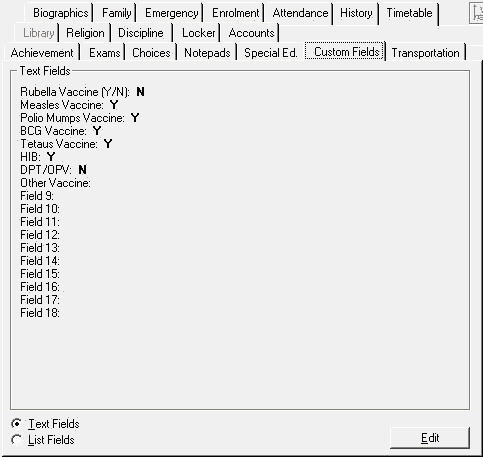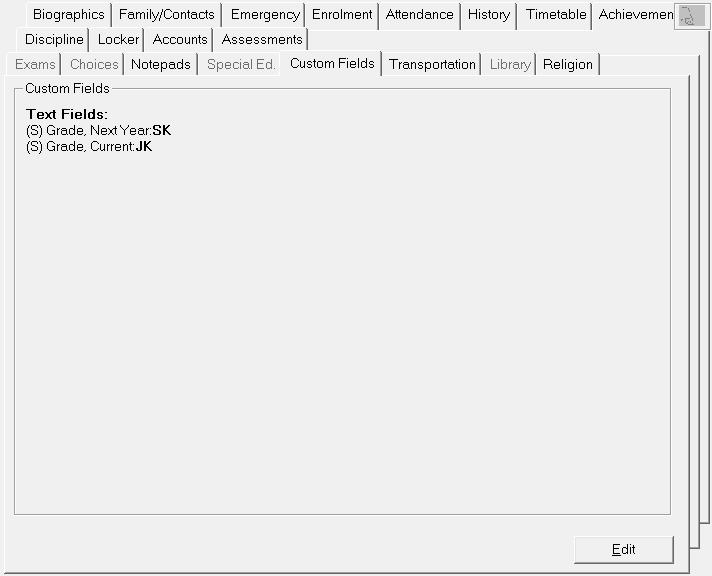
The Custom Fields tab is for fields not provided elsewhere in the system. Choose Student Records, select a student, then click the Custom Fields tab. Student custom fields are defined as either text or list fields. The fields are listed together on the tab in this order: School defined text fields (S), central office defined text fields (C), school defined list fields, followed by central office defined list fields. On the Custom Fields tab, the fields clearly identified as text or list fields, but the information is not necessary on the edit interface, and has been removed.
Board defined Custom Fields will display with a (B) before the title. Schools can enter and edit this information for a student as well as continue to create and maintain their unique school (S) custom fields.
Custom Fields are set up under Students, Custom Fields/Tables, List Fields and Students, Custom Fields/Tables, Text Fields.
Edit Fields - To edit, first select List or Text Fields and then click the Edit button. This calls up a list of pre-defined Custom Fields. You can enter values for these Custom Fields as they apply to the student. To define new fields or change values choose Students, Custom Fields/Tables.
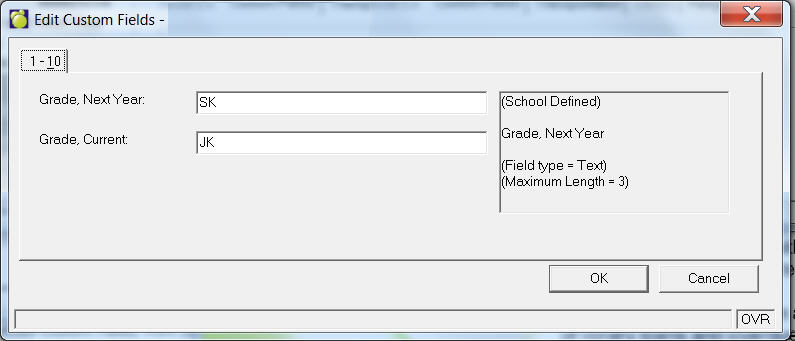
Enter text for each field that is applicable for the student. To edit or add a Text Field name, choose Students, Custom Fields/Tables, Text Fields.
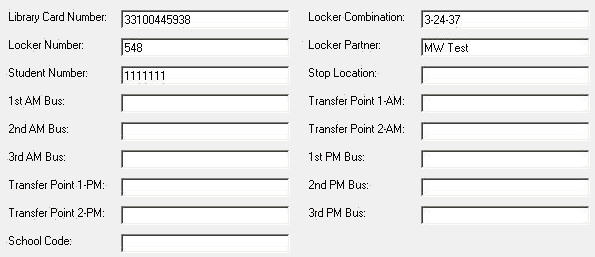
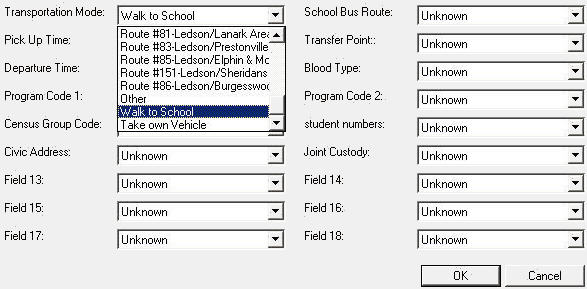
Select an option from each drop-down list that is applicable to the student.
Note: To edit the list of pre-defined Custom Fields, from your main Maplewood screen choose Students, Custom Fields/Tables, List Fields or Text Fields.
The Ministry of Education is suggesting that the Vaccination Information be set up and entered into the Text Fields: