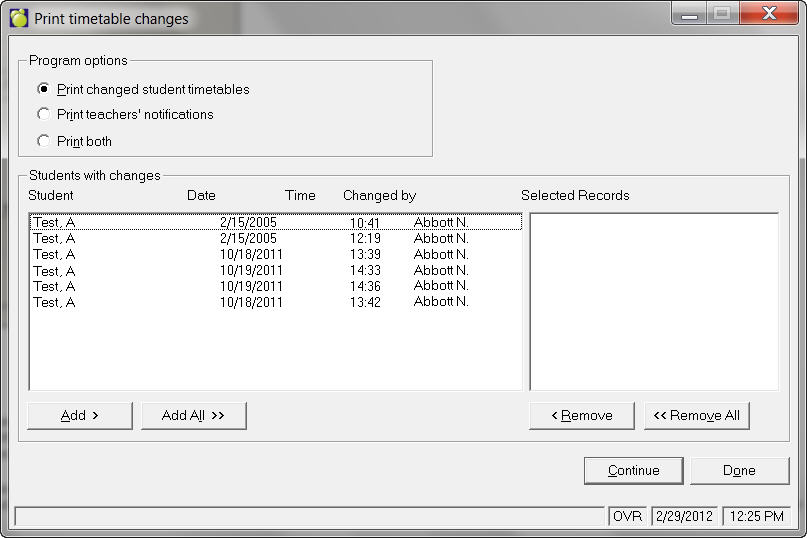
When any changes have been made to a student's timetable for This Year, teacher notifications and the student's new timetable may be printed to obtain printed records of the class changes. Choose Students, Print Timetable Changes, Print Timetables and Notification to see this box:
Choose one of these printing options:
Print changed student timetables
Print teacher's notifications
Print Both - Print Both - when selected, the user assumes that the program will automatically print both reports - it does not. Because the reports can be designed by the user, they are still requested independently of each other. When selecting 'Print Both', the program first reports the Teachers' Notification, then the screen returns to the Semester option form 'Print Student Timetable Changes' where the user will click on View again to get the Student's Changed Timetable.
The students whose timetables have been changed will appear in the Student with Changes list. You can select the records by choose the Add All > button or individually using the Add >> button. You can also remove records if selected by mistake. In the above example picture, two students have been chosen and both their new timetables and teacher notifications will be printed.
Click on Continue to either View or Print. A separate
page will be printed for each teacher when printing notifications and
each students' timetable will print on a separate page as well.
Once you have printed or viewed the chosen records, you will be notified
that any record that has been previously printed or viewed will be removed
from the Timetable Changes file. You can choose No to have the student
remain in the file or yes to have the student removed from the file.
Note: If you change a student's timetable prior to completely deleting him/her, the student will still be reported on the Print Timetable Changes and Notifications. However, printing the changes will show a blank sheet, and you will be able to delete the student from the list when you click OK.
Printing Information for the Next School Year. You can print it now or after next year’s information has been transferred to this year by choosing Scheduling, Print Timetables.