Lockers
may be assigned automatically to a group of students using the Assign
Lockers option, or entered manually through the Locker
tab in the student's record. First you will have to set up Locker
information by choosing File, School Setup, Lockers. Once you have set
up lockers, you can assign students to lockers using the method outlined
below:
- Choose
Students, Assign Lockers.
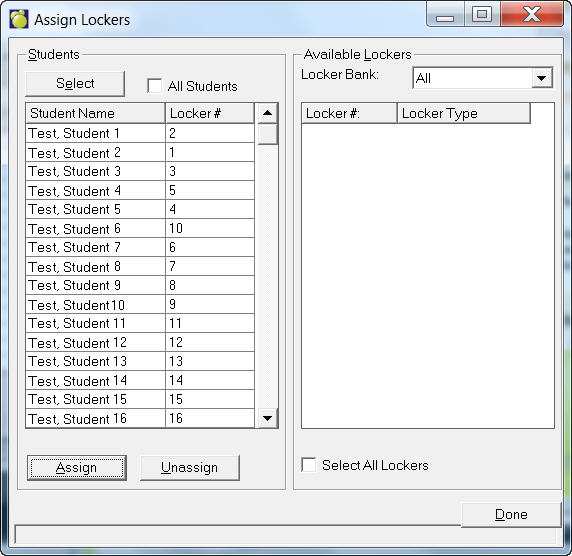
- Display specific students by clicking the
Select button. If all the students in the list are to be assigned
lockers, check the All Students checkbox. Otherwise, highlight the
individual student(s) to be assigned by clicking on each student (shift+click
to select a range). Click the Unassign button if you want to
remove the current lockers assigned to the selected students.
- Select a Locker Bank (set up earlier under
File, School Setup, Lockers). If all the lockers in the list
are going to be assigned to students, check the All Lockers
button. Otherwise, highlight the individual lockers to be used by
clicking on each locker.
- Click the Assign Button to assign the lockers
to the selected students.
Notes:
- By assigning an available lock to a student,
you can select to see the drop-down list of locks in either by combination
order or by serial number order. The drop-down list will also show
all available information for the lock(s) - combination, serial number,
and brand.
- Information connected to a specific locker
cannot be edited from within student records. The locker type, capacity,
and bank can be modified in the table of lockers under the File, Maintenance,
Lockers menu.
- A new Lock table was added to the Locker
menu to accommodate lockers with embedded locks, and lockers whose
lock can be assigned to a student. For example: A locker can be assigned
a specific lock, serial number and combination. Once the locker is
assigned to the student, this lock, serial number and combination
will be assigned to the student. The locker does not need this information
tied to it, and the new lock table contains information on locks,
serial numbers and combinations that do not need to be tied to a specific
locker. This will allow users to accommodate all different situations.
- You may have students who are assigned
to lockers with locks already assigned to them, or you may have students
assigned to lockers who bring their own locks, and provide the office
with the lock, serial number and combination information.
- If a new lock was assigned to a locker
in student record, the lock information will be stored in the Locks
table.
- In student record, you can select a lock
information from the existing list of locks or click on the New Lock
command button to create a new entry for this student. This new entry
will also be saved in the table of Locks.
- If the school has assigned a lock to a
locker, then the student who gets this locker will have the corresponding
lock. It is possible to remove the assigned lock from the student
and assign a new lock. In this case, the locker will update its records
to show that no lock has been 'defined'. 'Defined' only refers to
locks that have been assigned to a locker in Edit Locker.
- The program cannot handle duplicate lockers.
To handle this situation, the program is able to work with alphabetic
values for lockers. i.e. 050a, 050b.
- However, the list of lockers in the table
of lockers will not store the mixed values (alph/numeric and only-numeric).
If you use alphabetic values, then you will need to use this format
for all lockers, even non-duplicate lockers - i.e. 049a.
- The program does allow student record to
change the Lock for that student. However, this change will not reflect
for the Locker. This is by design for the following reasons:
-
some schools have lockers with the lock
- some schools will have lockers without locks and students are getting
their own locks.
- Student's lock information (serial number,
combination and lock brand) must be entered individually.
- Unassigning lockers does not clear out
a student's lock information.
- Set Up Locker Information
- More information
on the Locker tab in Student Records.