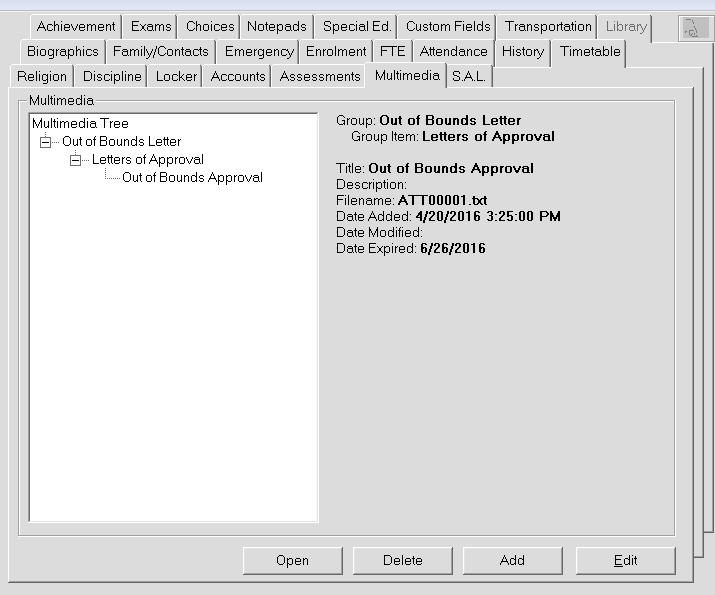
Maplewood Enterprise includes a new enhancement to store electronic documents using the Multimedia tab in Student Records. The Multimedia tab is designed to store electronic documents including legal documents (e.g. custody/court orders) faxes, pictures, movies, sound, scanned documents, links and other multimedia sources. Documents can be linked to a single student or a multiple students, and can be categorized based on school or board defined groups.
To access Multimedia information for an individual student, choose Students, Student Records (select student), click the Multimedia tab. This tab will be enabled only if you have the Multimedia database set up under School Setup, Enterprise Tab.
You must also have Multimedia Groups set up or you will not be able to assign anything to students. Choose Students, Custom Fields/Tables, Multimedia Groups.
Open lets you view the attachment. To open the attachment be sure you have uploaded it first.
Delete removes the entire multimedia entry. There is no confirmation message so be sure you really want to delete the entry.
Add opens a new multimedia entry window (see below for more information).
Edit opens the selected multimedia entry (see below for more information).
To add a student's multimedia information, click Add to see an entry box. The Edit box is the same as the Add box except it will be populated.
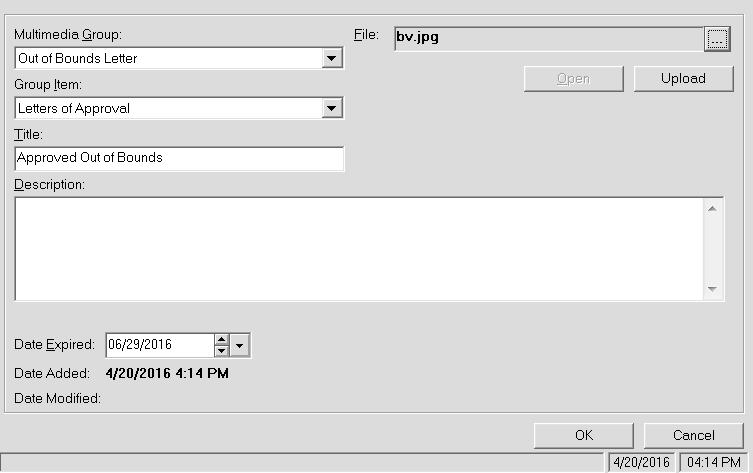
Multimedia Group: Select from the list of Multimedia Groups that you defined.
Group Item: Select an from the list of items that you defined and added to the Multimedia Group.
Description: Enter an optional Description.
Date Expired: Enter a date manually or with the drop-down calendar.
File: Select a file to attach to the Multimedia Group. If the image is an image or media file you will need to click Upload.
Click OK when you have finished making your changes.