These steps are for private schools that operate as a single school using Maplewood Enterprise. If a private school has multiple schools (campuses) in the database, please see Transfer to Current in Central Office.
A backup of the Enterprise database is automatically created when the school transfers to current. It will also create an archive of the past school year. The following steps provide information on how to roll over the schools to the new school year.
Note: The administration date (e.g. the date set in Maplewood) must be set to the last date in the school's calendar. The actual date (system date) must be on or after the last day in the school calendar.
Non-hosted customers only: When creating the archive database, the archive database will need to be defined (database name and where it is located). This step needs to be done by a user with an SQL account equivalent to a System Administrator. You will also need to ensure that you have a location to store the needed configuration files and shortcuts created during the Transfer to Current process. As discussed later, we suggest that the location be a new file share (note that the archive data path cannot exceed 20 characters in length). The SQL Service domain account will need change permissions to this share and modify NTFS rights.
Click here for a detailed description of the transfer to current options that are presented on the interface. Depending upon the school type (elementary or secondary) and the province/territory, the transfer to current interface will present a list of options tailored for the school. Please make sure the settings are correct before clicking the Start button on the interface. Click the Start button to start the transfer process.
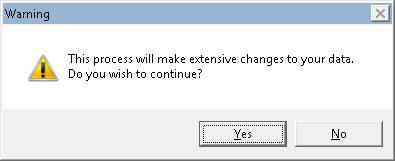
Upon starting the transfer to current process and saying ‘Yes’ to the warning “This process will make extensive changes to your data. Do you wish to continue?”,
The previous year's archive database needs to be established (e.g. 2013-2014 when rolling over to the 2014-15 school year):
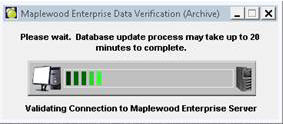
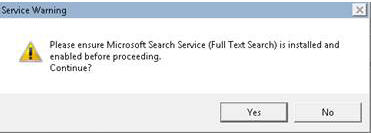
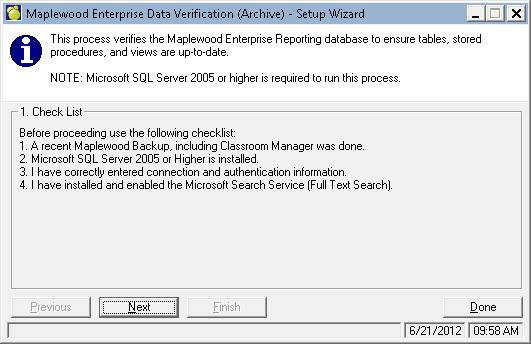
Note: the above screen may appear multiple times and if so, click on it each time. Read the following check list and then click Next button to proceed:
At the next screen (shown below), enter the name of the archive (reporting) database (e.g. YourDSBname_2013_2014). It will default the Server and Provider/Driver information, however we recommend that the archive databases are placed on a non-production server so that any reporting on the archive database will not impact the performance of the live database’s server. The Archive Data Path should be a new share that will contain the configuration files and shortcuts for the archived data. This path cannot exceed 20 characters in length.
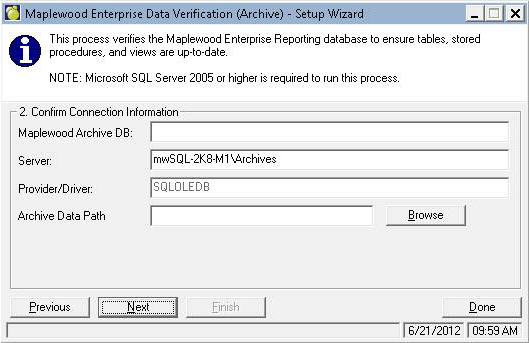
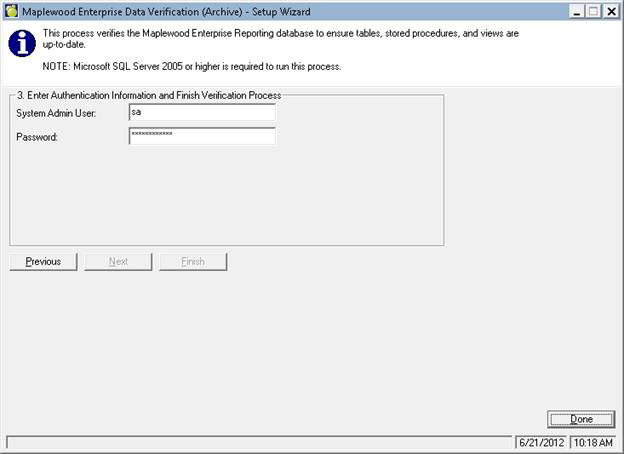
Click the Next button when the above information is entered, then enter the user name and password for the system administrator equivalent account as shown here:
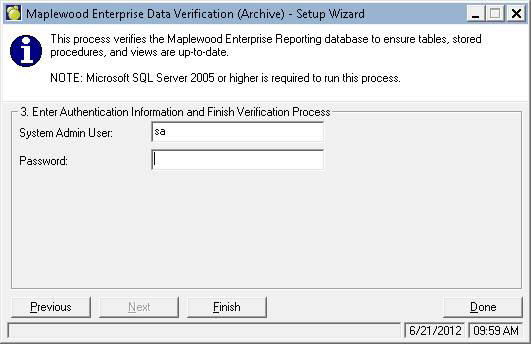 `
`
Click Finish button. A message should appear the setup was successful as shown here
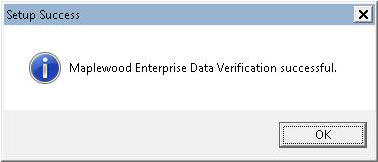
Click the OK button (above) and then click Yes to read the log file (below). Make sure there are no error messages in the log file. If any exist, please contact Maplewood.
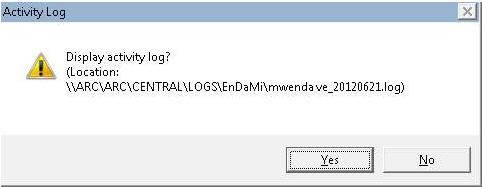
Click Yes to see the log file to ensure no errors, then click Done when finished with the log file.
When returned to the setup wizard (below), click Done.
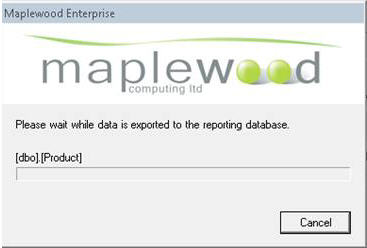
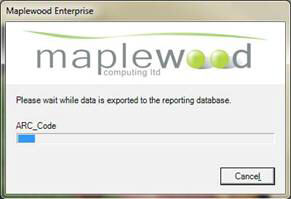
When you complete the archive reporting database, shortcuts can be found in the Archive Data Path specified during the Setup Wizard.
If the school has more than 1 semester or more than 1 term, the following message will be prompted indicating that the proper semester and term dates should be defined.
When you click Ok to the message above, schools with more than 1 semester or term will be presented with the Edit Semesters & Terms interface to edit the dates as instructed in the message above.
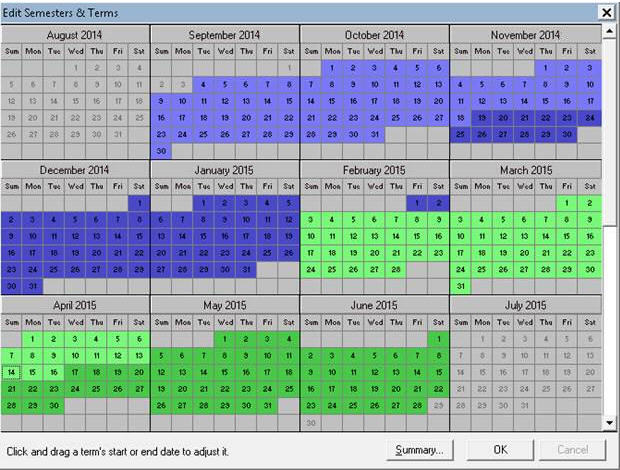
Once the dates are correct, use the Summary button to confirm that they are correct.
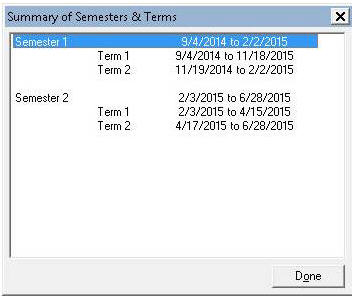
Click Done to the summary, then OK to the calendar view. The transfer to current process is now complete.
Upon transferring to current, the schools should edit their calendar to make sure that the daily cycle/alternate days/professional activity days, exam days, etc. are set up correctly for the new school year using File, School Setup, Calendar.