Overview
Each fall, Ontario schools are required to submit a Secondary School October Report and/or Elementary School October Report to the Ministry of Education. This report provides the Ministry with information about the enrolment at your school on October 31st of the current school year. Since your Maplewood system records the enrolment information for the students in your school, you can use the Maplewood system to assist you in preparing this Ministry report.
Each spring, Ontario schools are required to submit a Secondary School March Report and/or Elementary School March Report to the Ministry of Education. The March Reports are like scaled down October Reports, having many fewer sections to report on. These reports provide the Ministry with information about the enrolment at your school on March 31st of the current school year. This Help Sheet will describe the October Report but the same information applies to the March Report.
The Maplewood System can be used to generate the numbers for all Sections of the Elementary and Secondary School October Report.
Secondary Schools are also required to submit a Course/Class Enrolment Report based on the class enrolments on October 31st and March 31st. This report should be run on those dates and all timetable changes after these dates should be made only once this report is finalized.
Section T: Number of Graduates by Age, Gender and Type of Diploma/Certificate (Secondary Schools Only)
Please note that ages are calculated as of December 31st of the current school year.
Section Links
October Report
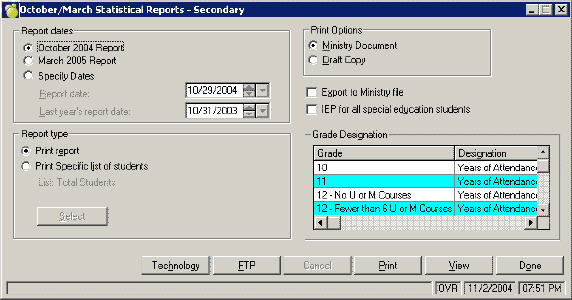
Choose Reports, Reports, October/March Statistical Reports, Secondary School Report or Elementary School Report.
1. The first time you print the report, we suggest the following settings:
Click the View or the Print button. If you view, you can select which pages to print.
2. If you get a warning that non-resident students have been found with bad source information, click Yes to print their names. For each student on the list, call up the student's record and then Edit the Enrolment information. The student's Non-resident source of fees should NOT be Gov't of Ont., Another board, or Board (sec70), or unknown. Since September 1999, these fee sources are no longer used by the Ministry of Education. Make these changes and then repeat step 1.
3. Examine the results of the report (either by printing or viewing on the screen).
4. On the draft report, look at the Letter Grade information in the top right corner of the first page. If you have any students with an invalid letter grade (see valid letter grades below), they will not be accurately accounted for in Section B (the Grade/Gender breakdown). You will either need to adjust the numbers manually when you submit your official report, or change the students' grades.
Elementary schools may use the following letter grades:
5. For elementary schools only, on the draft report for Section N, the homeroom numbers are printed for each row whereas they are not printed on the official copy. Use the draft copy to determine if the numbers are accurate for each homeroom. Students with invalid grades will print in the Other column which is only included in the draft copy.
6. Please read the information on Inaccurate Numbers and Check for “Bad” Dates. You can use the Print Specific List of Student option to get a list with the names of the students that Maplewood is counting for any area of the October Report. By printing these names, you should be able to determine the extra/missing students.
7. Please read the Notes for each section of the October Report. It will provide information on how Maplewood derives its numbers.
8. Each time you make a change to any student's data, reprint the October Report to see the impact on the report numbers. You may print either the draft or the official copy.
9. Only Secondary schools need to report to the Ministry their course/class enrolment. Choose Reports, October/March Statistical Reports, Course Enrolment Report. This report is no longer required to be run on October 31st as in past years (timetable changes are now taken into account when generating the numbers required for the report). Please see the notes for Course Enrolment Report for further information.
10. Once your report is accurate, please submit your report as specified by your district board office. When printing the October Report, you can select the option Export to Ministry File. When this box is checked off, a file is created. This file can be sent to the Ministry of Education who will "download" the Maplewood October Report numbers into your school's October Report internet site. Use the FTP button to transfer the file directly to the Ministry.
11. As a suggestion, create a list of all the students enrolled in your school on October 29th, 2004. Keep this list for reference next year. By doing this, when you print the October Report next year and you have an inaccurate enrolment number for October 2004, you will have a list to cross reference to find the missing/extra student. It is suggested that you make a backup of the school's data on October 31st and keep it for reference next year.
Schools that are required to submit both a Secondary and Elementary October Report
The Elementary School October Report operates in the same manner as the Secondary School October Report. The computer uses “entry date to secondary school” to determine if the student is an elementary or a secondary student. For example, for the 2004 October Report, if a student has an entry date to this school of 2002/09/04 and an entry date to secondary school of 2005/09/05, then the student would count on the elementary report because he has not yet entered secondary school.
If the October Report prints a number that you think is incorrect, you can print a list of the students that the program has included in that total. For example, if the number of grade 11 males enrolled on October 31st is inaccurate, then the computer can generate a list of the names so that you can determine who the extra or missing student(s) may be.
At the October Report window, select the option Print Specific List of Students. Then click the Select button to change the list of names that will be generated. Using the grade 11 males example, click the Select button, double-click Grade/Sex Information, then select grade 11 and males and then click the OK button. Click the Print or View button to generate the list of names.
The list for each name on the list, the student's entry date to this school, the retirement date (if applicable), the entry date to secondary school, and whether the student has Previous Enrolment or Internal Transfers is included. Previous Enrolment and Internal transfers may be seen by clicking the buttons on the bottom of the student’s Enrolment tab.
When you determine the student in error, make the appropriate change(s) in the student’s record. The following pieces of information are most commonly used in various areas of the October Report:
Hint: Schools who print monthly enrolment registers through the Maplewood system generally find that the October Report statistics are accurate because they catch any errors in data entry at the end of each month.
Check for Anomalies “Bad” Dates
Maplewood also provides an option that will go through the student’s enrolment dates and generate a list of students with invalid dates. Example "bad” dates might be a student with a retirement before an entry date, or a student who changed from full time to part time on a date when they weren't enrolled, or a student who has grade internal transfers from grade 5 to 6 and grade 7 to 8 but not one for grade 6 to 7.
Choose Reports, October/March Statistical Reports, Check for Anomalies in Student Data.
The first time you run this report, we suggest that you select Print Only Students With Bad Dates. Do not check off any of the options this first time. View the report to see if students appear. If a number of students are included for the same reason, it may be possible to either exclude those students from the printout or have the program remove the invalid information by checking off the appropriate options:
Remove Internal Transfers that are Out of Range of Enrolment Dates: Back up your data before running this option. If this option is selected, it will remove all types of internal transfers (grade, homeroom, non-resident fee source) that occur on a date that the student is not enrolled at your school. An example entry that would be removed: grade internal transfer on August 15, 1999 but the student started your school on October 4, 1999.Remove Records of Transfers Between Homerooms from Previous Years: Back up your data before running this option. If this option is selected, it will remove homeroom internal transfers prior to the start of this school year.
Remove Invalid Grade Internal Transfer Records: Back up your data before running this option. If this option is selected, any grade internal transfers that are not in sequence will be removed. The grades must be in sequence (e.g. grade 1 to 2 , then grade 2 to 3 OR grade 1 to 2, grade 2 to 1, then grade 1 to 2). An example of a grade out of sequence might be: grade 1 to 2, then grade 3 to 4 since there is no transfer from grade 2 to 3. dates of 00/00/00 in past students: If this option is selected, it will not include past students on the printout if they have no retirement dates.
Remove Invalid Previous Enrolment Entries: Back up your data before running this option. If this option is selected, any previous enrolment entries that are not in sequence will be removed.
Remove Hidden Retirement Dates: Backup your data before running this option. If this option is selected, any retirement dates that are stored in the students record (that should not be there) will be removed. For example any students who have a status of This Year and Next Year or Next Year Only should not have a retirement date.
Display Wrong French Immersion Records: If you check this display option, the printout will also include the names of students whose French Immersion program is incorrect based on the number of minutes entered for the student. For students who have the Core Program selected, the number of minutes should be 20 to 59, whereas the Extended Program is for 60 to 149 minutes and Immersion Program is for 150 or more minutes. Note: no information is changed when choosing this option - it is only displayed on the printout.
Display Wrong Attendance Type: This option will include students with any invalid attendance types in your report. For Example: A JK or K student should not be flagged as Fulltime. Note: no information is changed when choosing this option - it is only displayed on the printout.
Include Students with Invalid Birthdates: Selecting this option will include any students who have a birth MONTH of zero or greater than 12 and/or a birth DAY of zero or greater than 31. Note: no information is changed when choosing this option - it is only displayed on the printout.
Most of this information pulls from the School Information area. Use File, School Setup, School Information to access this data. Use the Principal button to enter the Principal's name, phone number and email information. The school language is based on the language on the Configuration tab. The Semester Type is based on the number of semesters on the This Year tab. School Status will default to Still in Operation.
Students with invalid letter grades (other than those letters acceptable for junior and senior kindergarten - see step 4 above), will not appear in the correct grade until a valid grade is entered.
Elementary Only - Students in self-contained Special Education classes in 50% or more of their time should be reported in the Special Education columns. In order for a student to appear in this section, the student should be identified as requiring special education as explained in Section J. Only those students who have the placement "Self-Contained Class" or "Partially Integrated" are included in the Special Education columns of this section. Special Education Column Totals in Section B should match Row 60 Column 11 of Section N (elementary schools only), and Row 29, Column 2 and 3 of Section J. Note: Report Special Education students according to their age appropriate grades if students cannot be identified for a specific grade.
Schools must select one of the 3 options, under Grade Designation, from a pull down menu for each grade, before creating the October Report file.
Students who are Resident will count in the pupils of the board breakdown. Students who are non-resident are broken down based on their Source of Fees. Here are the acceptable Source of Fees and where they will appear in the breakdown.
| Title (user-defined) | Ministry Code* | Where it will appear in October Report |
| Band/Ed. Auth. | 06 | 2.a. Native Students |
| Indian Reserve | 07 | 2.a. Native Students |
| Govt. of Canada | 03 | 2.b.i. Government of Canada |
| Visitor/Imm. | 08 | 2.b.ii Outside ON (visa) |
| Outside Ontario | 05 | 2.b.iii Outside ON (other) |
Note: as of the September 1999 report, Non-resident students should not use the following sources of non-resident fees: 01 Government of Ontario, 02 Another board, and 04 Board (section 70). A warning message will appear if you have non-resident students with these sources of fees, or "unknown" for the fees source.
From a student's Enrolment tab, the Attendance Type field and the Internal Transfers (use button to view) determine whether a student counts as full time, part-time or half-time. The Internal Transfers contain the dates a student changes attendance types (e.g. 2003/11/13 full time to part-time) and are used to determine the student's attendance type on the report date (e.g. this student would have been full time on October 29, 2004).
For secondary schools with part-time students, the full-time equivalent (FTE) is calculated using the period times specified in File, School Setup, School Information, This Year tab, Period Times button.
According to the ministry, equivalent full-time enrolment is a determined by dividing the total number of minutes of classroom instruction time for the student during the school cycle by the product of 300 and the number of days in the school cycle:
FTE = Total instruction time of the student: (total minutes of classes taught over the entire cycle)
300 minutes multiplied by the number of days in the school cycle
If the period times are not defined, the FTE is calculated using the total number of credits in the student's timetable this semester and divides this number by 4 (or if the school is non-semestered, it uses the total number of credits for the year divided by 8).
Students are reported based on the student's residency status, Attendance type (students must be 'Halftime' in order to appear on report) , and Alternate day in the Calendar, is used to populate this information. If your school has full day, every day students please be sure to select which Alternate day is used, for these students, before selecting the Print/View option.
Totals should agree with Junior Kindergarten and Kindergarten enrolment figures in Section C. Note: Maplewood will not be exporting information for Column 04 (Other)
Age is based on the student’s age on December 31st of the current school year.
Elementary Only - Students in self-contained Special Education classes for more than 50% of their time should be reported in the Special Education columns. In order for a student to appear in this section, the student should be identified as requiring special education as explained in Section J. Only those students who have the placement "Self-Contained Class" or "Partially Integrated" are included in the Special Education columns of this section. Column Totals in Section D should match: Section N Row 60 Column 11, Section J Row 29, Column 2 and 3 and Section B, Line 11, Column 1, 3 (M) and Column 2, 4 (F) Note: Report Special Education students according to their age appropriate grades if students cannot be identified for a specific grade.
As per the Ministry’s instructions, the number should include pupils of this board (as explained in Section C) who entered Canada during the last 3 school years from a country other than Great Britain, Ireland, the United States, Australia and New Zealand.
Canadian Provinces - Students, Student Records, Family, Edit Permanent Address, Province.
Maplewood uses the Entry Date to Canada field and the Country of Origin field (both are found on the Enrolment tab) as well as residency status to determine if a student should be included.
Note: allow for full written name or abbrevation.
Alberta/AB
British Columbia/Colombie-Britannique (BC)
Manitoba (MB)
New Brunswick/Nouveau-Brunswick (NB)
Newfoundland and Labrador/Terre-Neuve-et-Labrador (NL)
Newfoundland /Terre-Neuve (NL)
Nova Scotia/Nouvelle-Écosse (NS)
North West Territories/Territoires du Nord-Ouest (NT)
Nunavut (NU)
Ontario (ON)
P.E.I./Prince Edward Island/ Île-du-Prince-Édouard (PE)
Quebec/Québec (QC)
Saskatchewan (SK)
Yukon (YT)
Note: Abbreviations are as per Canada Post standards.
If the Entry Date to Canada is within the reportable dates (e.g. last 3 years), and the Country of Origin is not United Kingdom, United States, Australia, or New Zealand, then the student will be counted.
Other Countries - Students, Student Records, Family, Edit Permanent Address, Country (full Name as it appears in Section E)
In order for students coming from New Zealand and Australia to be calculated correctly, an Origin type is "Oceania", and country of origin is "United Kingdom" is required (There are currently no specific entries in Ministry tables for either Australia or New Zealand. Maplewood has made the above option available. Once the Ministry has defined the entries for these two countries, Maplewood will reflect the change appropriately).
Note: If the Country of Origin is left blank, the program will look at the Origin Type to see if it contains a country that would make the student count. Since the Origin Type table does not contain all countries, it is advisable to use the Country of Origin field rather than the Origin Type field. Also, the Origin Type reflects the most recent origin type, which may be from another school in your board, when the student is still considered new to Canada.
Exceptions:
1. If no fields are populated in Permanent Records, then automatically include the student under E 1. row 06 'Ontario'
2. Students who have something in this field but it does not match any of the above fields are then included in E 2. row 12 'Other'
Elementary
For English elementary schools, this information is derived from 2 fields in the students' records. From the Edit enrolment window, you can select the French Immersion program type (e.g. Core Program, Extended Program, Immersion Program) and enter the number of minutes per day.
The Assign All of a Field option can be used to assign Immersion Program and Minutes per day to a group of students.
The Minutes per day field is an average that will be rounded to 2 decimal places. If a school finds that there is a discrepancy (i.e. all grade 1 take Core program for 38 minutes per day, but the field in October Report says 36.42 it is likely that one (or more) of the grade 1 students does not have the number of minutes entered.
We have added an option in October Report's Check for Anomalies in Student Data program to Display Wrong French Immersion Records. If you check this display option, the printout will also print the names of students whose French Immersion program is incorrect for the number of minutes entered for the student. For students who have the Core Program selected, the number of minutes should be 20 to 59, whereas the Extended Program is for 60 to 149 minutes and Immersion Program is for 150 or more minutes.
Secondary
The students' timetables are used to determine the values for this section of the report. For semestered schools, only the French classes taken this semester are considered. The course codes determine whether the course is counted in the columns as follows (note * = any character in this position):
|
Column |
|
Totals |
|
1 |
= |
Total number of students taking Core French (Core French = FSF, FSG and FSI course codes). |
|
2 |
= |
Total number of Core French CREDITS that are being taken this Semester, Intermediate Level (Grade 9 and 10 ) = Sum of credits for all FS?1? and FS?2? classes being taught this semester (where ? = wild card). |
|
3 |
= |
|
|
4 |
= |
|
|
5 |
= |
|
|
6 |
= |
Total number of Extended French and Immersion CREDITS that are being taken this Semester, Intermediate Level (Grade 9 and 10 ) = Sum of credits for all FE?1? , FE?2?, FI?1?and FI?2? classes being taught this semester (where ? = wild card). |
|
7 |
= |
Total number of Extended AND Immersion French CREDITS that are being taken this Semester, Intermediate Level (Grade 11 and 12) = Sum of credits for all FE?3?, FE?4?, FI?3?, and FI?4? classes being taught this semester (where ? = wild card). |
|
8 |
= |
Total number of CREDITS that have a language of instruction of French (Intermediate Level Only) but whose course code does not start with an F, being taught this semester. (???1? and???2? that have a language of instruction of French, but is not a French course). |
|
9 |
= |
Total number of CREDITS that have a language of instruction of French (Senior Level Only) but whose course code does not start with an F, being taught this semester. (???3? and/or ???4? that have a language of instruction of French, but is not a French course). |
Elementary:
A new option has been added called Native Instruction. Choose Student Records, select a student, Enrolment tab, Edit button. Students with a specific native language selected are counted in these sections. For each student with a native language, the hours of instruction per year must be specified in the Hours Per Year field.
See Section C for information on how to differentiate between Pupils of the Board and Other Pupils.
Secondary:
This section counts the number of credits in the students' timetables that are for classes taught in Native languages. In order for a class' credit value to count in this section, the language of instruction for the class must be one of the Native Languages. In order to populate sections G and H of the October Report, please ensure that the correct Native Language has been selected in the classes file. To do this,
The Language of Instruction is a user-defined table found under File, School Set-Up , Language of Instruction (Maplewood has pre-populated this table with the Ministry defined languages of instruction). The Language of Instruction is used in both the Classes and Code File.
See Section C for information on how to differentiate between Pupils of the Board and Other Pupils.
| LA | = | Language Arts Remedial Program |
| M | = | Mathematics Remedial Program |
| LM | = | Language Arts and Mathematics Remedial Programs |
student can have an Active or Inactive file (Special Education tab - click Edit)
student must have a Program with the Ministry code L, M, or LM (Special Education tab - click Edit - first exceptionality) Note: if student has the program with the ministry code of LM then the student is counted in both the Language Arts numbers and Math numbers.
2. Speech and Language Services: This section counts students who have specific Support Service specified in the Support Service field in the Special Education tab. The Support Service field is based on a user-defined table* (Students, Custom Fields/Tables, Special Education, Support Services). Although the titles may contain any text, the Ministry number must be set as follows:
| LT | = | Language Speech Teacher |
| SP | = | Speech-language Pathologist |
student can have an Active or Inactive file (Special Education tab - click Edit): If a student is Inactive, he will count in the sections for non-exceptional students. If a student is Active, he/she will count in the sections for exceptional students.
Student must have a Support Service with the Ministry code LT or SP (Special Education tab - click Edit - Support Service).
In order for a student to appear in this section, the following information must be entered:
The student’s first exceptionality determines which exceptionality (row) the student belongs. The Exceptionality field is based on a user-defined table* (Students, Custom Fields/Tables, Special Education, Exceptionalities). Although the titles may contain any text, the Ministry number must be set as follows:
|
01 |
Behaviour |
|
02 |
Autism |
|
03 |
Deaf and Hard of hearing |
|
21 |
Deaf (alternative program) |
|
04 |
Learning disability |
|
20 |
Speech impairment |
|
05 |
Language impairment |
|
06 |
Giftedness |
|
07 |
Mild Intellectually disability |
|
24 |
Developmental disability |
|
09 |
Physical disability |
|
08 |
Blind and low vision |
|
23 |
Blind-deaf (alternative program) |
|
10 |
Multiple exceptionalities |
The placement setting determines which column the student belongs in as follows:
|
Maplewood Placement Setting |
Ministry Code* |
Ministry’s Column |
|
Self-contained class |
(SC) |
Fully self-contained |
|
Partially integrated |
(PI) |
Partially integrated |
|
Withdrawal Program |
(WP) |
Withdrawal Assistance |
|
Resource Program |
(RP) or Regular Class (RC) |
Resource Assistance |
|
Indirect Service |
(IS) |
Indirect Service |
This section of the October Report has a column for the number of students with an IEP (column 1). At the initial October Report window, if you checked the option IEP for all Special Education Students, the IEP column will include every student in columns 2 to 6. If this option is not checked, it will look at the IEP settings used for printing the provincial report cards (from the Students’ record, select the menu options View, Ontario Report Card Details).
Item 2 of Section J, reports non-identified students with special needs and supported by the Special Education Grant. In order for a student to count, the following information must be entered:
student must be indicated as having special education (on the Enrolment tab)student must have an Active file (Special Education tab - click Edit)
student must not have any Exceptionality selected (Special Education tab - click Edit - first exceptionality must be Not Assigned)
student must have a placement setting and date of placement (Special Education tab, Edit, Placement, setting and date fields) for the first placement setting.
Section K: Student Enrolment - Transfers, Retirements, and Admissions
The Enrolment on October 31st of the previous school year (item 1) is considering both current students and past students to determine who was enrolled last year. It looks at the entry and retirement dates (including Previous Enrolment). If this does not agree with the number you reported last year, you can use the Print Specific List of Students option to get the names that currently count (see Inaccurate Numbers for more information).
The Total Number of Transfers (item 2) is considering both current and past students to determine who left the school between November 1st of the previous school year and October 29th of the current school year. Students included in this section will have a retirement date in this range, and a destination type that is one of the following:
The Total Number of Retirements (item 3) is considering both current and past students who withdrew (for any reason) from a publicly supported school and did not enroll in another publicly supported school in Ontario. Students who leave to enroll in a private school should be reported as a retirement.
The Admissions After October 31st of the previous school year (items 4 a,b,c for a total in item 4) is considering both current and past students to determine who entered the school between November 1st of the previous school year and October 29th of the current school year. Students with a entry date in this range are counted. These students are broken down based on their Origin Type (on the Enrolment tab). The Breakdown of Item 3b will use the information in the Origin Type to determine where in the Breakdown of Section 3b the student should be placed.
Note: Since the origin types are not currently divided between French and English, you may need to manually adjust these numbers within the English/French columns.
The Enrolment on October 29th of the current school year (item 6) is the mathematical calculation of item 1 minus item 2 plus item 5. This calculation should agree with your enrolment totals in sections B and D. If they do not, the numbers in items 1, 2, 3 or 4 are incorrect.
Nombre d’élèves admis par un comité d’admission (French schools only) (item 6) is not currently calculated.
See Section F (Elementary School October Report) for further information. If the school’s language is French, this section is calculated rather than Section F. The school’s language can be changed by choosing File, School Setup, School Information, Configuration tab, and selecting an option from the Language frame.
This section does not exist in the Secondary School October Report.
Section M: Technology in Schools
When you access the October Report program, choose Reports, October/March Statistical Reports, Elementary or Secondary School Report and click the Technology button to access report forms for these required areas:
Section N: Enrolment by Class (Elementary Schools Only)
The draft October Report printout will include the homeroom numbers and designations so you can check the accuracy of the numbers. The official report does not include this information. The draft October Report also has a column called Other for invalid grades. This is not a column on the Ministry's report and therefore any students in this column will not be reported.
Column 11, for Special Education students, should match the Special Education column in Section B, which includes only those students who have the placement "Self-Contained Class" or "Partially Integrated".
| 01 | OSSD (Ontario Secondary School Diploma) |
| 07 | OSSC (Ontario Secondary School Certificate) |
| 08 | C of A (Certificate of Accomplishment) |
| 03 | SSGD (Secondary School Graduation Diploma) |
Age is calculated as at December 31 of the school year the student received his/her diploma (e.g. a diploma granted June 2014 will use the student's age as of December 31, 2013). Note: Only the first diploma granted is considered so that students will not be reported twice. Special Ed. Students are not included in the totals of Section T - as they are included in Section U.
Section U: Number of Special Education Graduates (Secondary Schools Only)
In order for a student to appear in this section, the following information must be entered:
| 01 | OSSD (Ontario Secondary School Diploma) |
| 07 | OSSC (Ontario Secondary School Certificate) |
| 08 | C of A (Certificate of Accomplishment) |
Age is calculated as at December 31 of the school year the student received his/her diploma (e.g. a diploma granted June 2004 will use the student's age as of December 31, 2003). Note: Only the first diploma granted is considered so that students will not be reported twice.
Section V: School-Work Transition Programs (Secondary Schools Only)
When you access the October Report program, choose Reports, October/March Statistical Reports, Secondary School Report and click the Technology button. Choose the School-Work Transition Programs and click OK to access report forms for this required area.
* User-Defined Tables - Since Maplewood has a number of user-definable tables that are used in the calculation of the October Report. To see the Ministry numbers that you have in your tables, choose Students, Custom Fields/Tables, and then select the appropriate table. If you maximize the form (by clicking the middle button in the top right of the screen), you will see an Edit column. If it says No, you may not edit the item. If you need to edit it, highlight the item and then press ALT & M (for mandatory) and it should change the Edit setting to Yes. Then you may edit the entry to your needs.
Course Enrolment Report (Secondary Schools Only)
Choose Reports, October/March Statistical Reports, Course Enrolment Report.
Enter any letter grades to be included, most schools will leave this blank. The report will automatically include any students with a grade of 9 or higher (i.e. 9 to 12). We recommended that you check off the option “Export to Ministry File” when you generate your final copy of the report. Like the October Report, this file can be imported into the internet site set up for your school.
The Course Enrolment Report gives a breakdown of the # of classes, credit value, # males, # females, total students in each course. If your school type is either Catholic or Public, it will print only the current semester's courses (e.g. semester 1 only). If you are a private school, it will print both semesters' courses. To find out your school type, choose File, School Setup, School Information, and click the Configuration tab.
The report will break down the courses offered in your school into the following 4 sections:
| A. | Courses - Grade 9 to 12 |
| B. | Combined Classes - Grade 9 to 12 |
| C. | Co-operative Education Courses |
| D. | Courses for Exceptional Students |
Print Specific List Option
Print Specific List Grade/Gender
Note this option has only been added to Elementary and Private Schools.
Since no two items in the Specific List selection should cover the same students - any Grade Letter can be selected in the Grade Letter item of the list.
That leaves to 'Other Grades' only:
Elementary School Report - Grade is higher than 8 (but not any letter A-Z)
Private School Report - Grade is higher than 12 (but not any letter A-Z)
* * * * *