This submission period is only applicable to Private Elementary schools and Private schools with both secondary and elementary students. Private schools with students in grades K to 12 must do Inspected Private Secondary School Submissions as well, and, these schools may find that this submission period is only opened in the Ministry's OnSIS application upon the successful sign off of the secondary submission. For schools with both elementary and secondary students, the Entry date to Secondary School (on the Enrolment tab of the student's record) is important to determine when a student moves from elementary to secondary. Please make sure this date is accurate.
The Private Elementary School submission collects aggregate student data (e.g. totals of students rather than specific student names and information). The data is collected once a year, on October 31st. The enrolment/transfers/retirements/admissions statistics are generally based on the students enrolment information from November 1 of the previous year, until October 31st of the current academic year. Therefore, past students are considered.
Private Elementary Schools, that are combined with a Private Inspected Secondary School, are required to complete one Elementary OnSIS submission period each academic year (in addition to the 3 private secondary submissions):
October Private Elementary School (October 31 count date): Aggregate reports only
Private Elementary Schools, that are not combined with an inspected secondary school, must update educator data only in March and June, therefore requiring three submission periods each academic year:
October Private Elementary School (October 31 count date): Aggregate reports, and educator class and subject assignment
March Private Elementary School (March 31 count date): Educator class and subject assignment information only
June Private Elementary School (June 30 count date): Educator class and subject assignment information only
At the start of each academic year, please familiarize yourself with the data elements which will be collected in the OnSIS batch file. Please ensure that all data is correctly entered for the students.
Here are the basic steps for completing this submission:
- Review the chart of data elements contained in the batch files to ensure that you have entered all the data required for this submission. The following information is part of this submission:
Educator Class Assignment *
Educator Subject Assignment *
Aggregate Reports ** which include information on:
- Grade and Age
- Permanent Resident
- French as a Second Language
- Native Language
- Special Education
- Enrolment, Transfers, Retirements and Admissions**
- Admission Type
* Not applicable if the elementary school is combined with an inspected private secondary school.
** Aggregate student data (e.g. totals of students rather than specific student names and information) is collected once a year, on October 31st. When the October submission period is opened, the 'Enrolment, Transfers, Retirements and Admissions' section on the OnSIS website will be pre-populated with the enrolment at the end of the previous year. This number cannot be changed as it represents the enrolment at the previous submission's count date (e.g. elementary enrolment on October 31 of the previous year). The batch file is sending the transfers, retirements and admissions since November 1 last year until October 31 of this year. Last year's number, minus the transfers and retirements, plus the admissions, will mathematically determine the enrolment on October 31 of this year. E.g. Enrolment October 31 last year - transfers - retirements + admissions = enrolment October 31 this year.
- Create the batch files using Reports, OEN/OnSIS, Create OnSIS Batch Files (Elementary). At the resulting screen, in the Submission Period box, select October (or March or June if school is not combined with an inspected secondary school). If the resulting screen does not appear like the sample below, the school may not be specifically defined as a private school in Maplewood's File, School Setup, School Information, Configuration tab.
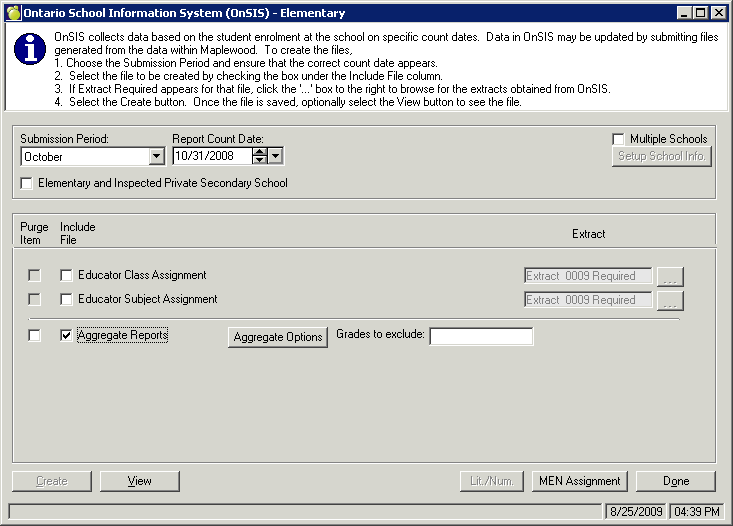
The “Elementary and Inspected Private Secondary School check box must be selected for a private school’s elementary submission if the private school is a combined elementary and secondary school, and the secondary school is inspected. There are unique requirements for this type of school setup, which will be accurately reflected on the Maplewood screen if this box is checked. For example, the Educator Class Assignment and Educator Subject Assignment batch files are not enabled, since this information is collected in the secondary submission. If the private school does not have secondary students, do not check this box and then the Educator batch files will be enabled.
- If the Educator Class Assignment and Educator Subject Assignment batch file options are enabled, the create these 2 batch files. Combined elementary and secondary private schools can ignore this step, however, if the school provides education to only elementary students, information about the educators must be manually updated directly in the OnSIS application. Once the educator information is updated, the Educator Assignment extract must be obtained. Extracts provide information about the data that OnSIS has pre-populated into this submission period. For further information on extracts, read Pre-populated Data and Extracts.
For further information on creating batch files, and the purpose of the purge check boxes, read Creating Batch files in Maplewood.
- Once the Aggregate Reports check box is selected, click the Aggregate Options button to select the specific section or sections to be generated in the batch file. You may only select multiple options within the frame (e.g. you may select the options above the line or below the line, but not a combination). Therefore, you will need to create a least two different batch files.
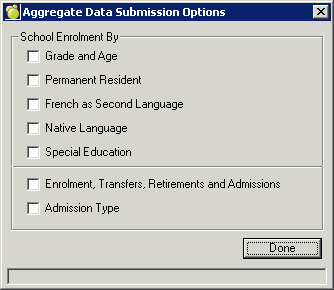
Once the options are checked, click Done, and then click the Create button and proceed as directed on the screen. When saving the file, it will default Maplewood's data folder EXPORT\OnSIS.
Select the Aggregate Options button to check a different group of batch file options, then repeat the creation of the next batch file.
The batch files may be optionally viewed using the View button.
Schools with pre-school students in Maplewood: Preschool students are not to be reported to OnSIS. If a school uses different grades for pre-school students (e.g. T for Toddler or C for Children's Program, etc), there is a box on the OnSIS form to exclude students in those grades. Using this example, entering TC into the "Grades to exclude" box, the software will automatically skip over those students (providing that is the student's grade on Oct 31, considering grade internal transfers). The excluded students will not appear on the sheet with the head counts.
If a private school has students enrolled in the junior kindergarten program and they are under 4 years as of December 31, OnSIS would like those students included, and we have always included them. If, however, a school uses grade J (or any other valid grade) but would still like to exclude the student, they may enter a future entry date to elementary school. If a student has an entry date to elementary school after the count date, the student will be excluded with the following message: "Student's name: Not Included - Grade (J) with Elementary Entry Date after report date".
- Upload the batch file(s) to the Ministry’s OnSIS application. Once the file is processed, look at the results to determine if any errors were generated. Errors may require corrections to the data in Maplewood and the subsequent recreation of the batch file (using the purge item check box). Sometimes, it may be faster to make the correction directly in OnSIS (and Maplewood) and then the batch file will not be resubmitted. Further information on these steps may be found in Submitting Batch Files to OnSIS.
-
Use the Manual Entry button to check to see if Maplewood suggests items that may need to be manually entered into OnSIS if there is not another software program used to submit this data. For example, it may suggest that Educator Employment Information is manually entered. If this information exists in a Human Resources program, it would likely be updating this information in Maplewood. Maplewood provides the batch files for updating the educator’s homeroom/class/subject information. Please note that the Enrolment, Transfers, Retirements and Admissions collects a field called "Admissions/Enrolled in Another School": This statistic cannot be generated by Maplewood and must be entered manually into the OnSIS website if you have students in this situation. This is the number of students who are also attending another school (i.e., who are entered on another school’s Register of Daily Attendance).
- Once the data is complete and accurate in the Ministry’s OnSIS application, follow the steps in the Ministry’s OnSIS documentation for generating validation reports and verification reports. Then, once satisfied with the reports, and no critical errors exist, then you may proceed with the School Sign Off.