Inspected private secondary schools are required to complete three OnSIS submission periods each academic year. The Ministry’s OnSIS application will refer to these submission periods as:
October Private Secondary School, Inspected (October 31 count date)
March Private Secondary School, Inspected (March 31 count date)
June Private Secondary School, Inspected (June 30 count date)
Inspected Private Secondary Schools that are offering summer school courses are now required to complete the OnSIS Summer School Submission period as well.
If the school also contains elementary students, aggregate information on the elementary students must also be submitted via the Private Elementary School, however the educator data is submitted through this secondary submission.
If a private secondary school is not inspected, OnSIS collects aggregate data. These schools will have the option for Aggregate Reports, which are explained in Private Elementary School.
At the start of each academic year, please familiarize yourself with the data elements which will be collected in each of the OnSIS batch files. Please ensure that all data is correctly entered for the students throughout the year. Throughout the academic year, make sure the students have their classes in their timetables, and, at the end of each semester (or term if applicable), update the transcripts with the final marks.
Here are the basic steps for completing these submission periods:
Review the chart of data elements contained in the batch files to ensure that you have entered all the data required for this submission. The following batch files are required:
Class List
Course Segment
Student School Enrolment
Student Class Enrolment/Other Credits
Equivalent Credits via PLAR
Second Language Program
Educator Class Assignments
Diplomas for Non-Enrolled Students
Once the submission period is opened, obtain extracts from the Ministry’s OnSIS application. Extracts provide information about the data that OnSIS has pre-populated into this submission period. For further information on extracts, read Pre-populated Data and Extracts. Note: When the Educator Assignments extract (extract 009) is required by Maplewood, and the educator data has been updated after this step, a new extract 009 is required.
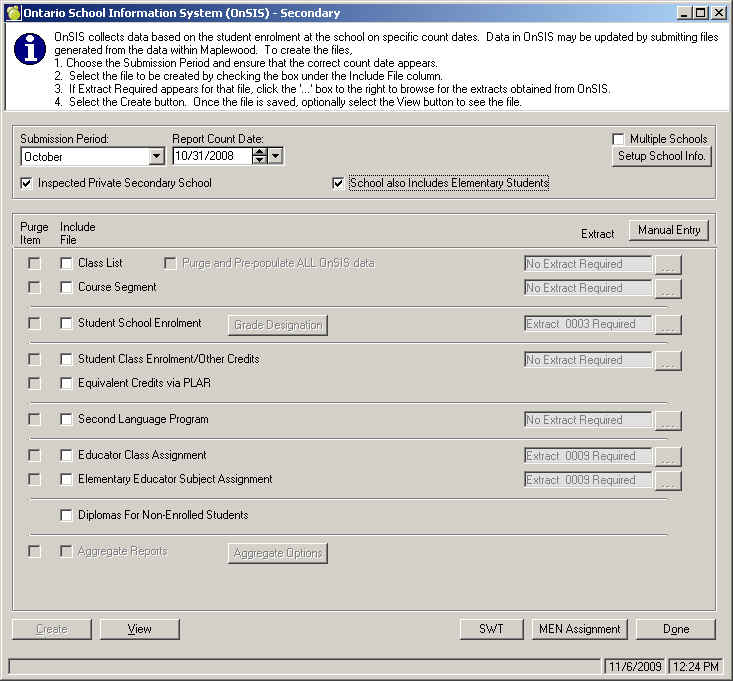
Create the batch files using Reports, OEN/OnSIS, Create OnSIS Batch Files (Secondary). At the resulting screen, in the Submission Period box, select either October, March, or June. If the resulting screen does not appear like the sample below, the school may not be specifically defined as a private school in Maplewood's File, School Setup, School Information, Configuration tab.
The “Inspected Private Secondary School check box must be selected if the private secondary school is an Ontario Ministry of Education inspected school. If the school also contains elementary students, the “School also Includes Elementary Students box must be selected.
If the "Inspected Private Secondary School" check box is not checked, the Aggregate Reports option is enabled. Aggregate Reports are explained in the Private Elementary School submission.
Create the required batch file(s). For further information on creating batch files, and the purpose of the purge check boxes, read Creating Batch files in Maplewood.
Upload the batch file(s) to the Ministry’s OnSIS application. Once the file is processed, look at the results to determine if any errors were generated. If errors exist, you may want to save the results file then use the Maplewood option to Process OnSIS Result Files. Errors may require corrections to the data in Maplewood and the subsequent recreation of the batch file (using the purge item check box). Sometimes, it may be faster to make the correction directly in OnSIS (and Maplewood) and then the batch file will not be resubmitted. Further information on these steps may be found in Submitting Batch Files to OnSIS.
Use the Manual Entry button to check to see if Maplewood suggests items that may need to be manually entered into OnSIS if there is not another software program used to submit this data. For example, it may suggest that Educator Employment Information is manually entered. If this information exists in a Human Resources program, it would likely be updating this information in Maplewood. Maplewood provides the batch files for updating the educator’s homeroom/class/subject information.
Once the data is complete and accurate in the Ministry’s OnSIS application, follow the steps in the Ministry’s OnSIS documentation for generating validation reports and verification reports. Then, once satisfied with the reports, and no critical errors exist, then you may proceed with the School Sign Off followed by the Board Sign Off.