Request Course History Information (Secondary Schools Only)
After department exams are marked, students' final transcript marks are available from SDS. Using the Request Course History Information option, the students' final marks, after departmental exams, can be automatically transferred into the Maplewood transcript records. This option can also be used to import the student's entire transcript from SDS into Maplewood.
There are 2 basic steps to requesting the transcript information:
I. Create a "Request Course History Information" file within Maplewood.
Using Reports, SDS Data Transfers, Send Information to SDS, select the option called Request Course History Information. Then you need to decide if you want to request transcripts for a specific date range using "Current - Request transcript entries", or "All - Request entire student transcript". Generally, at the end of the semester when SDS has issued transcripts, you will use the "Current" option. The "All" option would be recommended if you have not kept your transcripts up to date in Maplewood and you want to compare your Maplewood transcript information to the records in the Ministry's SDS system.
To create the file containing the course history request,
This creates the file FULLHIST1234567_yymmddhhmm.XML in the Maplewood\Export\Batch folder (where 1234567 is the school number, yy is the year, mm is the month, dd is the day, hh is the hour, and mm is the minute).
Optionally, select the View button to examine the information in the file. The nature of this file does not allow the file to be sent via the realtime method via the Send button in Maplewood. The file may take some time to process, but more importantly, will generate a response file containing transcript entries that must be processed through Maplewood's Import Response File option.
Go the SDS website and use the Electronic File Transfer option to send the file. Periodically check the SDS website until your file is processed.
II. Process the response file in Maplewood
From the SDS website, you must first save the results file from SDS into the Maplewood Import folder and then it may be imported into Maplewood. To do this:
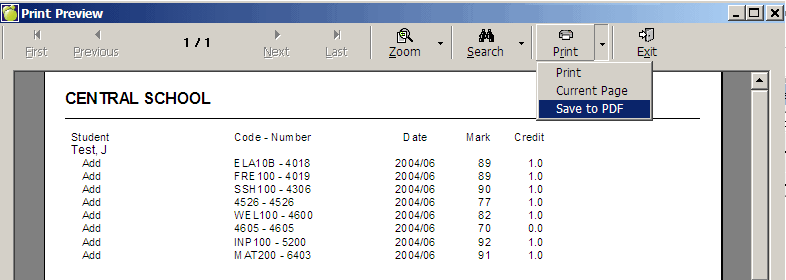
If importing a "Current" response file, any changes/updates to the transcripts will appear on a printout at the end of the process.
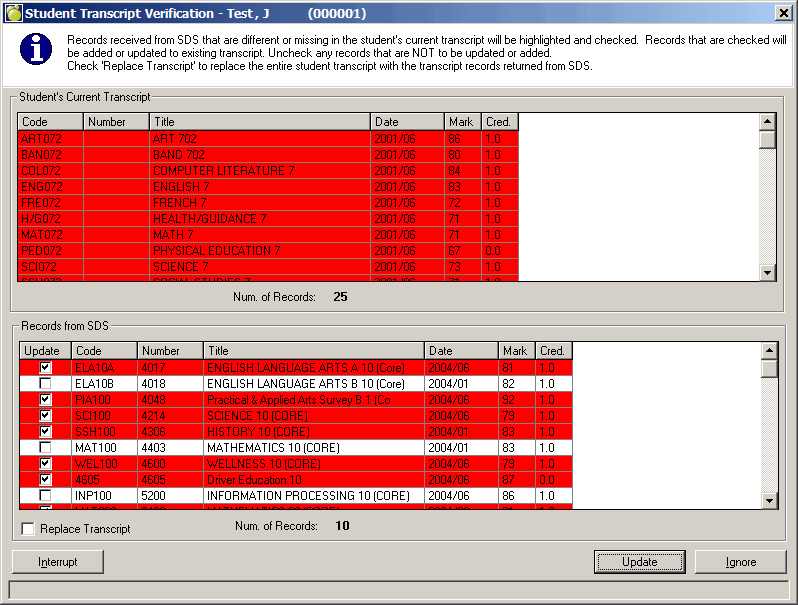
If importing an "All" response file, Maplewood will analyze the transcript entries for each student in the file based on what is currently in Maplewood and what is being sent from SDS. If the data differs from what is currently stored in Maplewood, an option appears to add differences in Maplewood with the transcript from SDS. The courses that differ will appear in Red as shown in the example below.
Users are able to step through each student in the response file and update only those students that they deem necessary. Use the Update All button to copy the SDS transcript into the Maplewood transcript for the student on the screen. Use the Ignore button to skip that student and proceed to the next student. At the end, or if you interrupt the process, a list of all the changes will appear.
The program will display the students whose transcripts are different from the contents of the SDS file.