Each fall, the changes to the data requirements are noted in Section 3 'Student Tracking and the Student Data System (SDS)' of the Registrar's Handbook http://www.education.gov.sk.ca/registrarshandbook.
For those looking for technical XML specifications, beyond the information provided by Maplewood, refer to the XML website https://www.k12.gov.sk.ca/sds/xml.
In addition to Maplewood's support team, the Ministry of Education Student Data System Support Desk can be reached at 306-787-1091.
This document explains how to use the Maplewood system to keep Saskatchewan Learning’s Student Data System (SDS) up to date with the information in your school, and vice versa. Although schools should refer to the Registrar’s Handbook for the exact SDS data transfer timelines for the school year, a summary is provided below.
| September: The
data in SDS on Sept 30th* is captured and used by the Ministry
of Education for their September 30th data collection snapshot. The
Education Funding Branch captures the following data from SDS
(from the SDS website's FAQ document):
-
Base
Students attending K-12 Provincially Funded Schools, Historical
High Schools, and Qualified Independent Schools. * or last Friday of the month if the 30th is on a weekend |
School Term New Students: Enrolment, Demographic and Address Information Deleted Students: Withdrawal Information Base Students: School Enrolment Base Students: Demographic and Address Information Base Students: Program Enrolment Base Students: English Additional Language Information Base Students: Intensive Supports ** Educators: Classroom Composition (K-9) |
Grades K to 12 |
| September and 1st Friday every month | Class Info, Class Enrolment and Exam Registration | Grades 10 to 12 |
| December** and
periodically through the year
** the identification of students requiring intensive supports is an on-going, living process with data historically extracted from SDS on December 20th of each year. |
Base Students: Intensive Supports | Grades K to 12 |
| January and June: Literacy and numeracy test results are collected twice per year in SDS for grade 1 to 3 students. (Numeracy results will be collected starting in 2015/16) | Base Students: Student Assessments (Reading and Number Sense) |
Grades 1 to 3 |
| As new students enroll in the school throughout the year | New Students: Enrolment, Demographic and Address Information |
Grades K to 12 |
| Periodically send updates to withdraw students that have left your school | Deleted Students: Withdrawal Information | Grades K to 12 |
| Periodically send updates to demographic and address information (particularly important before transcripts are mailed to students) | Base Students: Demographic and Address Information | Grades K to 12 |
| Periodically send updates to enrolment, and program enrolment. | Base Students:
School Enrolment Base Students: Program Enrolment |
Grades K to 12 |
| When school final marks exist | Class Marks | Grades 10 to 12 |
| When transcripts are available from SDS (particularly important for blended marks) | Request Course History Information | Grades 10 to 12 |
| Periodically send updates to classes taught by teachers | Educators: Classroom Composition (K-9) | Grades K to 9 |
Home-Based Students: A home-based students refers to a student who is receiving instruction in a registered home-based education program. These students are also referred to as home-schooled students. The school division is responsible for registering home-based students and the school division becomes their school of record. Most divisions enter these students directly into the SDS website. If there are a large number of home-based students, and the division would like to track these students in Maplewood, a school would need to be created specifically for the home-based students. This school would be given a 7 digit school number corresponding to the division number (e.g. two extra zeros added to the end of the division number).
In Maplewood, the SDS Data file options are in the Reports menu. The SDS Data Transfers menu has 3 options:
Send Information to SDS: This is the menu option used to create the files.
Import Response File From SDS: This is the menu option used to import response files generated by the Ministry's SDS system. Response files are saved from the SDS system and then imported into Maplewood. Response files may contain Learning ID's (DEN#s) for new students, or information about errors or warnings resulting from a file submitted to SDS. If the file contains Learning IDs, they will be automatically assigned to the students. If the file contains errors/warnings, they are formatted in an understandable way so that they can be viewed in Maplewood's SDS Response Log.
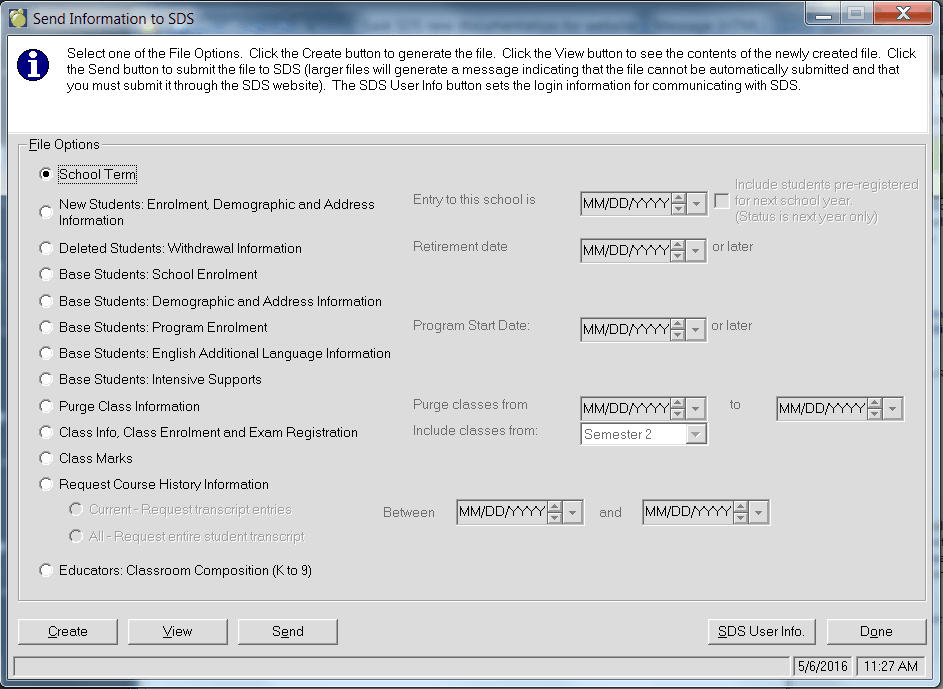
Choose Reports, SDS Data Transfers, Send Information to SDS to see this form:
Note: Only Maplewood Secondary users will see the file options "Purge Class Information", "Class Info, Class Enrolment and Exam Registration", "Class Marks", and "Request Course History Information" since these files contain information on grade 10 to 12 subjects which are only applicable to secondary schools.
Although each of the file options is explained separately, the user simply selects a file option then selects Create to generate the file. Upon completion of the file, indicate Yes when prompted to see the contents of the file (or use the View button), and then Send to submit the file to SDS and proceed as directed on the resulting message*.
SDS will provide your school with a login name, password, and URL for accessing the SDS real-time website. This information is entered using the SDS User Info. button prior to sending your first real-time file. Once it is initially entered, it is retained for future use, and only requires editing if needed.
* SDS has 2 different methods of receiving files depending on the size of the file. In Maplewood, the Send option will detect the size and will display the appropriate messages:
If a file is small (under 32KB), clicking the Send button will allow the file to be sent to the real-time internet address (URL) setup in the SDS User Info. button. The message will indicate "Due to the smaller size of this file, it may be submitted to SDS right now (Real -Time). Click OK to send the file and then wait while your file is being processed by SDS. Another message will appear once it has been processed." If OK is selected, the file is processed immediately and results are returned immediately.
If sending a larger file, Maplewood will provide this message "Due to the larger size of this file, it cannot be submitted automatically to SDS. Proceed to the SDS website to submit the file through the SDS Electronic File Transfer option. When the file is processed and SDS generates a Response File, it may be saved fo use in Maplewood's Import Response File from SDS option". When this message appears, go the SDS website and use the Electronic File Transfer option to send the file.
Please refer to the links below for detailed information on each of the file options provided in Maplewood's SDS application:
School Term
New Students: Enrolment, Demographic and Address Information
Deleted Students: Withdrawal Information
Base Students: School Enrolment
Base Students: Demographic and Address Information
Base Students: Program Enrolment
Base Students: English Additional Language Information
Base Students: Intensive Supports
Base Students: Student Assessments (Reading/Number Sense)Purge Class Information
Class Info, Class Enrolment and Exam Registration
Class MarksEducators: Classroom Composition (K-9)
Request Course History Information
When files have been uploaded to the SDS website using their Electronic File Transfer option, the Maplewood system is not able to automatically obtain the response file. The response file contains information such as successful transactions (i.e. the data was updated in SDS without any errors), along with errors. There will also be times when the response file contains information that needs to be transferred to the school's Maplewood data, such as when new DEN#s are assigned to new students.
Although the response file is only required to be imported when DEN#s may be returned, or a file was submitted to request transcripts from SDS, you can use this option to make the errors appear in the Maplewood's SDS Response Log, which is often easier to read than the file generated by SDS.
To import a response file from SDS into Maplewood:
Save the response file from SDS into your Maplewood Import folder. To do this, within SDS's Electronic File Transfer option, go to the Review Upload Status Page. Right click the link for the response file, then select Save Target As and save the file in the school's Maplewood data Import folder.
In
Maplewood, choose Reports, SDS Data Transfers, Import Response
File from SDS.
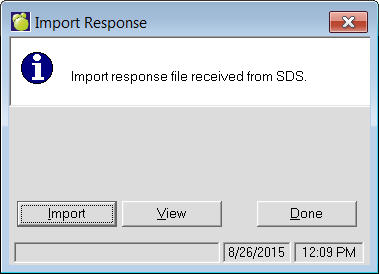
Click the Import button then browse to find the response file in the Import folder then select OK.
Once the file has
been imported, the messages/warnings/errors are presented in a report,
and the report is saved in a PDF file for later viewing.
The screen is sizeable and the report clearly identifies the following
information:
i. Error Code (this is the code number provided by SDS)
ii. Error Severity (this is provided by SDS)
iii. Response Message (this will show the exact message returned from SDS. This message will describe the error.
iv. Students with Errors: This column will list the names of the students with that error.
The PDF file will be created in the same folder as the original results file, with "_ResponseError.PDF" added to the end. e.g. DEL99999_1404151120.xml will be called DEL99999_1404151120_ResponseError.PDF. To view a response file imported earlier, use Reports, SDS Data Transfers, Import Response File from SDS, View then browse to find the PDF file. Alternately, the file may be viewed by opening the PDF file from any browser.