Twice a year, at the end of January and June, diagnostic leveled reading and numeracy assessments scores (aka levels or results) are submitted to SDS for students in grades 1 to 3. If the assessment data is entered into Maplewood (Enterprise version only) by the teachers, this information can be submitted to SDS using Maplewood. Reading assessment will be collected by SDS starting in the 2014/15 school year, while numeracy data will be collected starting in 2015/16.
Through Central Office, the school wide assessment data must first be set up. This process is explained in great detail in Maplewood's online manual for Central Office. To access the instructions, from http://www.maplewood.com/manuals.aspx, select Central Office (contact Maplewood if you need the password for Maplewood's manuals). Go to chapter 5 - Marks, then refer to the section titled School Wide Assessment/Test Results (Standardized Tests).
To summarize the key setup points, from Central Office, select Marks, Assessment Results, Define Assessment/Tests. Enter the title of the assessment, the starting grade (students in this grade and higher may be administered the assessment/test), and an Identifier. The Identifier must match the codes defined by the province (e.g. 04 for Fountas & Pinnell) as shown in the Assessment Type and Level Table below. From Central Office, select Marks, Assessment Results, Define Time Periods. Enter a time period corresponding to the collection period for SDS reporting* (e.g. Fall 2014 with a date range from September 1 to January 31). The start date of the time period must be within the bounds of the current school year to be considered.
* There is a lot of flexibility to the setup of the assessments. Some prefer to setup a Time Period such as 2014-2015 with a date range from the beginning of September to the end of June. Then they use the "Strand" feature of the assessment setup to correspond to the 2 collection periods (e.g. January and June or Fall and Spring). If strands are used in the Reading assessments, and if a student has assessment levels in both strands, it will use the last strand with an assessment level recorded (e.g. if the strand order is Fall then Spring, and a student has an entry of 1 in the Fall and 2 in the Spring, the file will contain 2).
Once the Assessment is defined, student results may be imported (if the test results are already available in an electronic format such as a spreadsheet), or the results may be entered by teachers or other staff within Maplewood connectEd, as explained in the online manual section mentioned above. Staff members with permission to this area will have an option called Standardized School-Wide Assessment where the assessment levels are entered. As long as the student's assessment scores are entered using the assessment levels indicated in the chart below, Maplewood will send the correct code to SDS. For example, if a student receives a score of A in the Fountas & Pinnell assessment, the A entered in Maplewood will appear as code 71 in the file submitted to SDS.
Before creating this file for SDS, refer to the Base Students: Student Assessments (Reading and Number Sense) File Description. This information must be accurate before commencing with this process.
Two files will need to be created and submitted: one file containing the reading assessment results and one file containing the number sense results. The files may be submitted multiple times, however, if the student's assessment date changes for the same assessment test, a new record for the assessment is stored in the SDS system. The SDS website is designed to show only the most recent assessment results for the school year. Therefore, when the results are submitted later in the school year, they will appear as if they have overwritten the results submitted earlier in the year, but the earlier results are still in the SDS system, but just not visible. SDS will capture the data in SDS two times per year (January and June).
To create the file containing the student's enrolment information,
Choose Reports, SDS Data Transfers, Send Information to SDS.
Choose the Base Students: Student Assessments (Reading and Number Sense) option. From the drop down box, select either Grade 1-3 Leveled Reading or Grade 1-3 Number Sense.
Click Create. The file can be created for all students alphabetically, however the file will only contain those students in grades 1, 2, and 3.
Select the Save button to save it using the defaulted name and location. We suggest that you view the contents of the resulting file to ensure that it appears to contain the desired information.
This creates the file GR1_3Reading1234567_yymmddhhmm.XML (or GR1_3NumberSense1234567_yymmddhhmm.XML) in the Maplewood\Export\Realtime or Batch folder (where 1234567 is the school number, yy is the year, mm is the month, dd is the day, hh is the hour, and mm is the minute).
Optionally, select the View button to examine the information in the file. To transfer the file to Saskatchewan Learning’s SDS through the internet:
Click Send. The correct file should be defaulted, so select Open.
If this message appears,
"Due to the smaller size of this file, it may be submitted to SDS right now (Real-Time). Select OK to send the file and then wait while your file is being processed by SDS. Another message will appear once it has been processed."
select OK then wait for the file to be processed. If a message should be returned indicating that the file was successful. If errors are returned, correct the data and resend it.
If this message appears:
"Due to the larger size of this file, it cannot be submitted automatically to SDS. Proceed to the SDS website to submit the file through the SDS Electronic File Transfer option. When the file is processed and SDS generates a Response File, it may be saved for use in Maplewood's Import Response File from SDS option."
Visit the SDS website and use the Electronic File Transfer option to send the file. Periodically check the SDS website until your file is processed. If errors were included in the response file, make any necessary corrections, recreate the file, and then resend.
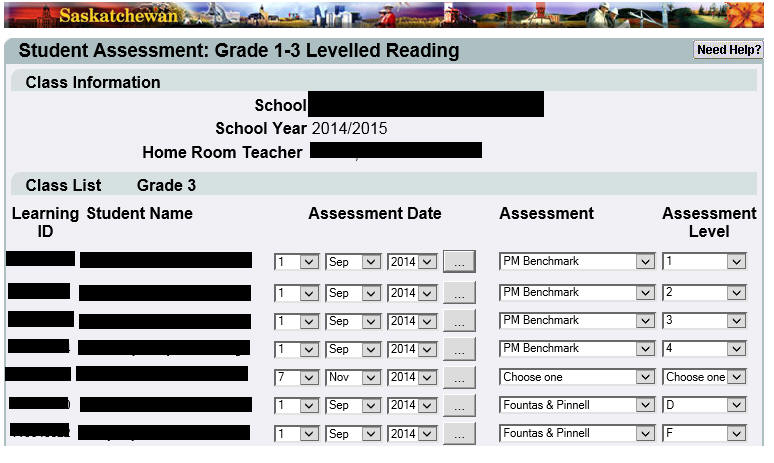
This is an example of what the SDS website for reading looks like:
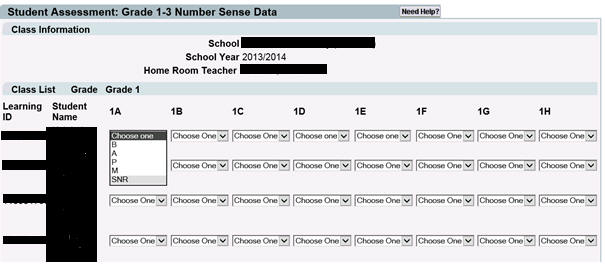
This is an example of what the SDS website for Number Sense looks like:
Maplewood Default Filename: GR1_3Reading#######_yymmddhhmm or GR1_3NumberSense#######_yymmddhhmm
Student Provincial Assessment (XML Object 1.4)
This object allows the school to submit provincial assessment (literacy and numeracy) information for a student. In Maplewood, if the student is currently in grade 1, 2 or 3, and the student has an assessment level entered for any one of the provincially accepted assessments for this school year, the assessment level will be reported in the SDS file. The following table summarizes the assessments that may be used to assess the students, and the assessment levels that may be assigned to the students. The files created by Maplewood will contain the corresponding code values for the assessment type and level:
This is the file layout:
|
Elements |
Description/ Notes |
|
StudentProvincialAssessment RefID |
Required. The reference ID for returning messages. This is automatically generated by Maplewood. |
|
StudentIdentification |
(XML Elements 2.4) BirthDate |
|
ProvincialAssessmentInfo
SchoolID
AssessmentTool Code
SelectedCode
AssessmentElement Code
AssessmentLevel Code
|
(XML Elements 2.17) Required. The following elements provide information about the Provincial assessment tool and assessment level for a student:
Required. The department-assigned number of the school the enrollment is for. This is the school number as shown in File, School Setup, School Information. If the school number is incorrect, contact Maplewood. Required. When creating the file, from the drop down box, select either Grade 1-3 Leveled Reading or Grade 1-3 Number Sense. If the number sense option was selected, the grade 1 to 3 students with an assessment code of 07 will be included in the file with 07 populated for the Assessment Tool code: 07 Number Sense If the leveled reading option was selected, the grade 1 to 3 students with an assessment code corresponding to the codes below will be included in the file with the corresponding codes: 01 Reading Recovery Notes: The time period of the assessment must start within the current school year's calendar in order for the assessment to be included in the file. Central Office defines the assessments (from Central Office, select Marks, Assessment Results, Define Assessment/Tests, then enter the title of the assessment, the starting grade (students in this grade and higher may be administered the assessment/test), and an Identifier). The Identifier must match the codes defined by the province (code 04 for Fountas & Pinnell).
Yes or No will appear: Yes = Assessment Tool is required for student (i.e. add assessment) No = Assessment Tool is not required for student (i.e. remove assessment). Yes will always appear.
The number sense assessment can contain student assessment levels for elements A through H (e.g. up to 8 assessment scores per student)*. If creating a number sense file, the Assessment Element Code will indicate the element. The code (as shown in brackets below) will be used in the file (e.g. 03 will appear in the file for element C). A (01) B (02) C (03) D (04) E (05) F (06) G (07) H (08) * These elements are setup as Strands when the assessment is defined in Central Office.
This is the code corresponding to the student's level (score) for the provincial assessment. Each assessment type has a specific list of valid levels, and the code of the level will appear in the file. The valid levels and corresponding codes are shown in the Assessment Type and Level Table.
* There is a lot of flexibility to the setup of the assessments. Some prefer to setup a Time Period such as 2014-2015 with a date range from the beginning of September to the end of June. Then they use the "Strand" feature of the assessment setup to correspond to the 2 collection periods (e.g. January and June or Fall and Spring). If strands are used in the Reading assessments, and if a student has assessment levels in both strands, it will use the last strand with an assessment level recorded (e.g. if the strand order is Fall then Spring, and a student has an entry of 1 in the Fall and 2 in the Spring, the file will contain 2).
The assessment date is a date that the user specifies on the Send Information to SDS interface, upon selecting this batch file option. All students in the file will receive this same assessment date, unless a student enrolls into the school after this date, in which case, the student's entry date will be used instead. |