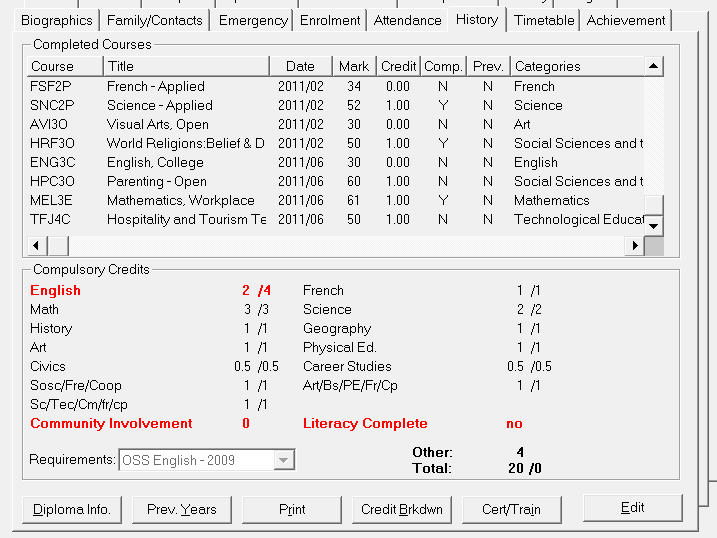
Choose Students, (select student), History tab.
The main History tab gives you background information about Completed Courses and Compulsory Credits for the current student. Use the Diploma Info. button to see any previous Diploma information.
Alberta, BC, Manitoba, and US jurisdictions now show 'Credit Att.' (Credit Attempted) as the title for History tab's credit column. These credits refer to the credits assigned to the course codes, in the code file. Attempted Credits Column pulls the credit value from the code file.
Ontario Only: Students need to have a diploma assigned in Maplewood in order to have Ontario scholar checkmark available. Once a diploma has been assigned to a qualifying* student, the checkbox will be checked and the student will appear in correct area of verify scholars report.
* An Ontario Scholar is a student that meets or exceeds the 480 aggregate based on marks based on the top 6 scholar courses (grade 12 courses for students under OSS Diploma requirements; and OAC courses for those under the old OS;IS Diploma Requirements).
Detailed attendance information is accessible in the historical details in Students Record (Prev. Years button, Attendance Details). The program maintains all the information from the register from year to year. To have data in this area, a school must Archive Attendance prior to Transferring to New Year.
Click this button to review all saved information regarding the student's Diploma. No editing is available from this feature. The Diploma Info button reveals a view screen now showing not only the student's diploma information but also the Yes/No if student is an Ontario Scholar along with the Scholarship Date should the student have achieved the OSSD. Click to see how to define diploma information.
Use the Prev. Years button to access a student's Attendance and Hours of Instruction screen.
You can skip through courses using the Previous and Next buttons. If you need to add a new course without exiting the form click Add. Use check-boxes for completed and previously taken courses.
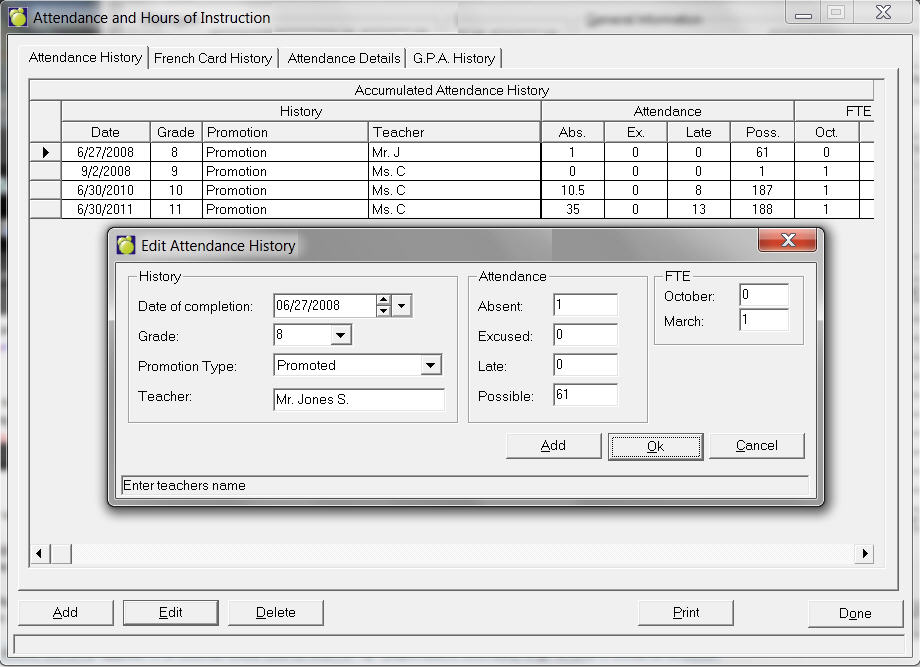
From the main History tab click Edit and then
the French Card History tab. When adding or editing an entry, use
this tab to enter the Aboriginal hours of Instruction. Select a row to
edit and then click Edit. You can also Add or Delete a row of information.
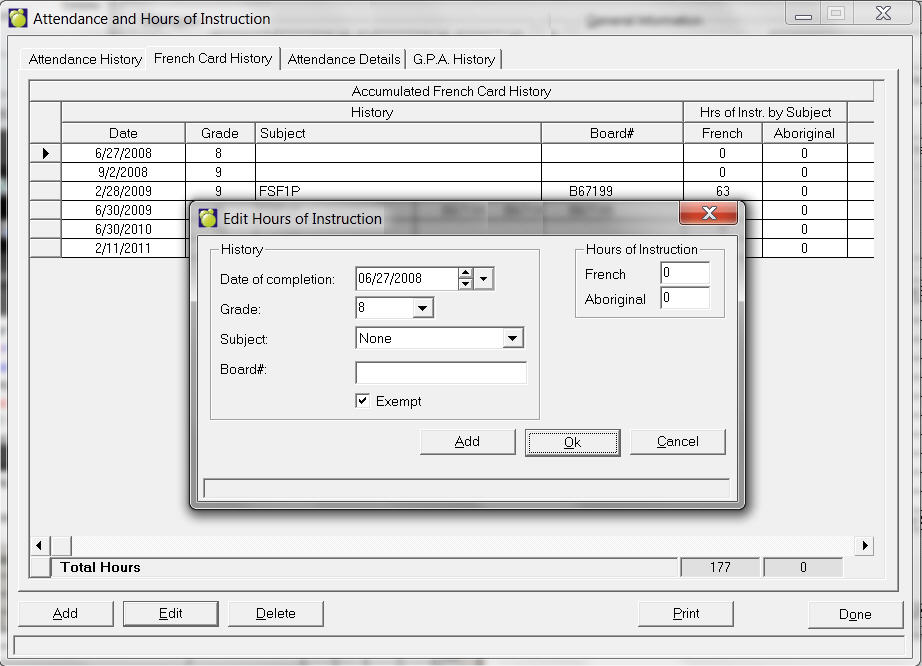
Attendance Details
Note: The attendance isn't saved anywhere in the Administration System from year to year. You must manually enter the attendance information for each grade if you choose to use this option.
Select the school year and then choose to display Period Attenance or Morning/Afternoon Translation.
GPA History
Click the GPA History tab to access an editing screen. Here you can specify the date, grade level and GPA.
Credit Breakdown
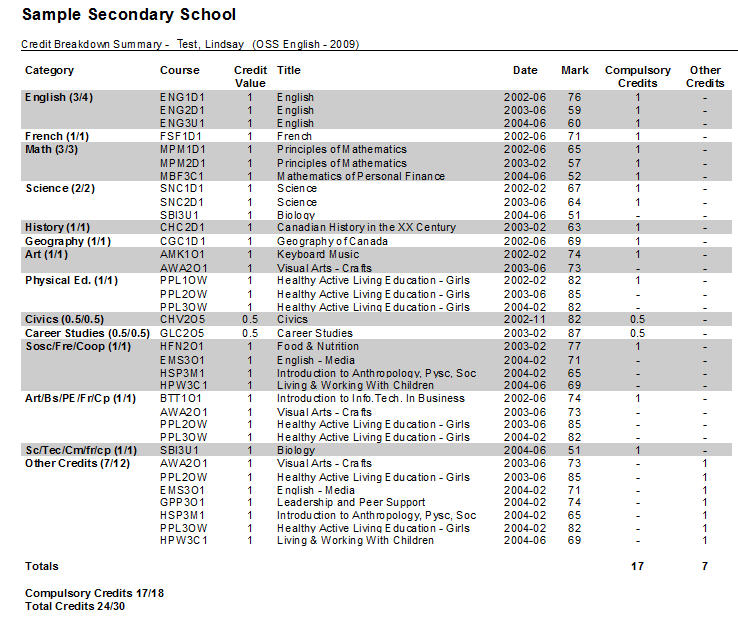
The credit totals will now appear in the credit breakdown window, even if there is no Area of Requirements defined. Click Credit Brkdwn to see a print preview of a Credit Summary for the selected student.
Edit (General Information and Diplomas)
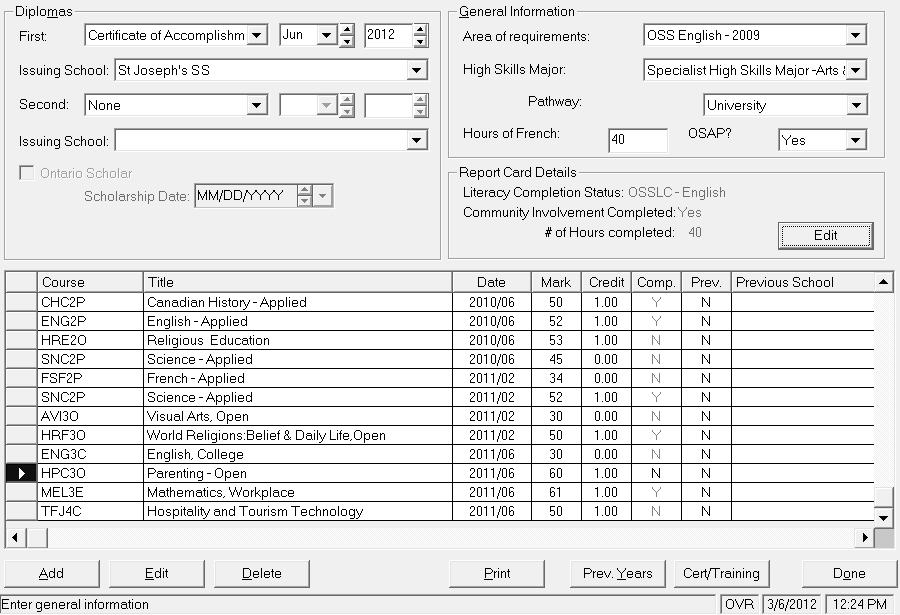
Click Edit from the History Tab to see the student's history record. You can see completed courses, diploma information, area of requirements, type of course (e.g. night, correspondence), OSAP (Ontario only) and compulsory credits. At the bottom you will see in this Ontario example, a list of completed Grade 9 credits. For adding and editing information see the next section. Click Edit to access this editing window.
On this window you have access to Diplomas, General Information and Report Card Details.
Add or Edit Student Transcript Information
Ontario Jurisdiction examples below
Note: Alberta, Saskatchewan, and Manitoba will have different screens for Transcript editing.
Transcript Tab
Team Taught Dual Credits will print T in the Notes column
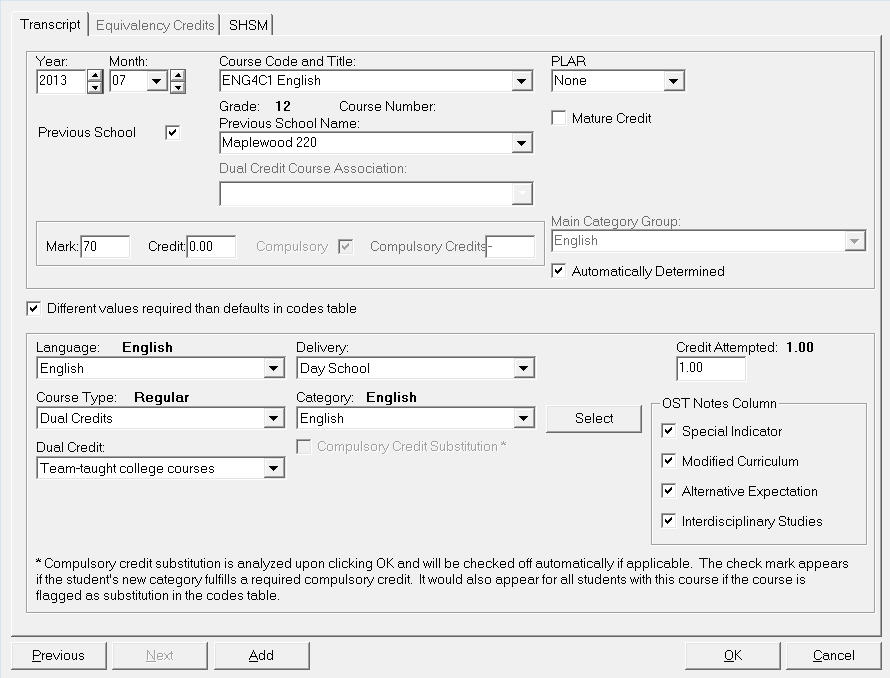
A new 'Note' value has been added to the allowable entries. T (for Team Taught Dual Credit) will now print if course is flagged with a "Dual Credit Course Type" of:
- Team Taught College Course, or
- Team Taught Apprenticeship Program
As well, "(Dual Credit)" will appear at the end of the course title for the team taught courses.
Use the checkbox on the Add transcript record screen to specify if the course is a "Mature Credit"
On the student's Edit Transcript screen, pull-down menu called 'PLAR' will appear when entering/editing a new code in the transcript. This pull-down menu allows for one of two options to be selected, Equivalency or Challenge. The program will only allow the Equivalency option to be selected if the course starts with PLE, Q** or EQV. If the student has an equivalency credit that is a regular MDC credit, then select the course code, and enter a grade of EQV. If the course starts with PLE or Q, the code will automatically default to PLAR type of Equivalency, and the new tab "Equivalency Credits" will be enabled. This new tab allows the user to enter specific details regarding the compulsory credit categories. This means the credit breakdown on the history tab can now display accurate information for students with equivalent credits.
Note: When editing a course in the student’s history, if any value needs to be different than that contained in the code file, schools can not make these changes at the student level, rather than create a new code. Simply check the Different values required check box and select the area(s) that are to be unique for that individual student. Although short in explanation, this is a very robust enhancement to Maplewood Enterprise. This currently is available to schools within the jurisdiction of Ontario. It will be released to other jurisdictions pending a review of the other jurisdictional requirements
Equivalency Tab
Ontario
When a course is added to the transcript, and it starts with Q or PLE,
within the edit of that course, the tab called Equivalency Credits is
enabled. This tab is useful if the student’s credit categories are different
from those defined in the code file. By checking the box titled “Different
values required than defaults in the codes table”, the user can then specify
exactly the grade/category group(s) to which the earned credit(s) should
count. In the example below, the user gave a student a 6 credit QEE99
course, then entered 1 (representing 1 credit) in the grade 9/English
cell, 1 in the grade 10/English cell, 1 in each of the grade 9 Mathematics,
Science, Art and Physical Education cells.
On the Equivalency Credits tab, the categories will appear with a grid
to enter the # of credits earned in each category, and the grade level(s)
of the credits. Note: if nothing is specified on
the Equivalency Credit tab, everything will continue to work as it has
in the past. For PLAR Challenge credits, choose the MDC from
the 'course code and title' pull down list and select the PLAR type of
'Challenge'. A percentage grade is required for these entries. For grade
9 and 10 challenge courses, only successful attempts are entered in the
transcript. For grade 11 and 12 challenge courses, both successful and
unsuccessful attempts must be recorded. Unsuccessful attempts should have
a credit value of zero.
A warning will be presented if more credits are defined on the Equivalency
Credits tab, than credits are given on the Transcript tab. Fewer credits
may be defined which will result in the additional credits being counted
toward the Other Credits.
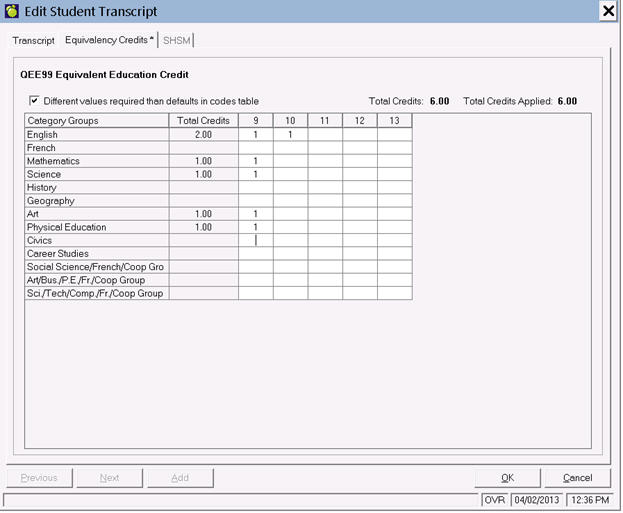
If a student has different values than defined in the codes table, the tab will appear as “ Equivalency Credits * ” (an asterisk is added).
In a similar fashion, Specialist High Skills Major (SHSM) students will have access to the SHSM tab to provide the ability to define different categories than those defined in the codes table as shown here:
SHSM Tab
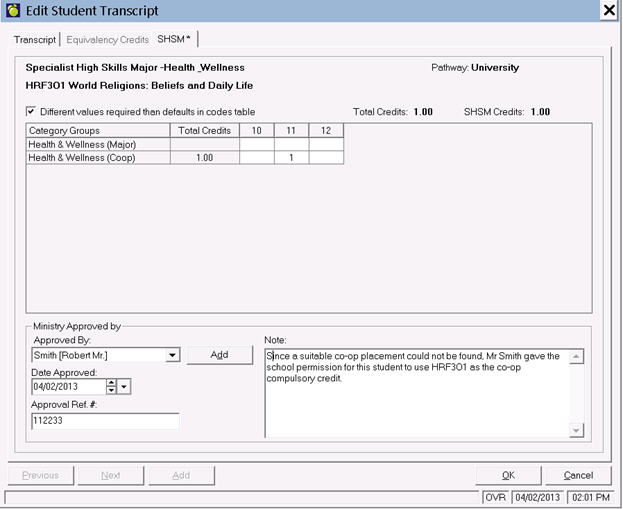
The SHSM tab, is visible when entering/editing the transcript. By selecting this tab (only active for students enrolled in an SHSM program), within the definition of an individual transcript add/edit, the user can now select 'different values than defaults required in code table', including the ability to:
- choose which SHSM courses that they want to count for the student
- choose on an individual level whether to allow 3 grade 12 credits and 1 grade 11 (instead of 2 credits from each grade)
- allow substitutions for COOP credits (due to the reduced offering of co-op due to the economic downturn).
Schools can also define the Ministry contact who has approved the change, the date of the approval, as well as add notes for why the approval was given. Some of these fields are mandatory when entering data on this tab. Another field has also been added to the History tab that allows users to enter in a separate SHSM Completion Date. Previously this date was calculated internally by the program.
If an SHSM substitution is entered then 2 additional pieces of information are required prior to saving the record. The entry of the ‘Date Approved’ and the ‘Approved By’ or the ‘Approval Ref#’ must be entered.
Ontario Scholar Verification
You can generate 3 reports relating to Ontario Scholars. To enable the Ontario Scholar checkbox, you must have Ontario Secondary School Diploma selected in the Diplomas frame.
For more information on generating Ontario Scholar reports.
Alberta
Alberta schools will notice that an Equivalency Credits tab appears when a transcript entry is added or edited. The Equivalency Credits tab will be enabled when the code has a Completion Method set to Out of Province Evaluation. When an Out of Province code is added to the transcript, the user must still indicate the mark and check that the defaulted attempted/earned credits are correct for the student (they may be edited if needed).
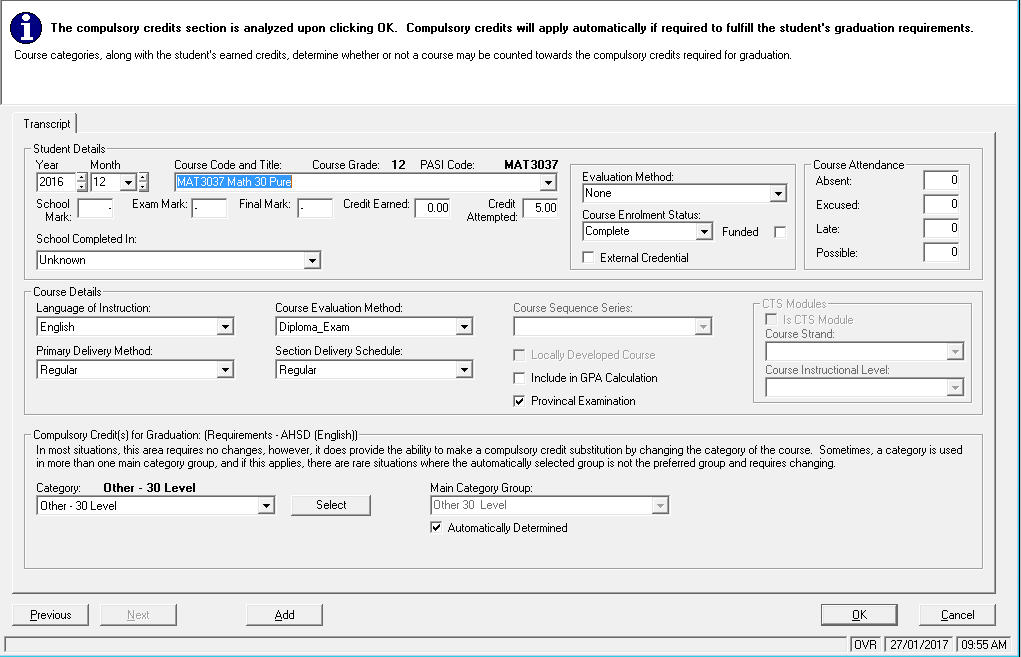
This tab allows the user to enter specific details regarding the compulsory
credit categories, if the default categories in the code file are different
than the values needed for the student.
Student Name
Suffix –new field added
Is name exactly as source document – new check box to support PASI Is Name Exact requirement
Student Transcript
PASI Code (formerly Course Number)
School Mark (formerly Mark)
Exam Mark (formerly Exam)
Final Mark (formerly Final)
Evaluation Method (formerly Course Evaluation)
Course Enrolment Status (formerly Course Completion Status)
Language of Instruction (formerly Language)
Course Evaluation Method (formerly Course Completion Method*)
Primary Deliver Method (formerly Course Type)
Section Delivery Schedule (formerly Delivery)
Course Sequence Series (formerly Course Series and values have been updated to come from PASI)
Course Strand (CTS field new populated from PASI once PASI Course Mark Integration is enabled)
Instructional Level (CTS field new populated from PASI once PASI Course Mark Integration is enabled)
*Note table values have changed to align with PASI. Regular is now School and if has an exam then it will be Diploma_Exam)
Student Timetable
Dual Enrolment - Ability to indicate if a student in a class is participating in a dual enrolment opportunity. Field is in preparation for PASI Course Marks Integration and is neither complete nor part of any current mark file submissions.
Codes File
Maplewood Code (formerly Course Code)
PASI Code (formerly Course Number)
Course Subject (formerly Category)
Program Association (New – populated from PASI)
Course Evaluation Method (formerly Course Completion Method*)
Primary Deliver Method (formerly Course Type)
Section Delivery Schedule (formerly Delivery)
Course Strand (CTS field new populated from PASI once PASI Course Mark Integration is enabled)
Instructional Level (CTS field new populated from PASI once PASI Course Mark Integration is enabled)
*Note table values have changed to align with PASI. Regular is now School and if has an exam then it will be Diploma_Exam)
Entering Different Values Than Codes Table Defaults
Click the adjacent checkbox to enable the options in the Different values than default codes table area
Manitoba
Manitoba schools will notice an Equivalency Credits tab that appears when a transcript entry is added or edited. The Equivalency Credits tab will be enabled when the course number or course code starts with 0691 (the code for out of province credits). When a 0691 course is added to the transcript, the user must still indicate the mark (e.g. S) and check that the defaulted attempted/earned credits are correct for the student (they may be edited if needed).
This tab allows the user to enter specific details regarding the compulsory credit categories, if the default categories in the code file are different than the values needed for the student. This means the credit breakdown on the history tab can now display accurate information for students with equivalent credits.
On the Equivalency Credits tab, first check off the 'Different values required than defaults in codes table' box. The categories (based on the student's requirements) will appear with a grid to enter the # of credits earned in each category, and the grade level(s) of the credits.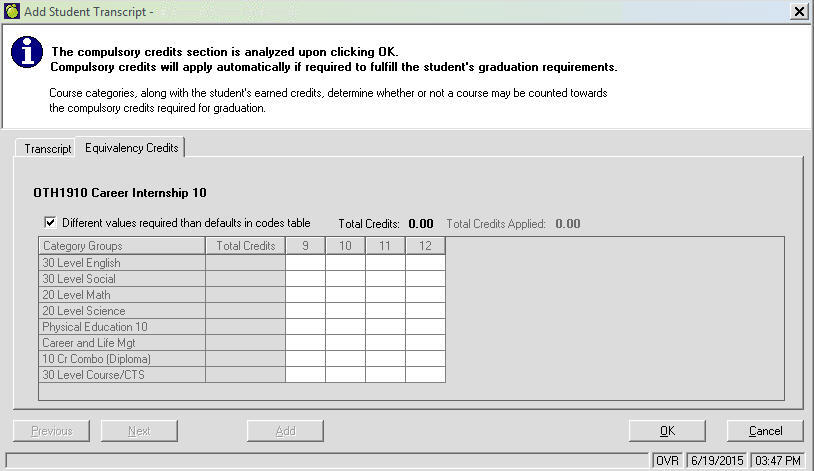
Edit Report Card Details
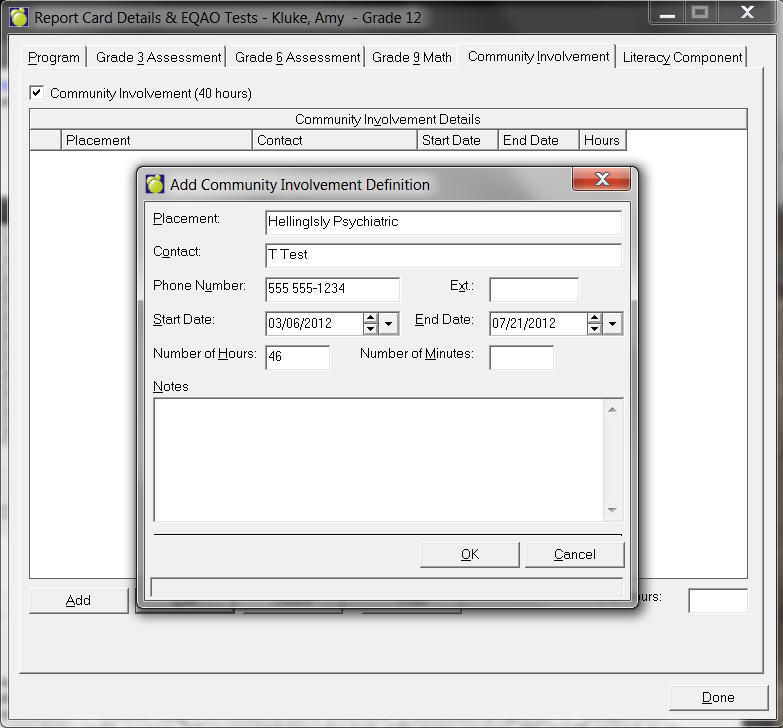
To access complete Report Card Details click Edit in the Report Card Details frame. Here you can specify special assessment information for Grades 3 Assessment, 6 Assessment and 9 Mathematics. In addition, you can record Literacy Component and Community involvment details such as the the example shown below:
For Ontario users,
if requirements are OS;IS (not OSS) the total number of Ontario Academic Credits (OACs) obtained and the number of OACs required are also displayed.
if requirements are OSS (not OS;IS), then don't show # OAC credits
The Note column on the transcript forms indicates “S” (Special Indicator); “F” (course taught in French in Core, Extended, or Immersion program); “C” (cooperative education); “I” (interdisciplinary studies); “X” (substitution for a compulsory credit course); “H” (a required specialist high skills major course); “P” (credit earned at an inspected private school by a student registered in a publicly funded school); “M” (modified curriculum expectations that do not lead to a credit, as described in the student’s IEP); “A” (alternative expectations, which do not lead to a credit, as described in the student’s IEP); “B” (indicate that the student successfully completed the college-delivered dual credit course; however, only partial credit value was entered on the OST to comply with the maximum credit value of 4 for college-delivered dual credit courses and external music courses).
How it works in Maplewood:
Checkboxes exist in the Codes File - in order for the S (Special Indicator), I (Interdisciplinary Studies), A (alternative Expectations) and/or M (Modified Curriculum) letters to appear in the Notes columns.
A further note for M for Modified Credit in the Notes column of the Transcript. The curriculum can be modified and a credit still granted as long as it has not been modified to the extent that a credit can no longer be granted. If the curriculum is modified to the extent that a credit can no longer be granted, then, and only then, would the M be used in the notes column. If a course has been modified somewhat, but a credit is still going to be granted, then the M does not appear in the notes column. The change would be that when checking the Note of M, if a credit has been assigned, it will be removed. For existing data, if a credit and note of M exist, the note of M will be removed.
If the code (Codes File) indicates that the course is co-op (by having a category of coop assigned), then a C will print
In English schools, if the course code begins with F or the course code has a category of French, then F will print in the note column.
An X will appear in the Notes column if the course code has been flagged as a substitution. For proprietary schools this is done directly in the Codes File. For Enterprise schools this is done directly in the student’s transcript (edit, history).
An H will appear in the notes column if a course code has been identified and is counting toward the requirements of a High Skills Major. Student must be enrolled in the SHSM program (can be found within Edit, History) in order for this information to appear.
The letter ‘P’ will appear on the students transcript if the following conditions are met. If Previous School Name has been selected in the History, and that school has the Private school checkbox checked (in the Schools table) and the student is registered in a publicly-funded school and takes one or more courses, while registered in a publicly funded school, at an inspected private school and the course completion date is on or after September 2009.
The letter ‘B’ is a letter that is only assigned to dual credit courses where the student has earned over 4 credits. If a student takes more, the extra courses would only appear on the college record and provincial report card but not on the OST. Therefore if a student’s combined courses credits exceed the maximum credit value of 4, Maplewood will reduce the credit count of the last course entered to accommodate the mandatory requirement of 4 credits. A letter 'B' will also be added to the Notes column to denote this change.
If the number of credits appears to be incorrect, use Count Accumulated Credits within File, Maintenance, Count.
If you want to see any diplomas that the student has earned so far, click the Diploma Info. button.
Selecting the Edit button accesses an area to make changes in the student's school transcript
Selecting the Edit button also launches the Report Card Details and EQAO Tests screen. From this area, you can edit the Literacy Component information along with the Community Involvement.
Note: This only applies to 3rd and 4th level courses.
Add the same course by clicking the Add button. When the program sees the same course code, it assumes that the second is the one to be taken, and puts the first instance as Grade "R" and the second instance as the Actual Grade. The latest date shows the mark for the course
Note: The disabled areas you see below will only appear if a course code starts with a "Q" (equivalent courses) e.g. Grade 9 Ontario credits.
Print Transcript
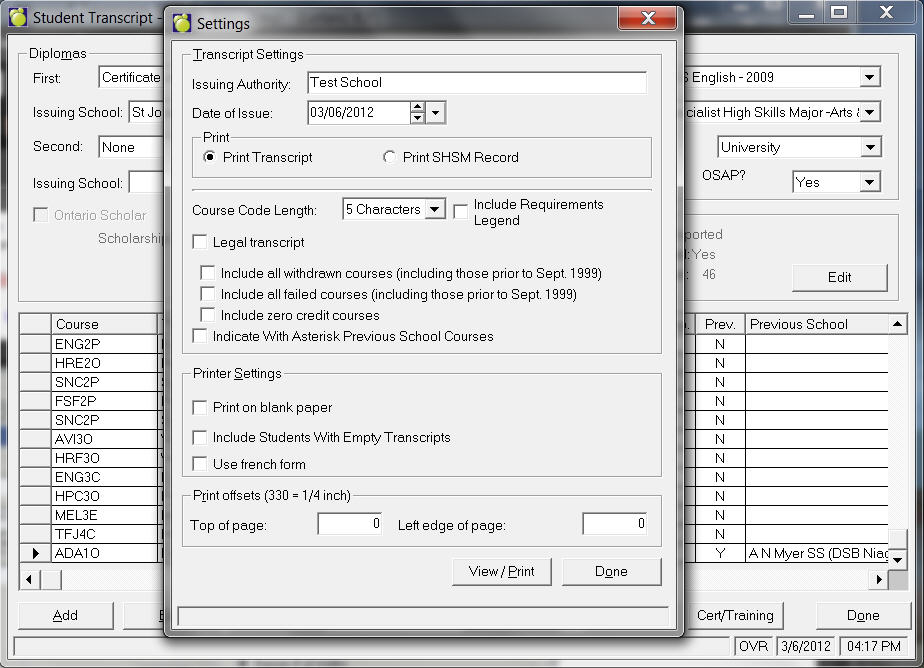
When you are ready to print click the Print button to specify settings.
If you would like to include a school logo, be sure to deselect Preprinted form.
Notes:
Caribbean Community and Common Market
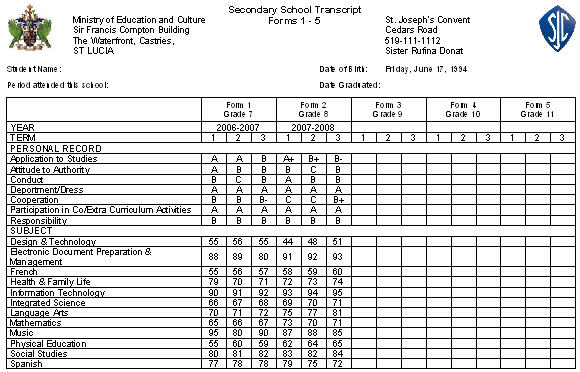
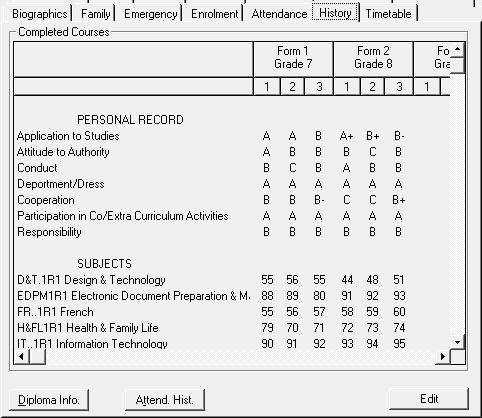
The History tab is where the student’s historical academic performance is maintained and an official transcript may be generated.
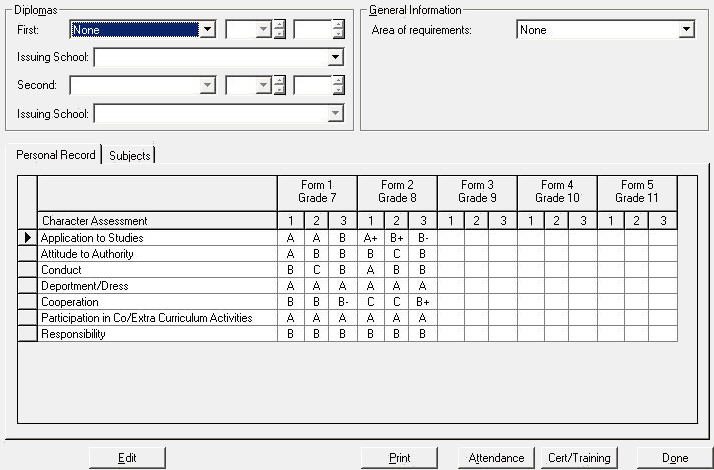
Use the Edit button to enter transcript information from the past. The Automatic Transcript Update process will take the information from the current year’s report card and automatically populate the transcript at the end of the year.
Personal Record tab shows the character assessment scores from the student’s report card for each Form (Grade) as shown here:
The Subjects tab within History is where the subjects on the transcripts are entered. Note that this example has user-defined codes set up in File, School Setup, Codes. Maplewood will work with the Ministry to determine what codes should be set up as it may be more intuitive to establish codes that don’t refer to the form (e.g. French rather than FR..1R1).
Once the transcript information is entered, the transcript may be printed using the Print button: