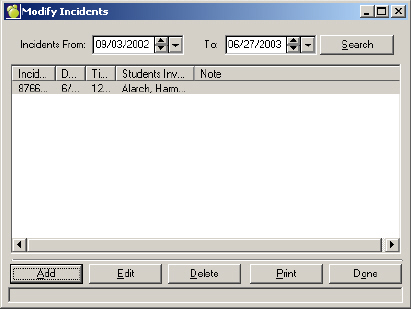
You can add/edit a Student Incident in one of the following ways. Your incident information is entered on identical forms with either method. The number of Incidents that may be added are unlimited and are each uniquely identified by an incident number.
To edit an existing Incident, select the Incident and click Edit. To add an Incident click Add:
Add/Edit Incidents will employ the drop-down lists as well as the list box with the new list order where entries with a Sort Key will be showing in Sort Key and alphabetical order and then items without Sort Key will be in their usual alphabetical order.
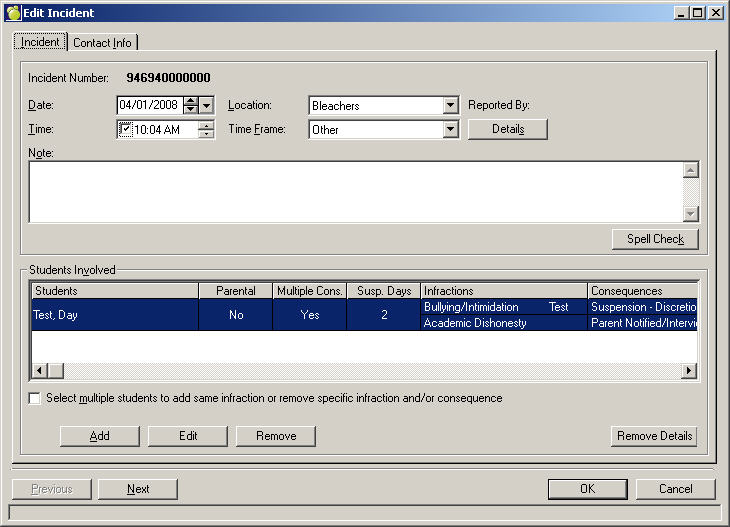
Begin by specifying the Date, Time, Location and Time Frame of the Incident. Enter the Reported By details by clicking the Details button.
Time of Incident
The Time of Incident selection box has an additional box within that field. When you create an incident, the program will enter the operating system's date and time by default. When you check the checkbox, the date field becomes inactive but retains the original entered time. When you save the selection and return to the student's list of incidents, the Time field will be blank.
Note
Enter specifics of the infraction in the Note area then add the involved student(s). If this incident is added through the student's record, the student's name will automatically appear.
Students Involved
To add the students press the Add button and then select Student. Repeat this if multiple students are involved.
Removing Details
Individual Student: To erase the details for an individual student, click the Remove Details button.
Multiple Students: You can now delete consequences or infractions from a group of students of the same incident.
Check the checkbox, Select multiple students..., and select students.
Click the Remove Details button.
Select either the Remove Infraction or Remove consequence option.
The program will eliminate both the infraction and the consequence if you select to remove a particular infraction from the selected students. Also, the program will eliminate only the selected consequence from the selected students should a consequence be removed.
Click Edit to enter the infraction/consequences for the selected student.
Hint: If the infraction information will be the same for multiple students, check the box for Select multiple students to add same infraction. The Edit button will change to Infractions. Click Infractions to specify the infraction(s) applicable for the selected students.
Note: Student incident details (such as contact information) and consequences must be entered on an individual student basis.
Contact Information
Click the Contact tab to add information contained in the Superintendent, Safe Schools Program and Alternative Program Office area. You can record title, name and contact (phone and email) information.