By completing the timetable and completing these tasks, the school's master timetable can be optimized and completed. Then repeat this process as many times as necessary until the whole timetable is constructed.
Step 21: Repeat Steps 17 to 20
The sequence of steps 17 through 20 is to be repeated as often as required to produce an evenly loaded school timetable which meets the greatest possible number of students choices. When the timetable is deemed to be satisfactory, the Load Students program should be allowed to run through the full 5 passes.
Step 17, Step 18, Step 19, Step 20.
Load Students places the students into classes where possible conflicts are kept to a minimum and even class sizes are maintained.
Modify class placements
Counsel students about choice changes and making appropriate alterations
Note: We highly advise you to complete each group of classes as far as possible before proceeding. The advantage of working on the most restrictive parts of the school first may be lost if less restrictive classes are scheduled into the timetable. Its a good idea to resolve some impossible conflicts with the students before proceeding with the next segment of the school timetable first.
Saving and Restoring Scheduling Timetables (Snapshot of a Timetable)
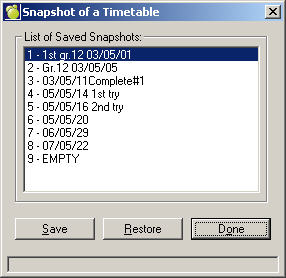
At any time during the scheduling process, if changes are going to be made which may not be beneficial to the timetable, a snapshot of the timetable may be saved using this feature. Choose Scheduling, Assign Classes, Snapshot of a Timetable.
A snapshot saves the master timetable (next year's classes file) at this point in its development, allowing the timetable to be restored to the point at which the snapshot was taken.