Report Card Marks & Comments By Class
Marks and comments for report card purposes may be entered using either
the Marks/Comments by Class or Marks/Comments by Student options within
Maplewood connectEd. This section describes the entry of report card information
based on a class list. For individual student entry of report card information,
please see:
Report Card
Marks & Comments By Student
Teachers should familiarize themselves with both methods, since they
may be used interchangeably.
At a minimum, teachers are expected to enter the marks and comments that
are required on the report cards, however, security rights may be granted
to teachers to record detailed diagnostic, formative and summative assessments
in markbooks. Those teachers who want to set up markbooks to record marks
for additional classroom assessments, including comments and homework,
please see:
Markbooks
Overview
The mark and comment-entry screens look basically the same whether markbooks
are enabled or not. This section of the manual concentrates on how to
use the Marks/Comments by Class option without markbooks.
Within Maplewood connectEd, select Achievement, then Marks/Comments
by Class.
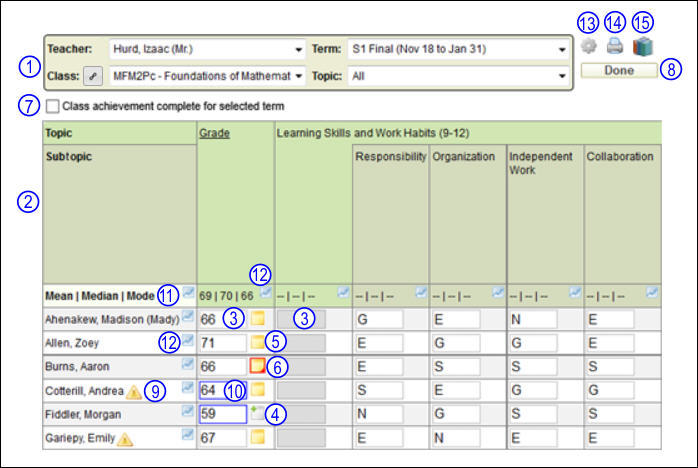
A screen similar to this will appear:
As explained in General Overview of the Office Setup for Report Cards,
the office will have determined what terms and topics are appropriate
for each class. The office also determines whether a term is locked or
unlocked for report card entries, and whether each topic or subtopic requires
a mark and/or a comment, along with the allowable types of marks and comment
size. With Maplewood’s guidance, the office setup should be done in such
a manner that the teacher can simply focus on entering the marks and comments
without any possibility for entry in the wrong spot.
The entry of marks and comments for report cards involves 4 steps:
A. Select the class
and the report card term (point 1)
B. Enter the report card marks
(point 3)
C. Enter the report card comments
(points 4, 5 & 6)
D. Set ‘Class
Achievement Complete for Selected Term’ if the option exists (point
7)
To leave the Mark/Comments by Class option, click the Done button (point
8).
There are other features in the Marks/Comments by Class application that
may be of interest:
Point 9: Student Alert
Point 10: Highlight Low Marks (colour
coded frame around marks below the standard deviation range)
Point 11: Statistics (shows 3 from Mean | Median
| Mode | Standard Deviation)
Point 12: Graphs
Point 13: Options
Point 14: Print
Point 15: Online
Teacher Resources
Note Regarding Usage Hints
Typically with any release that has interface
changes, Maplewood connectEd will present a “usage hint” on the affected
screen, to alert you to these changes. Once the message has been read,
check the box to prevent it from appearing again. Here is an example of
a usage hint message:
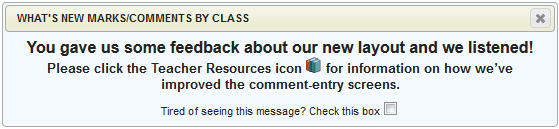
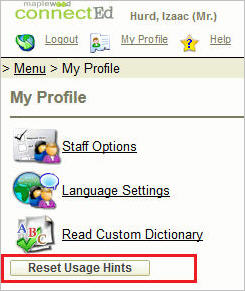
To reactivate all closed usage hints, go to My Profile and click the
Reset Usage Hints button as shown here:
Select the class and the report card term that is to be worked on. To
do this, use the Teacher, Class, Term and Topic filters as shown in point
1.
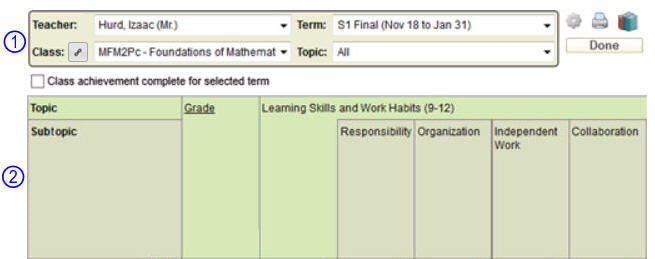
Since the teacher should be correctly set (unless the user is granted access
to multiple teachers), check that the following filters are correctly
set:
- Select the class to be worked on
by clicking the drop down arrow in the Class area. All classes and
homerooms assigned to the indicated teacher will be available for
selection. Some teachers may have classes that are established for
other purposes (such as placeholder classes or study periods), and
these classes may be setup by the office as non-reportable. If these
non-reportable classes are to be excluded from the Class drop down
list, check the "List Reportable Classes Only" checkbox
from the Options interface
(point 13). Note: If you teach classes that have the same terms and
topics, and there is the possibility that you may want to view/enter
marks and comments for the students in these classes using one combined
class lists, use the Link Similar Classes feature prior to setting
up the markbook. Once they are linked, the class selection box will
still provide the ability to select each class individually, in addition
to the ability to select those classes that are linked together. Linked
classes must be done prior to the markbook setup.
- Then select the Term. It will default
to the first chronological unlocked term (the school office controls
whether a term is locked or unlocked).
- Select one topic or subtopic, or
All topics from the Topic area. We would suggest that 'All' be selected
to ensure that nothing is forgotten in the report card entry.
The selected topics will appear as the column headings (point 2). Note
the colour coding of the topics vs subtopics. If a topic has subtopics
(e.g. Learning Skills and Work Habits is the topic, and Responsibility
is a subtopic), the topic column is disabled for mark entry. A scroll
bar will appear at the bottom (under the list of students) to move the
columns right and left, if necessary.
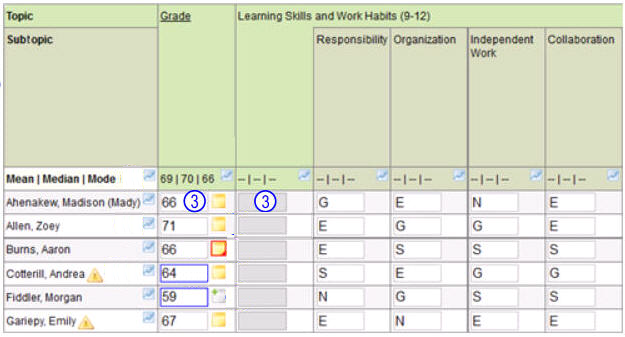
The students in the selected class will appear in list form in the first
column of the grid. If more students are listed than displayed on the
screen, a scroll bar will appear to the right to move the rows down or
up. Students who are no longer enrolled in the class may be optionally
displayed. These students will appear with a line through their names
to clearly indicate that they are deleted. The display of the deleted
students is controlled by the "Show Deleted Students" checkbox
from the Options interface.
Enter marks into the cells provided for each topic/subtopic. If mark
entry is disabled, the cells will appear grey (e.g., the column for “Learning
Skills and Work Habits”, above). All cells will be grey if the Term is
locked or if the topic has mark entry disabled.
Marks are entered by clicking into the desired cell and then entering
the student's mark. As you move between marks, use the arrow keys, tab
key or <Enter> key to navigate between marking cells. The Tab key
normally moves horizontally (e.g. to the next cell on the right), however
it can move to the next cell in the same column by checking the "Tab
Vertically" checkbox from the Options interface.
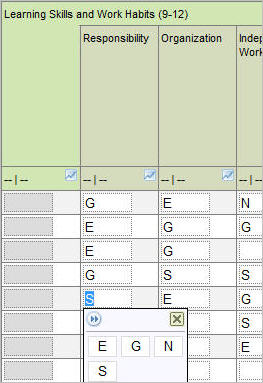
If letter grades are allowed, a box will appear with the allowable letters
in it where you can click the letter grade from the pop up, or you can
just type the letter directly into the cell. The display of the allowable
letter grades can be turned off by unchecking the "Display Letter
Grade Box" checkbox from the Options interface.
We recommend that the letter grade box is enabled when entering letters.
Invalid letters will not be allowed even if the letter grade box is not
visible.
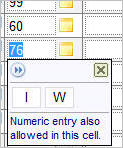
If both numbers and letters are allowed, the letter grade box will look
like this, indicating that there are letters available but numeric entry
is also allowed:
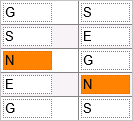
The school office can colour code letter grades, as shown in below where
"N" (for needs improvement) is defined as orange background
with black foreground (text). To see the letter grades entered with the
colour coding defined by the office, select the "Display Letter Grade
Colour Coding" checkbox from the Options interface.
Other Features and Tips
To assign the same mark to many students, enter the mark into one cell,
then use either CTRL+SHIFT+Up Arrow or CTRL+SHIFT+Down Arrow to assign
that same mark to all cells above or beneath that cell.
Entering overrides (only applicable if using markbooks or the school
has a calculated final mark).
Sometimes, there will be some automatically calculated marks. To override
a calculated mark, simply click in the cell with the calculated mark and
then enter the desired mark. This will cause the cell to turn yellow.
To return to the calculated mark, delete the overridden mark.
Marks are automatically saved when you move off the mark cell
The student's mark is saved as soon as you exit a particular mark cell.
You can verify this by watching the Session Timeout in the top right corner
of the screen. As soon as you enter a mark and go to another cell, that
timer should reset back to the highest value (this value is set by the
school). Please note, explicit saving is still required for comments.
Some school report card setups require a calculated final mark
Some school report card setups require a calculated final mark (e.g.
the final mark is based on 70% of the school mark and 30% of the exam
mark), and the teachers are expected to enter the exam mark and the school
mark into the appropriate columns so that the final mark may be calculated.
If the school has enabled this feature, select the "Show Final Mark"
checkbox from the Options interface. If this feature is not enabled, the
option will not appear.
In the Marks/Comments by Class interface, the final mark will appear
in a light blue column at the left:
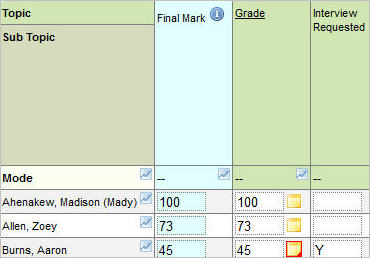
This mark can be written to, based on the settings at the school (whether
it allows mark entry at all, and whether it is locked or unlocked).
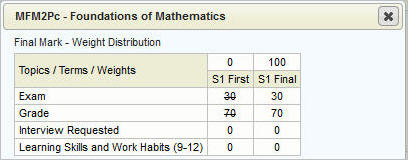
The info icon will display the term and topic weights that determine
the final mark. These are also set at the school. In the below example,
the term “S1 First” is worth zero, and therefore all topics under it are
negated (crossed out). S1 Final is worth 100% of the total final mark.
The Grade and Exam are weighted 70/30, and the Interview Requested (yes/no)
and Learning Skills topics do not factor in to the final mark at all.
Please see Additional
Information for School Office Staff for information on how to turn
this feature on if required.
Comments can be entered individually for students, or for groups of
students. The comments can be composed during the entry of the comment,
or the comment can be created by drawing from a bank of suggested comments
provided by the board/division, or the school, or your own bank of comments
(3 different comment banks). Comments support standard copy and paste
functionality, and, any comment composed for a student can be automatically
added to your bank of comments (aka My Comments)
for later use. Spell checking is available and is strongly encouraged.
The banks of suggested comments may contain fields such as {Name} or
gender specific words in the format {male word/female word} such as {He/She}.
These are called Context Sensitive Words.
Each comment has a corresponding number that may be used in the Quick
Comment Entry interfaces (for those teachers who like to enter the comments
by simply entering the comment # or #s to be assigned to the student).
Comments can also be given filters to help the narrow the suggested comments
to only those that apply to the specific course, grade, term, topic, comment
type (areas of improvement, strengths, next steps), level (1 to 4, R),
or category (Knowledge and Understanding, Thinking and Inquiry, Communication,
Application).
Please see My
Comments for further information on building your list of suggested
comments.
The students in the selected class will appear in list form in the first
column of the grid. If more students are listed than displayed on the
screen, a scroll bar will appear to the right to move the rows down or
up. Students who are no longer enrolled in the class may be optionally
displayed. These students will appear with a line through their names
to clearly indicate that they are deleted. The display of the deleted
students is controlled by the "Show Deleted Students" checkbox
from the Options interface (point 13).
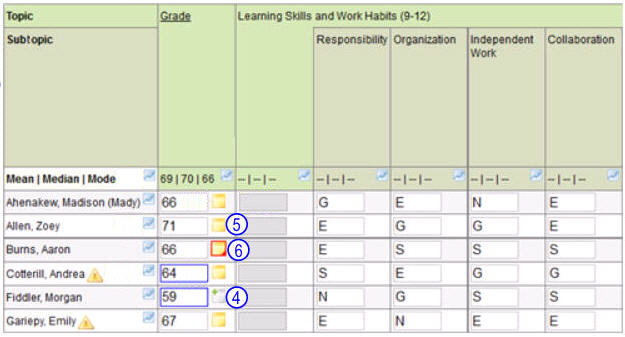
Comments may be entered for those marks that have a comment icon to
the right of the mark. Three different comment icons exist, represented
by points 4, 5, and 6 above. To apply a comment to a single student, click
the comment icon beside the mark.
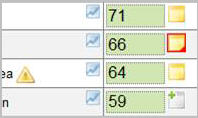
 indicates a topic that requires a comment, and no comment text is present.
 indicates
a topic that requires a comment, and some comment text is present.
indicates
a topic that requires a comment, and some comment text is present.
 indicates
that the comment text exceeds report card comment box dimensions (if applicable
– some report cards allow an expandable comment box and these will never
show a red outline).
indicates
that the comment text exceeds report card comment box dimensions (if applicable
– some report cards allow an expandable comment box and these will never
show a red outline).
When you click any of the 3 comment icons, the comment box will appear
as shown below. Enter the comment in the box provided and then click OK
to save
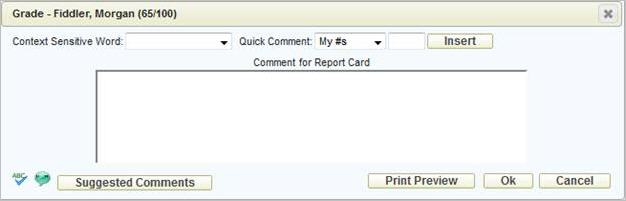
Please see Additional Comment
Information for additional information on entering comments including
Context Sensitive Words, Quick Comment Numbers and Suggested Comments.
Rather than entering one comment at a time, it may be easier to apply
a comment to a group of students first, as explained next, and then make
individual comment edits one student at a time.
Applying a Group Comment
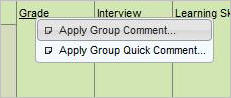
When a topic or subtopic is enabled for comments, not only will the
comment icons appear but the topic or subtopic will appear as a link (e.g.
underlined). Click the topic title and choose Apply Group Comment option
as shown here:
Compose the comment or partial comment that you wish to apply to some students:
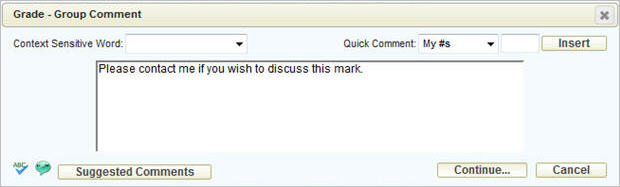
Click the Continue... button.
Check the box (in the first column) corresponding to those students
who are to receive this comment. The students can be sorted by name, grade,
mark and any applicable topic program codes (IEP, ESL, etc) by clicking
the column title.
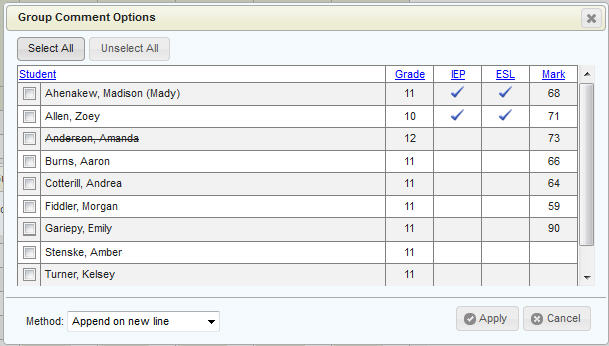
Choose the Method from the drop down list as shown here:
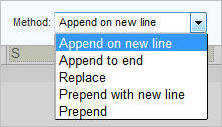
Append on
new line: The new comment will be added on the next line after
the existing comment.
Append to end: The new comment
will be added after the existing comment. A space will be inserted between
the existing and the new comment.
Replace: The new comment will replace
the existing comment.
Prepend with new line: The new
comment will be added before the existing comment. The existing comment
will start on the next line after the new comment.
Prepend: The new comment will be
added before the existing comment .A space will be inserted between the
new and the existing comment.
Once the information is correct on the interface, click the Apply button
to apply the comment text to the selected students.
Applying a Group Quick Comment
Quick comment entry is not necessarily quick, but rather, it is a quick
entry method for those teachers who plan their comments on paper using
a printed comment list with the corresponding comment numbers. Once the
comment # or #s have been noted on a printed class list (or the teacher
just knows the comment numbers to be given to the students), the Apply
Group Quick Comment provides the tool to enter these comment numbers.
When a topic or subtopic is enabled for comments, not only will the
comment icons appear but the topic or subtopic will appear as a link (e.g.
underlined). Click the topic title and choose Apply Group Quick Comment
option as shown here:
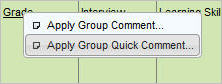
Select the comment bank (which should correspond to the comment bank
which was used to determine the numbers to be applied to the students.
Choose from School Comment #s, Teacher Comment #s or Board Comment #s.
Then, enter the comment number(s) into the right-most column. The students
can be sorted by name, grade, mark and any applicable topic program codes
(IEP, etc).
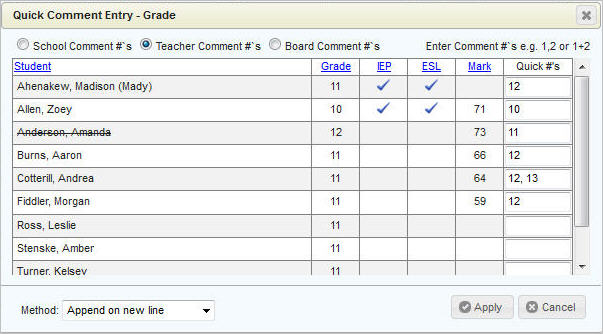
Choose the Method:
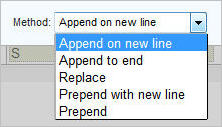
Append on
new line: The new comment will be added on the next line after
the existing comment.
Append to end: The new comment
will be added after the existing comment. A space will be inserted between
the existing and the new comment.
Replace: The new comment will replace
the existing comment.
Prepend with new line: The new
comment will be added before the existing comment. The existing comment
will start on the next line after the new comment.
Prepend: The new comment will be
added before the existing comment .A space will be inserted between the
new and the existing comment.
Once the information is correct on the interface, click the Apply button.
The text of the corresponding comment # or #s will be applied to the selected
students.
Often, report card information is reviewed by the school administration
or another staff member prior to issuing report cards to students. Rather
than printing draft copies of report cards, the contents may be viewed/edited,
using Maplewood connectEd,if the user has rights to all classes. Since
the review process may take some time, the office can configure Maplewood
connectEd such that "Teachers Determine When Achievement is Published".
When this feature is enabled, the teacher will see a check box for "Class
achievement complete for selected term" as shown here at the top
of the Marks/Comments by Class screen:
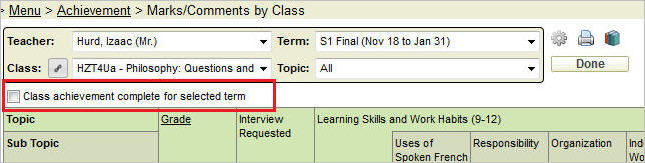
This box must be checked when the teacher is finished the report card
entry for the class for the current report card term.
If this box is not checked, the school administrators with rights to
the achievement information for all classes, will see a message indicating
"Achievement details have not been completed for this term"
when accessing Marks/Comments by Class as shown here:

They will receive a similar message as shown below when trying to run
reports on this information, as shown here:
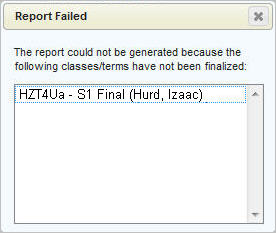
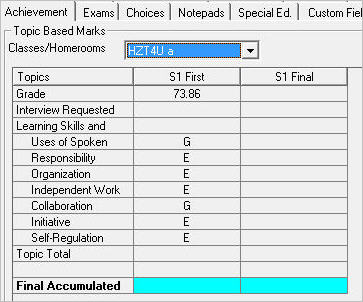
The school office, will not be able to see the marks either as shown
here where the S1 Final column is blank:
Important notes about this feature:
If the school has set the Report Card Review Access Date, all
teachers’ marks and comments under that term will be visible from
that date, regardless of whether or not each teacher has published
their achievement for that term. For more information on this date,
please see Additional
Information for School Office Staff.
This has no effect on whether or not parents see any information.
What the parents/students see is determined by their user permissions,
and other settings defined by the school. For more information on
this, please see Sharing
Achievement Information with Students and Parents.
Here are some other aspects of Mark/Comment Entry by Class that may
be of interest:
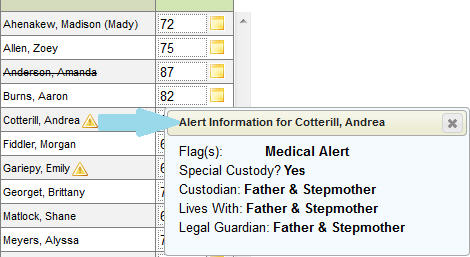
The alert symbol  to the right of a student's name, allows the teacher to click the icon
to see additional information for a student, in particular, the school
defined flags that the office has applied to the student, and information
regarding a student which a special custody status. The school office
must grant access to the alerts in order for them to appear. Here is an
example:
to the right of a student's name, allows the teacher to click the icon
to see additional information for a student, in particular, the school
defined flags that the office has applied to the student, and information
regarding a student which a special custody status. The school office
must grant access to the alerts in order for them to appear. Here is an
example:
Point 11: Statistics (Mean
| Median | Mode | Standard Deviation)
Use the Options icon at the top of the screen to enable these features
under the Show Mark Statistics option.
Up to 3 of 4 possible statistics may be displayed for each column of
marks by checking the box beside the desired 3 statistics from these choices:
Mean
(average)
Median (middle)
Mode (highest occurrence)
Standard deviation (dispersion
from the mean)
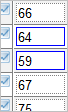
There is also a check box to Highlight Low Marks which will then show
a blue border around cells containing the low marks that are outside of
the standard deviation as shown here:
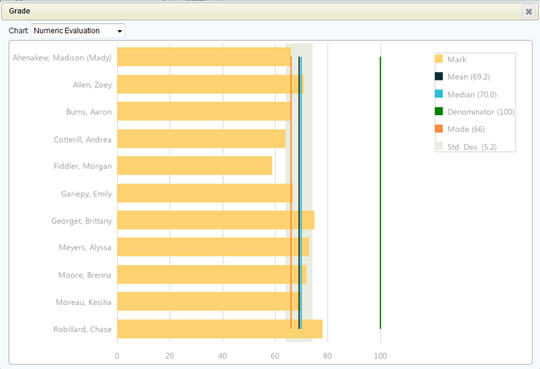
Use the graph icon  in the header
to see the class statistics in a graphical form.
in the header
to see the class statistics in a graphical form.
Below is an example of a graph of numeric marks. Some statistics are included
in this graph and are referred to in the legend. For more information
on statistics, please see Point 11: Statistics.
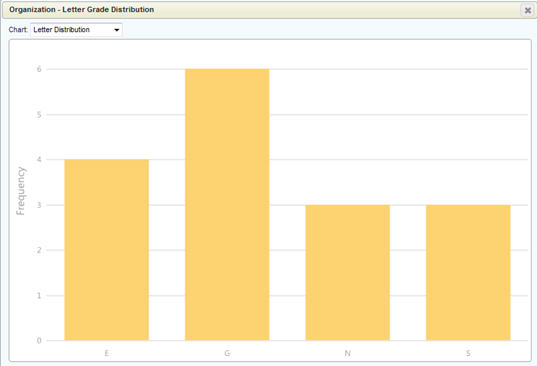
Below is an example of a graph of letter grades:
Note: Graphing is more extensive
when markbooks are used.
The Marks/Comments screen can be customized using the Options icon at
the top of the screen:

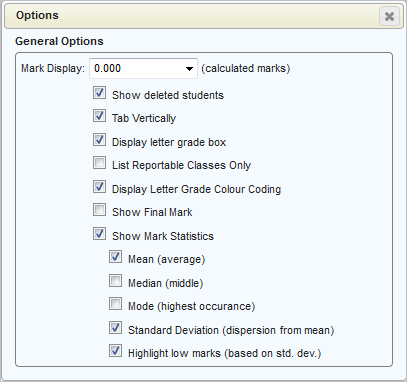
Note: additional options will appear
if markbooks are enabled. See Markbooks for additional information.
Mark Display (calculated marks):
If a markbook is in use, or there are subtopics that are weighted to calculate
to a master topic, this option will govern how many decimal places the
teacher will see for those calculated marks. Options are:
No Formatting: marks will appear
exactly as calculated
0 - marks will be rounded to a
whole number
0.0 - mark will be rounded to one
decimal place regardless of how many digits are actually in the mark (e.g.,
75 will appear as 75.0)
0.00- mark will be rounded to two
decimal places regardless of how many digits are actually in the mark
(e.g., 75.5 will appear as 75.50)
0.000- mark will be rounded to
three decimal places regardless of how many digits are actually in the
mark (e.g., 75.52 will appear as 75.520)
Please note: you can access the original mark by clicking in the
individual mark cell. (The mark is still stored in the database with no
formatting). E.g.:

Show Deleted Students: When this option is selected,
students who have a deleted enrolment status, and students who have dropped
the class, will appear in the list but with strikeout text. (e.g., Pilon,
Kyle)
Tab Vertically: Toggle the mark-entry method between
vertical tabbing and horizontal. Note, using the arrow keys is not affected
by this setting.
Display Letter Grade Box: For any reason the teacher
may want to hide the letter grade box that appears when they click in
a marking cell. This may make the screen to look neater, but is not generally
recommended as it may cause confusion as to which letter grades are allowed.
List Reportable Classes Only: For any reason the office
may have set a class to not be reportable but the teacher still needs
to enter marks for it. Unchecking this box will cause all classes to display
regardless of reportable status.
Display Letter Grade Colour Coding: If the school has
set up colours for each letter grade, this option will cause the mark
cells to turn the appropriate colour when a specific letter grade is entered.
Show Final Mark: If your school has enabled this
feature, you will have the option to show the final mark. For more information
on this, please see Some setups may include a calculated
final mark.
Show Mark Statistics: Under this option, you may select up to three
statistics to display:
Mean (average)
Median (middle)
Mode (highest occurrence)
Standard deviation (dispersion
from the mean)
Highlight Low Marks (a blue border will display around
cells containing the low marks that are outside of the standard deviation
as shown below)
Note: graphing functionality will still be enabled if no mark statistic
options are selected.
Click the Print  icon to access
the following options:
icon to access
the following options:
Comment Verification: Prints
all marks and comments for all topics, for the selected term.
Provincial Report Card (Ontario Only):
This option will open up another tab and give you options for which Ontario
Provincial report card to print and which students to select.
Report Card: This option will
open up another tab and give you options for which report card to print,
and which students to select.
Blank Recording Sheet: This
option will give you the following choices so that you can print a blank
marking sheet:
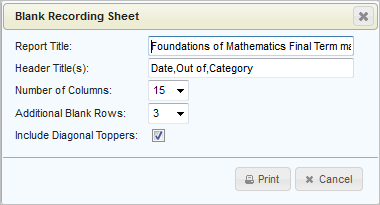
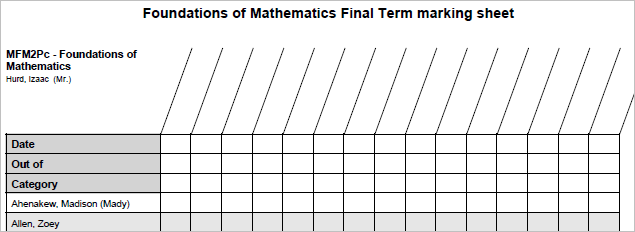
Sample output:
Point 15: Online Teacher Resources
 Online Teacher
Resources
Online Teacher
Resources
Stay up-to-date with changes by clicking the Online Teacher Resources
button. This will bring you to a separate
page which contains documents and instructional videos on any new
features that we have introduced.
The following information is provided for the benefit of the school
office if they are unaware of how to enable certain features discussed
in this section. Office staff, if you are unsure whether to enable a feature,
please consult your board/division Maplewood contact, or contact Maplewood.
Open your Maplewood Administration System for Windows.
How to Enable Achievement Options
Final Mark: To enable this feature,
go to Maplewood connectEd Security then File – Configure Maplewood connectEd.
On the first tab, select Show accumulated mark in teacher site.
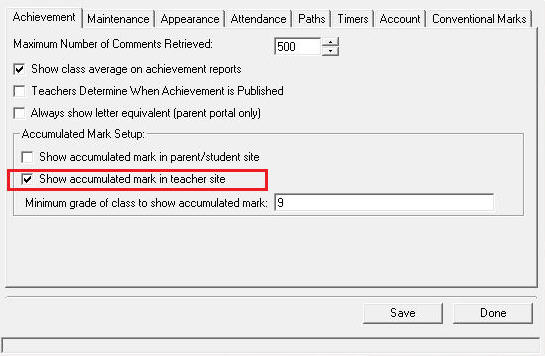
You can also specify the minimum grade of the class in which to show
the final mark. This is handy for K-12 schools where the secondary teachers
would like to see the final mark but the elementary teachers do not need
this information.
The option is also there to enable the final mark for parents (in the
checkbox above the one highlighted above). When this option is selected
the parents will be able to see the final mark through the parent/student
Maplewood connectEd site.
Teachers determine when achievement is published
To enable this feature, go to Maplewood connectEd Security then File
– Configure Maplewood connectEd. On the first tab, select Teachers Determine
When Achievement is Published.
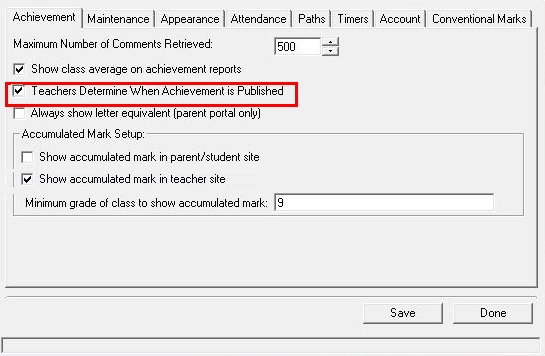
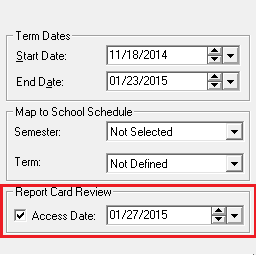
Please note, if the school has set the Report Card Review Access Date,
then the teachers’ marks and comments will be visible from that day on,
regardless of whether or not the teacher has published their achievement
for that term. This field is available in the Define Terms screen:
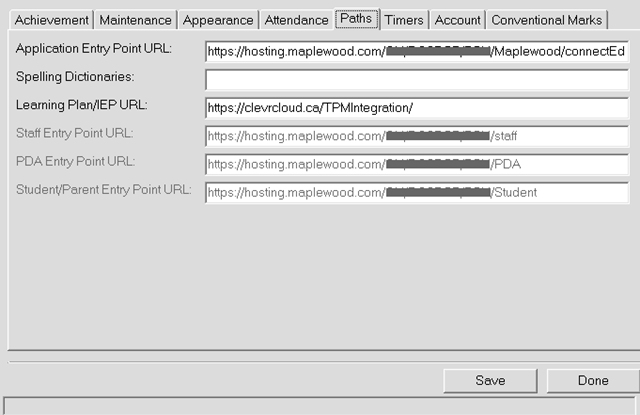
Application Paths
If you are a Maplewood hosted customer the paths setup would look similar
to this:
Application Entry Point URL: How is a web application started, where
the entry point is located
Spelling Dictionaries: If you have a dictionary for your comment spellchecking
this would be the directory.
Learning Plan/IEP URL: If your school uses a third party learning plan
software program this is where information is stored. Here the school
is using Clevr.
Staff Entry Point URL: Where the entry point is located for Staff to
use.
PDA Entry Point URL: Where the entry point for PDA is located.
Student/Parent Entry Point URL: Where the entry point is located
for Students to use.