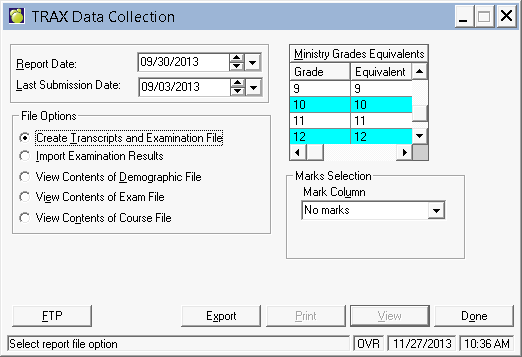
1. To create TRAX Files, select Reports, TRAX Data Transfers, choose the Create Transcripts and Examinations (TRAX) Files option.
2. Enter the report date. Students enrolled in your school after this date are ignored.
3. Enter the last submission date (the date the school last submitted files to TRAX). Enter the first day of school if creating the first set of files for a new school year. Students will not be included if they were deleted on or before this date (the Ministry will already know they are deleted).
4. In the Ministry Grades Equivalents section, check that each grade used in the school (in the Grade column on the left) has a Ministry code (in the Equivalent column on the right). Typically, Maplewood will automatically set the correct equivalent grades for grades 1 to 12, H, J, and K. If the school uses other grades, this section can be used to make sure that the TRAX file uses the correct code for these grades. This chart illustrates how Maplewood will default the Ministry Grade Equivalents:
| Maplewood Grade | Ministry Code | Definition |
|
H |
HS |
Home School Registration |
| 8 | 8 | Grade 8 |
| 9 | 9 | Grade 9 |
| 10 | 10 | Grade 10 |
| 11 | 11 | Grade 11 |
| 12 | 12 | Grade 12 |
| Everything else | OT | Other |
Note: Generally, the adult students in a school will have their grade in Maplewood set to 11 or 12. Maplewood will then use the Adult Education Status field in Maplewood to set the grade in the TRAX files as follows: if the student's Adult Education Status is Graduating, then AD will appear as the student's grade in the TRAX file. If the student's Adult Education Status is Non-Graduating, then AN will appear as the student's grade in the TRAX file. The Adult Education Status field is available by selecting the Edit button within the student's History tab. AD = Eligible for Adult Graduation Program, AN = Not Eligible for Adult Graduation Program.
5. If interim marks are available, select the Mark Column where the marks are located. The Mark Columns are viewable in the student's record on the Achievement tab. If marks are not visible in the marks column, but are visible using the Topic Based Marks option on the Achievement tab, it will be necessary to map the topic-based marks into the conventional mark columns.
6. Select Export to create the file. Save the file by selecting the path where the files will be saved, and then select Save.
7. When the export is completed, a display of the following information will appear:
8. To view the information in the file, Select Print or View, choose the file from the Open File window (########.DEM - Demographics File, ########.XAM - Exam File, and/or ########.CRS - Course information) and select Open. Each of the three files should be selected in turn. Check the accuracy of the data. If any changes need to be made, adjust the student’s record and then re-create the file. The links below provide detailed information on how the information in Maplewood is used to populate the TRAX files.
Link to the contents of the DEM file.