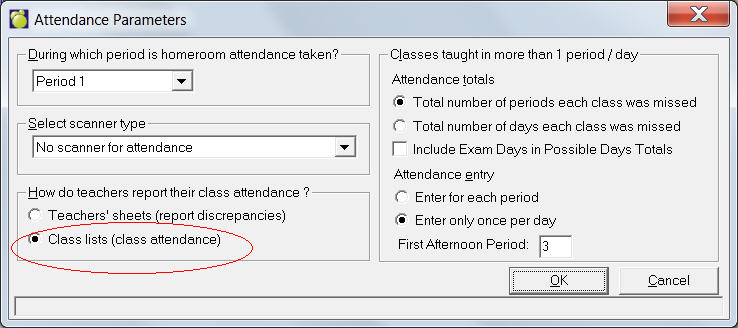
This method uses a class list (printed monthly) where the teachers mark the absentees. The class lists may be returned and entered as soon as the attendance for the class is taken. Administrators can obtain information about deviant attendance as soon as it is entered.
This method takes more time for entry since a student who is absent for the entire day is entered into the computer once for every class in which he is enrolled and the attendance entries are made constantly throughout the day.
A twist on this method involves using a Barcode Reader: Class lists are printed with each student’s number coded into barcode format. These sheets are returned to the office every period. The attendance secretary uses a barcode reader to record the absent students.
Daily Procedure: Attendance by Class (with or without barcode reader)
1. Change Date
Use File, Change Date to select today’s date.
2. Initialize Today’s Attendance
Choose Attendance, Enter Attendance, Initialize Today’s Attendance. Each day’s attendance is kept in a Temporary Attendance Register that is changed throughout the entry of attendance information. Once all of the information has been entered and the Reports of Classes Missed have been printed, the file must be cleared for the next day’s use. Clearing the file designates all students as initially present, pending the entry of information to the contrary. The process also sets the teachers’ files to indicate that attendance reports have not yet been given to the office.
Caution: Failing to clear the file will leave all students absent who were absent since the file was last cleared.
Notes: Be sure to be on the day that you want to work with.
Clearing the Temporary Attendance Register more than once between uses will not cause any problems.
3. Enter Students Excused Before Homeroom
Use Attendance, Enter Attendance, Excused Before Homeroom to enter students who are going to be away for the whole day or for part of the day (if known at this point). When you know that students are going to be away later in the day, it saves work for teachers and office staff if the information is entered into the computer before the homeroom attendance is entered. Students should be encouraged to report plans for their early departures to the office.
If a student is excused before homeroom for the period in which homeroom attendance is taken, the subsequent homeroom absence is ignored. This option may be used at any point during the day.
There are two ways to use this program:
Note: If a student is assigned a homeroom and the office notates that he will be Late in homeroom, the Print Teachers' Absentee List will report that the student will be late for the homeroom attendance.
4. Enter Students Excursion Lists
Use Attendance, Enter Attendance, Excursions to enter groups of students who are going to be away for the whole or for part of the day (if known at this point). This could be an excursion group, the entire school, students in a specific grade or homeroom, students with a specific defined character, students in a specific class, students that take a specific bus, or any other group definable through an Inquiry list.
When you click Apply attendance note to excursion, the screen expands to include the note entry area.
To the right you will see these four options in the Confirmation frame:
Checking Override all previous entries will change everyone in the list, even those with previous entries.
5. Enter Homeroom Attendance (if applicable)
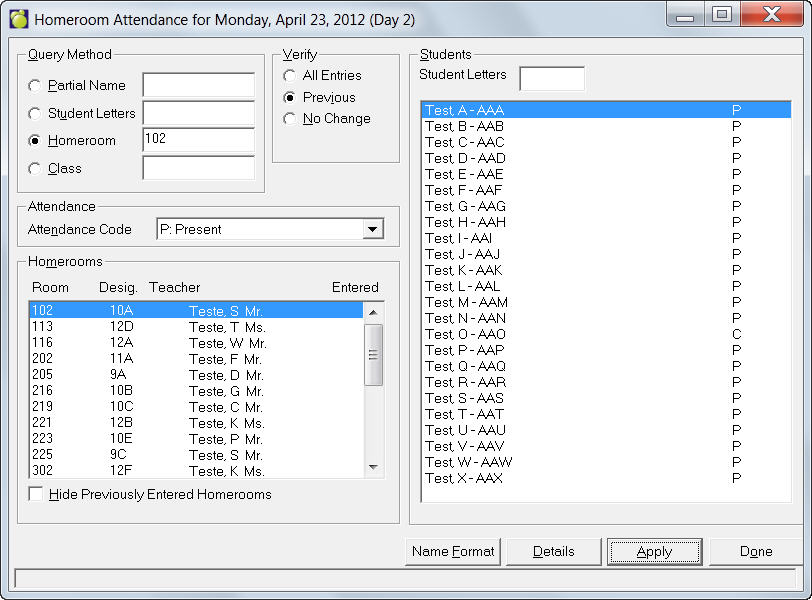
If taking homeroom attendance, as set in the Attendance Parameters, use Attendance, Enter Attendance, Homeroom Attendance.
The first thing that you will need to do is locate the students for whom you want to take attendance. Choose Partial Name, Student Letters or Homeroom from the Query Method frame. Although you can enter the absentees individually, it is probably more convenient to enter them by homeroom if the attendance information comes to the office by homeroom.
As you enter the homeroom attendance, the entries you make can be verified against any previous entries the students may have (i.e. through Excused Before Homeroom or Excursions). Under the Verify area, you can select from the following choices for verifying:
To mark a student absent, select the Absent code from the drop-down list, select the student, and click Apply or you can double-click on the student. Holding CTRL while clicking selects multiple students.
Click the Hide Previously Entered Homeroom check box to remove homerooms with previously recorded attendance from the display.
To see details for an entry select a student and click Details.
To change office entry attendance codes click in the Office Entry boxes and a drop-down arrow will appear. Select from the drop-down list of codes.
If you want to make an attendance entry applicable for the whole day you can check the boxes beside the period and select a code from the drop-down list that appears. This saves you from having to select the same code for each period on the right side of the Details box.
6. Enter First Period Class Attendance
To enter First Period Class Attendance, first choos Attendance, Attendance Parameters, and be sure that Class Attendance is selected.
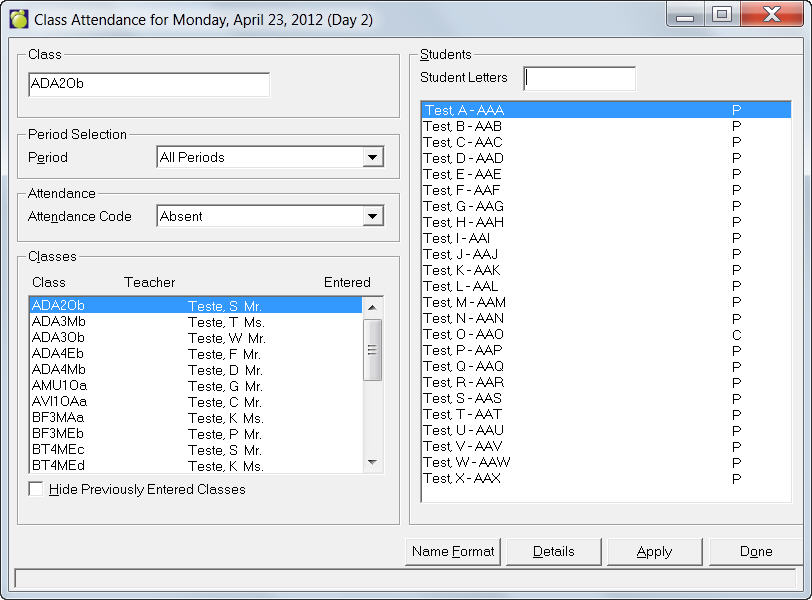
Choose Attendance, Enter Attendance, Class Attendance. A box similar to the Homeroom Attendance box will appear. Enter the Class or Student Letters option and enter as much information as you know.
To see details for an entry select a student and click Details.
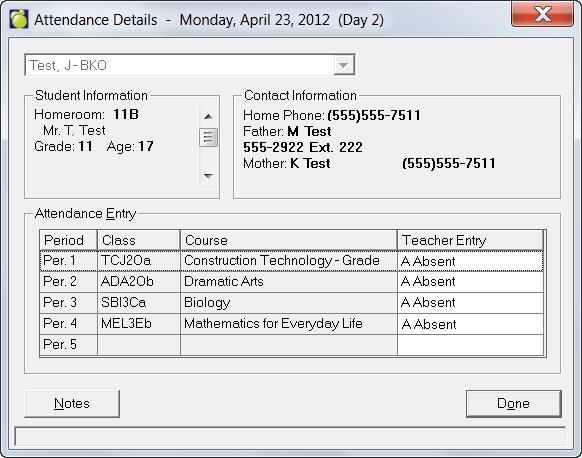
To change office entry attendance codes click in the Teacher Entry boxes and a drop-down arrow will appear. Select from the drop-down list of codes.
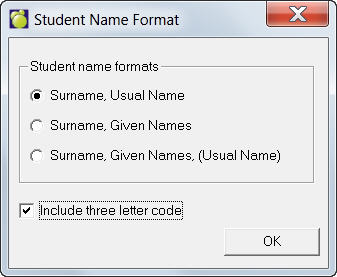
By default, the name display is Surname, Usual Name. To change how names are displayed in the Students column, click Name Format and specify a new display there". The three letter code can also be displayed or not displayed.
7. Print Today’s Absentees
Use Attendance, Print Today’s Absentees to print a list of absentees and make calls home if necessary. (If taking homeroom attendance, you may print this immediately after step 5 or after step 6).
8. Enter Attendance Sheets for Remaining Periods
Use Attendance, Enter Attendance, Class Attendance to enter the remaining attendance sheets for the other periods. This may be done as soon as you get them or you may leave them and enter them at the end of the day. See Step 6 for more information.
9. Enter Students Who Signed In or Out
The students may be signed in or out at any time during the school day after you have entered homeroom attendance. A few entries may be made at a time or more conveniently, all entries may be made at once at the end of the day.
When students leave before the end of their school day, they are to sign out for the first period to be missed (e.g. for the first period a teacher would mark the student as absent). If they have no class in the period entered, the computer will enter the period of the first class they do have scheduled after the period entered.
When students arrive late to school, they are to sign in. The period during which they will first attend class is to be entered. If they have no class in the period entered, the computer will use the first period in which they should attend class.
Students who sign in or out during the day are entered through Attendance, Enter Attendance, Office (Sign In/Out).
10. Cancel Class (if applicable)
On those occasions when a class is not conducted, the class should be cancelled to prevent deviations from the expected attendance. You can also cancel all classes taught in a specific period. Choose Attendance, Enter Attendance, Cancel Class.
Note: The entry of cancelled classes must be made just before printing the Reports of Classes Missed. Any subsequent attendance entries will write on top of the information of the cancelled class. If you have to enter added information after cancelling classes, the situation can be easily corrected by cancelling the classes again.
11. Print the Reports of Classes Missed
Using Attendance, Print Reports of Classes Missed, print the desired "end of the day" reports. Once the reports have been printed, the attendance is automatically stored in the Permanent Register.
12. Examine Deviation Reports
Examine the Deviation Reports (printed in step 11) and arrange student interviews to resolve the unexplained attendance.