Once you have added a student, you can view and edit the record. Choose Students, Student Records from the main screen. Select a student from the list and click OK. You will see a Student Records screen. Click tabs to see the student’s information.
Viewing Students in Other Schools
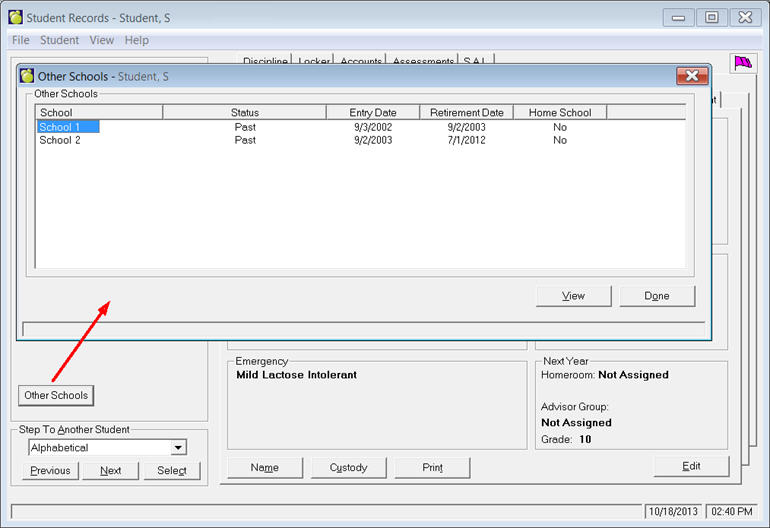
Click the Other Schools button.
Security has been added for the Other Schools Button in Student Records. Users can be set to View Only, or No Rights.
*IMPORTANT NOTE- Security items, when added to Maplewood, are set to "No Rights" by default. When this update is applied, users who previously had rights to the Other Schools button will no longer be able to see it. This can be updated globally through Central Office. Please contact Customer Support if you need assistance with this.
You can also use the View menu in student records to access the same tabs.
Note: For Ontario users, there is an additional option called Ontario Report Card Details & EQAO Tests. Click here for more information
Accounts
Achievement
Attendance
Biographics
Custom Fields
Choices
Discipline
Emergency
Enrollment
Exams
Family/Contacts
History
Library
Locker
Notepads
Religion
S.A.L.
Special Education
Timetable
Transportation